

Operating system updates for Caretta are deployed Over-The-Air (OTA). The process runs automatically in the background once initiated by the user and preserves all existing user data.
Important Pre-Update Checks
Warning: Do not apply an operating system update if an SD card is installed and configured as internal storage expansion. SD cards configured for portable storage / file sharing pose no risk.
Important Note on Firmware: Firmware updates associated with Cradle charging, CAN bus, and RS485 connectivity are separate from OS updates and are deployed via the NGH application. For full details, please refer to: Firmware updates.
- High-Speed Wi-Fi: Connect Caretta to a reliable, high-speed Wi-Fi network before starting, as the update package is approximately 2 GB.
- Data Backup: While user data is preserved, backing up important files (e.g., to Google Drive or external storage) is recommended as a standard precaution.
How to Access and Apply Updates
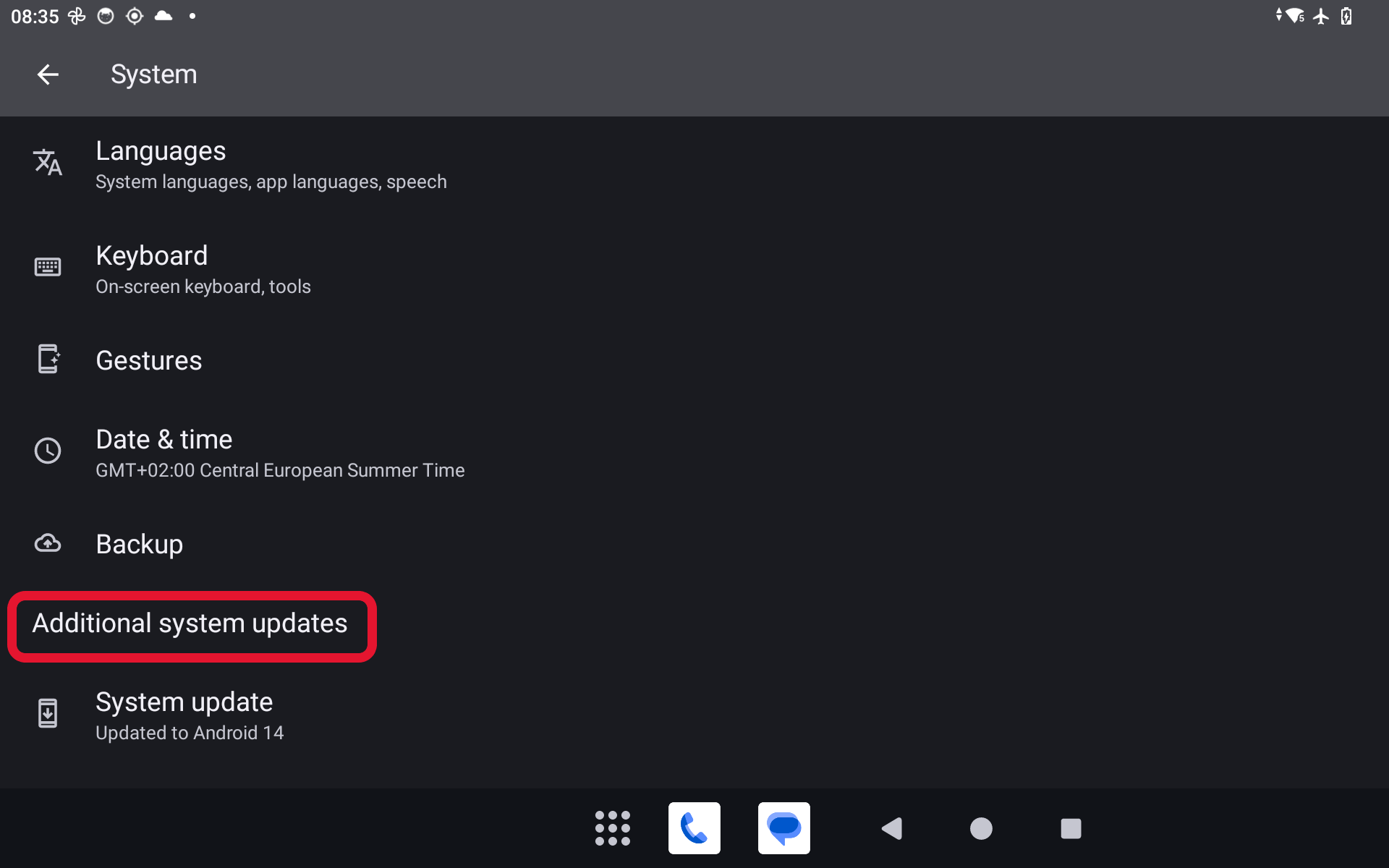
The operating system updater is located in Settings > System > Additional system updates (tap the menu item directly to open the updater):
Update Process and Installation
- Once the update begins, you can continue using Caretta normally—the download and preparation run automatically in the background.
- To monitor progress at any time, return to Settings > System > Additional system updates.
- Once the update is ready, a prompt will appear requesting a restart. You can restart directly from the update dialog or by long-pressing the physical Power button and selecting Restart from the power menu.
System Update Notifications (Build ID 20260616 and Newer)
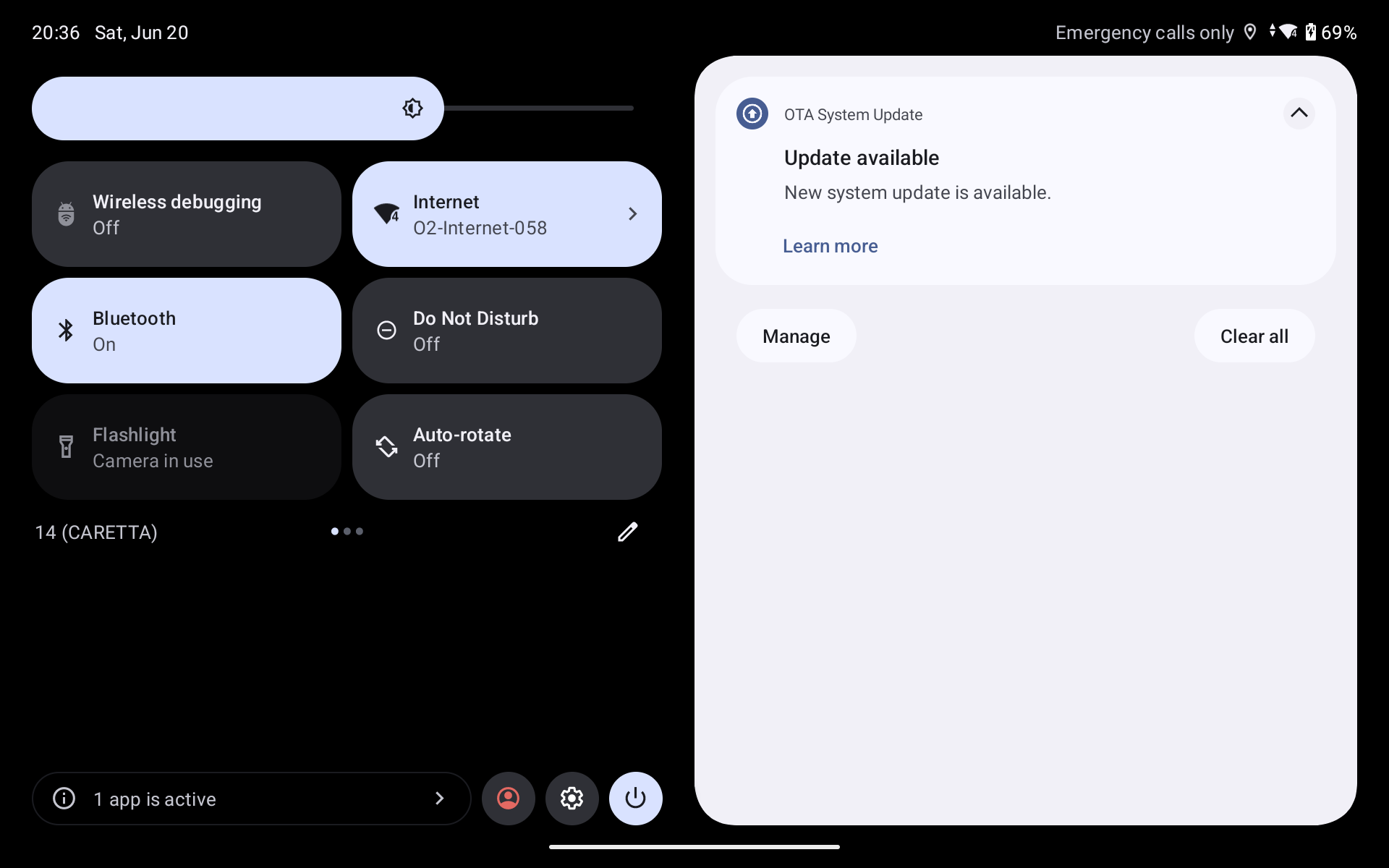
Starting from OS Build ID 20260616, available updates generate a system notification with a "Learn more" option linking to release notes:
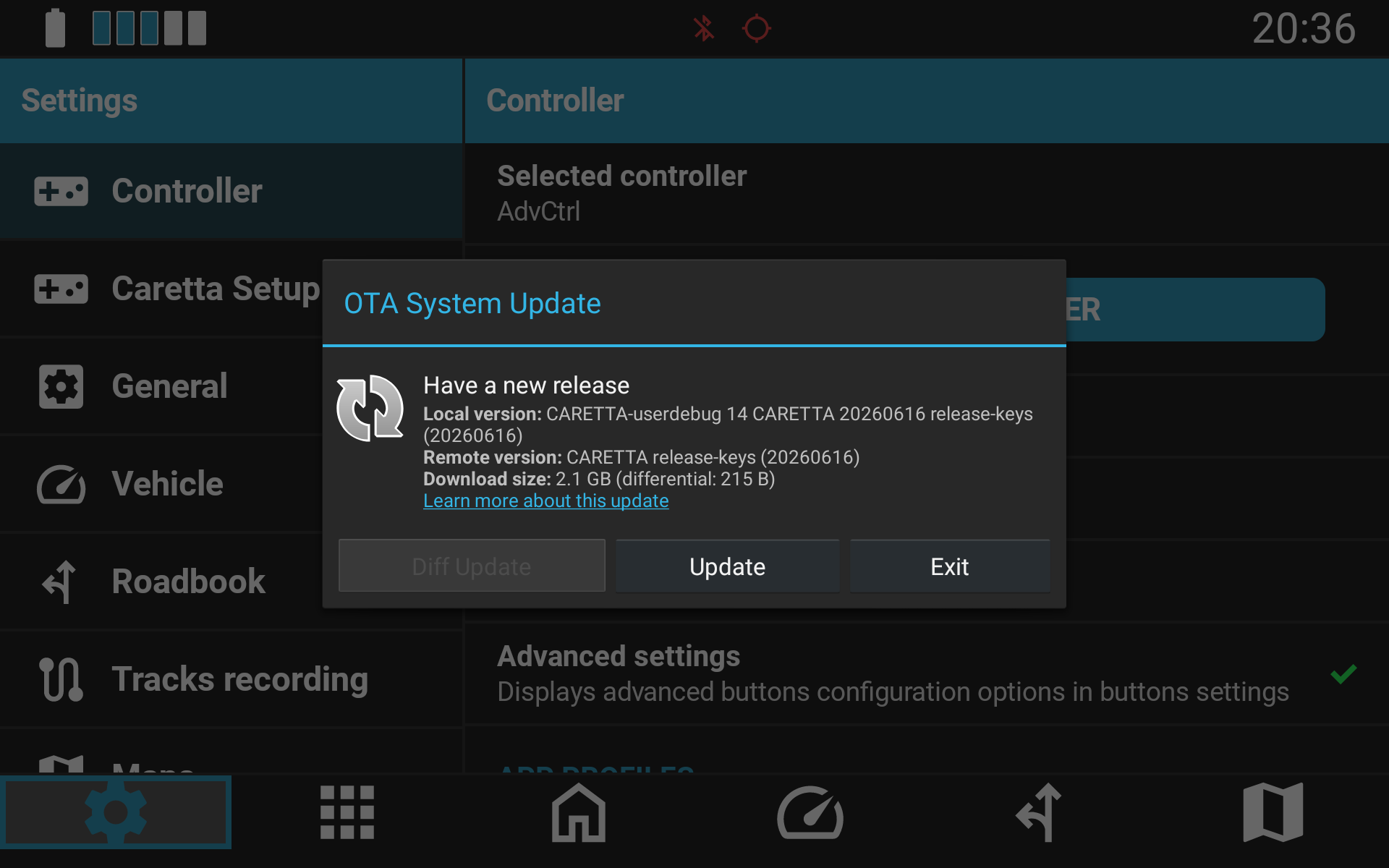
Tapping the notification opens the update interface to initiate the update process:
Was this article helpful?
That’s Great!
Thank you for your feedback
Sorry! We couldn't be helpful
Thank you for your feedback
Feedback sent
We appreciate your effort and will try to fix the article