

Carpe Iter controllers (Terrain Command, Adventure Control, BMW Control, and Caretta BMW Multi-Controller) feature native Auto-Profile integration with Google Maps.
When Next-Gen HUD (NGH) detects Google Maps in the foreground, your controller dynamically reconfigures to handle navigation actions automatically, while allowing you to customize and remap functions to fit your personal riding preferences.
All Supported In-App Functions
The following functions are fully supported by NGH for Google Maps. Depending on your controller model, some functions are mapped out-of-the-box, while others can be assigned manually via the NGH button configuration interface:
- Map Panning: Directional panning across the map display.
- Zooming: Instant zoom in and zoom out.
- Map Centering: One-click re-centering on your current GPS location.
- Route Overview: Toggle between turn-by-turn navigation view and the full route overview.
Customizing Your Layout: You can easily rebind, swap, or add any of these functions to specific short-press, long-press, or double-press button combinations. For step-by-step instructions, see How to configure / customize remote controller.
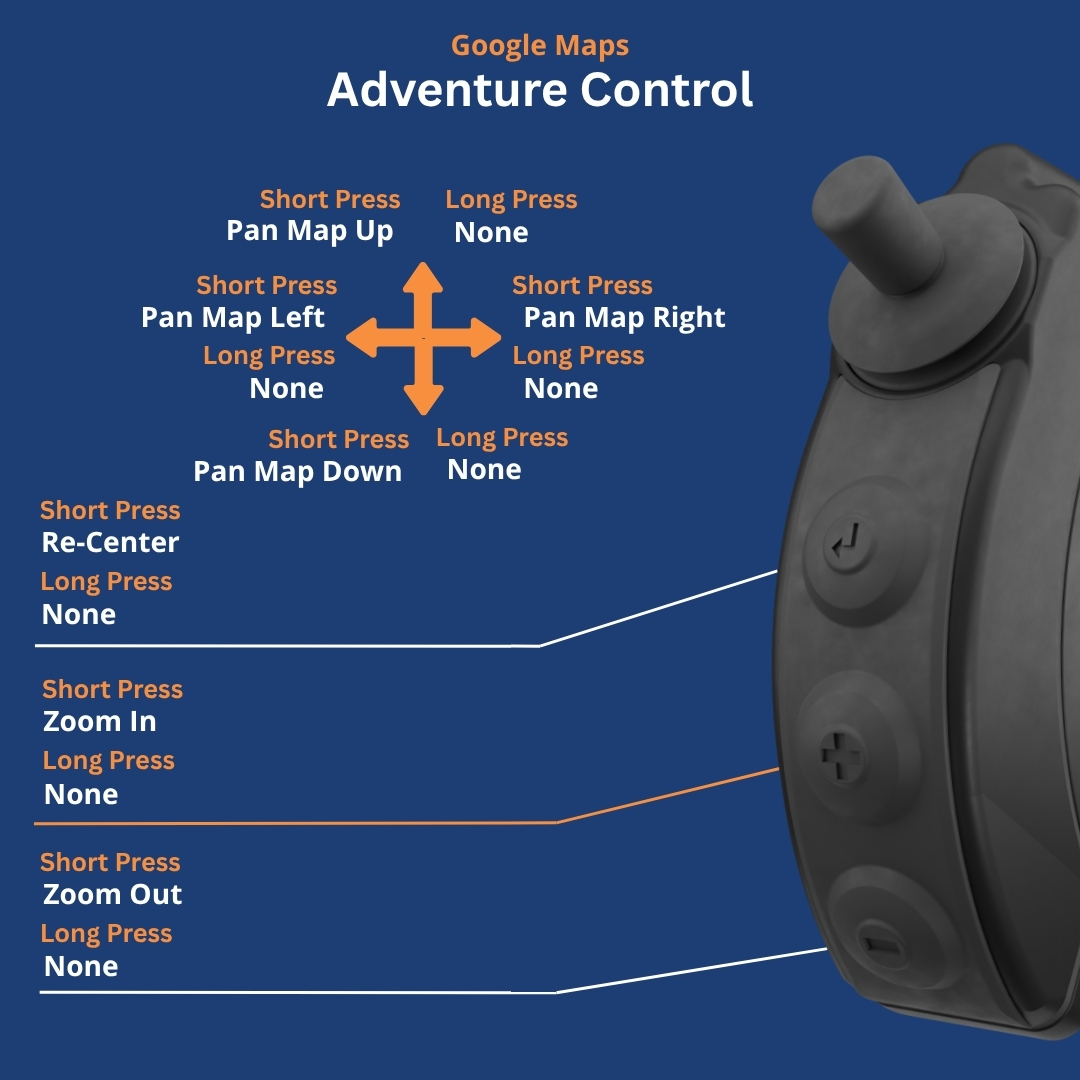
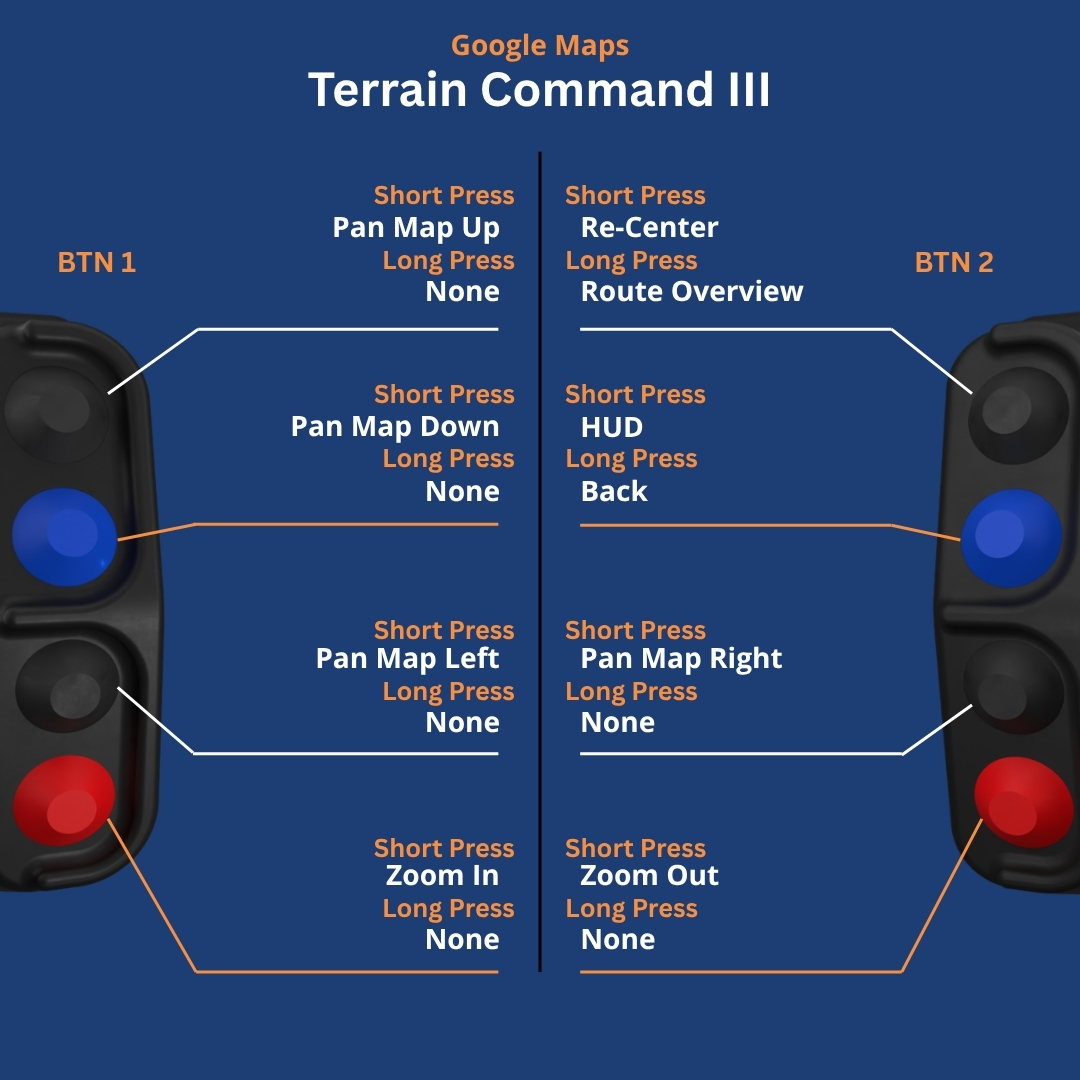
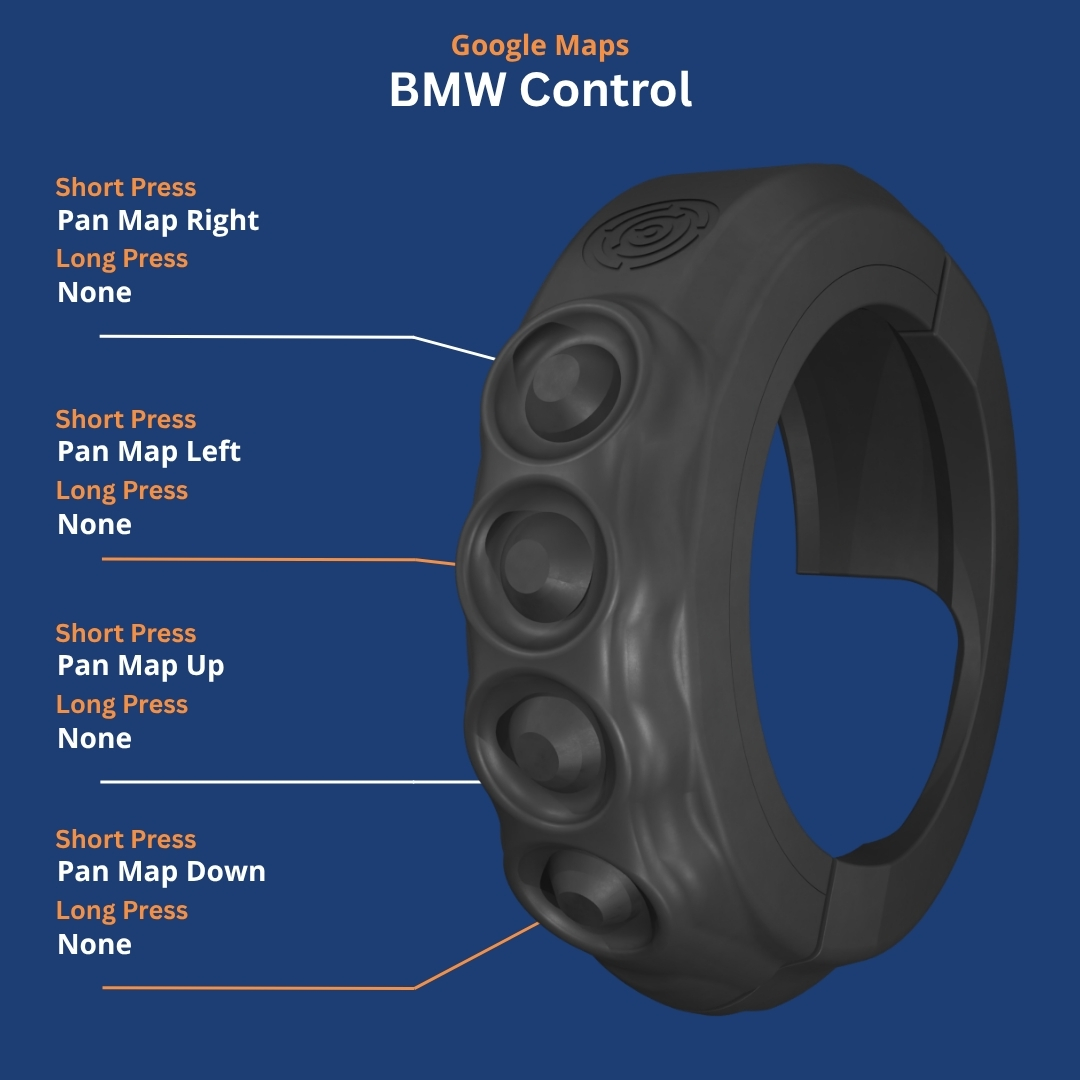
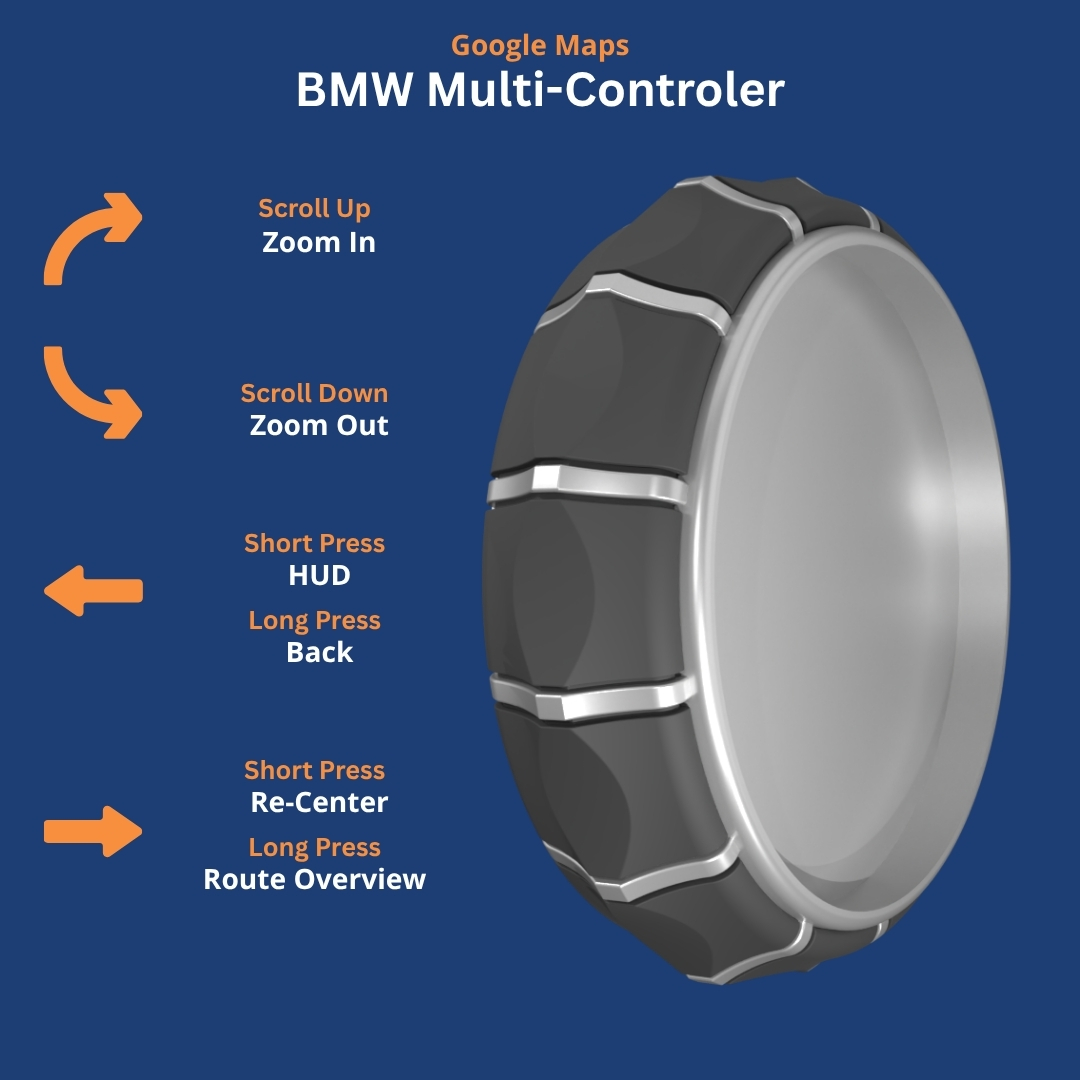
Default Controller Layouts
Below are the default button assignments for each controller profile when running Google Maps:
Troubleshooting & Setup Notes
- Ensure NGH has been granted Accessibility permissions in Android System Settings.
- Open NGH → Settings → Controller and verify Automatic Profile Switching is toggled ON.
- If Google Maps is open but buttons do not respond, verify that Google Maps is updated to the latest Play Store release.
- For detailed hardware connection troubleshooting, see Controller doesn't function as expected.
Was this article helpful?
That’s Great!
Thank you for your feedback
Sorry! We couldn't be helpful
Thank you for your feedback
Feedback sent
We appreciate your effort and will try to fix the article