

Carpe Iter controllers (Terrain Command, Adventure Control, BMW Control, and Caretta BMW Multi-Controller) feature native Auto-Profile integration with DMD2 (Drive Mode Dashboard).
When Next-Gen HUD (NGH) detects DMD2 in the foreground, your physical controller buttons dynamically reconfigure to provide seamless map panning, zooming, orientation toggles, and menu navigation without needing to touch the screen.
Supported Functions Out-of-the-Box
- Map Panning
- Zooming & Map Centering: Instant zoom in/out and one-click re-centering on current GPS position.
- Map Orientation: Toggle map orientation/view perspectives during navigation.
- Menu Navigation: Cancel / Back / Close.
Default Controller Layouts
Below are the default button assignments for each controller profile when running DMD2:
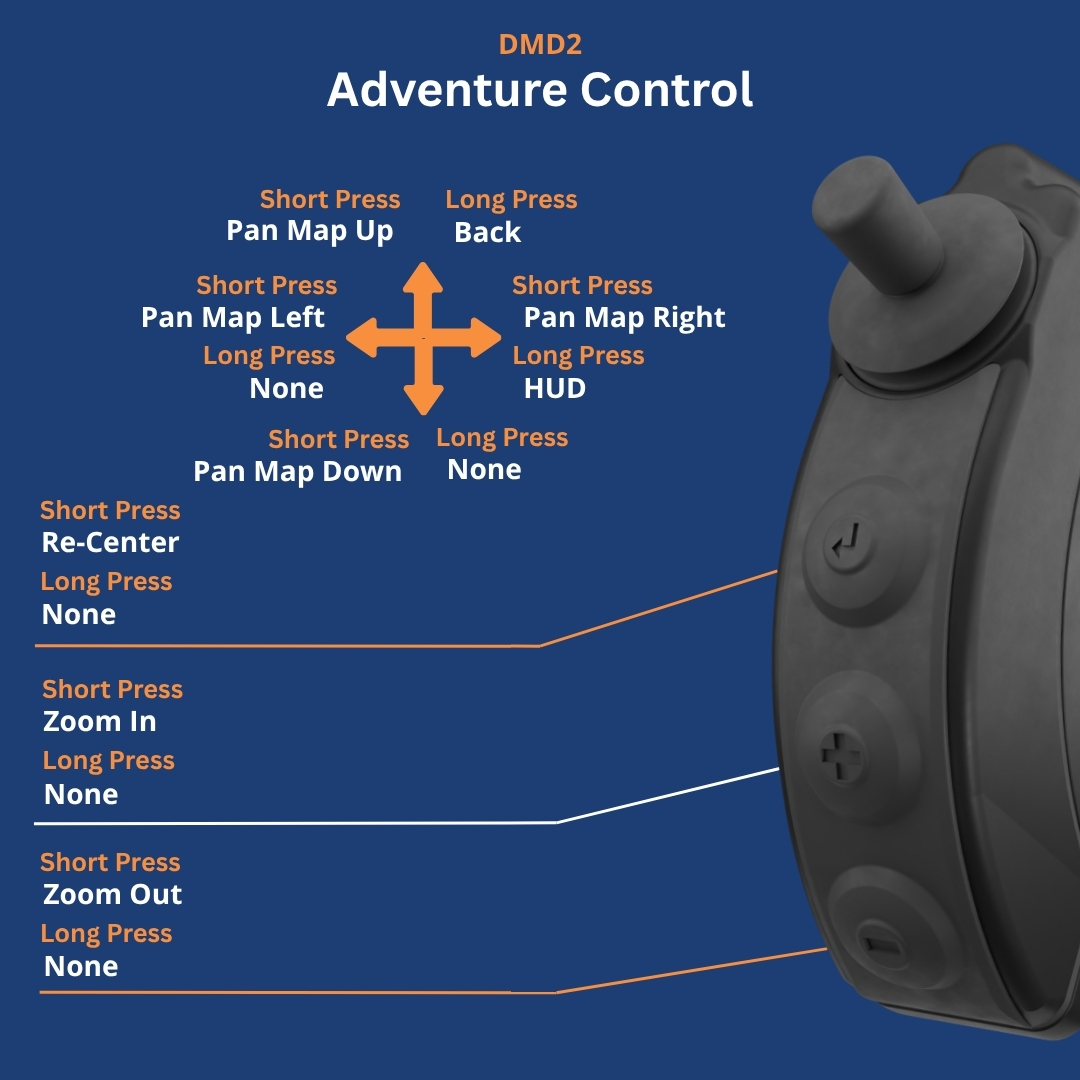
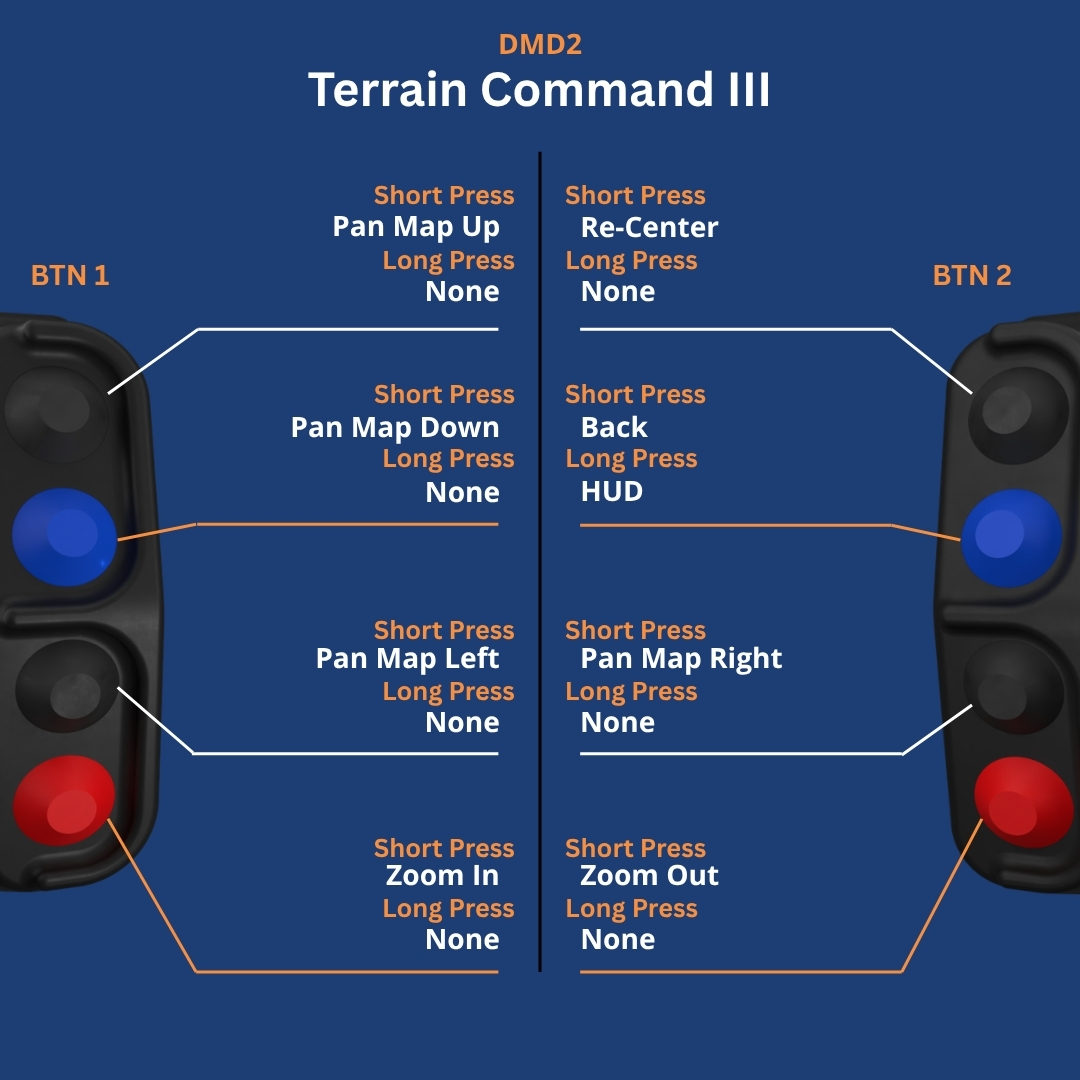
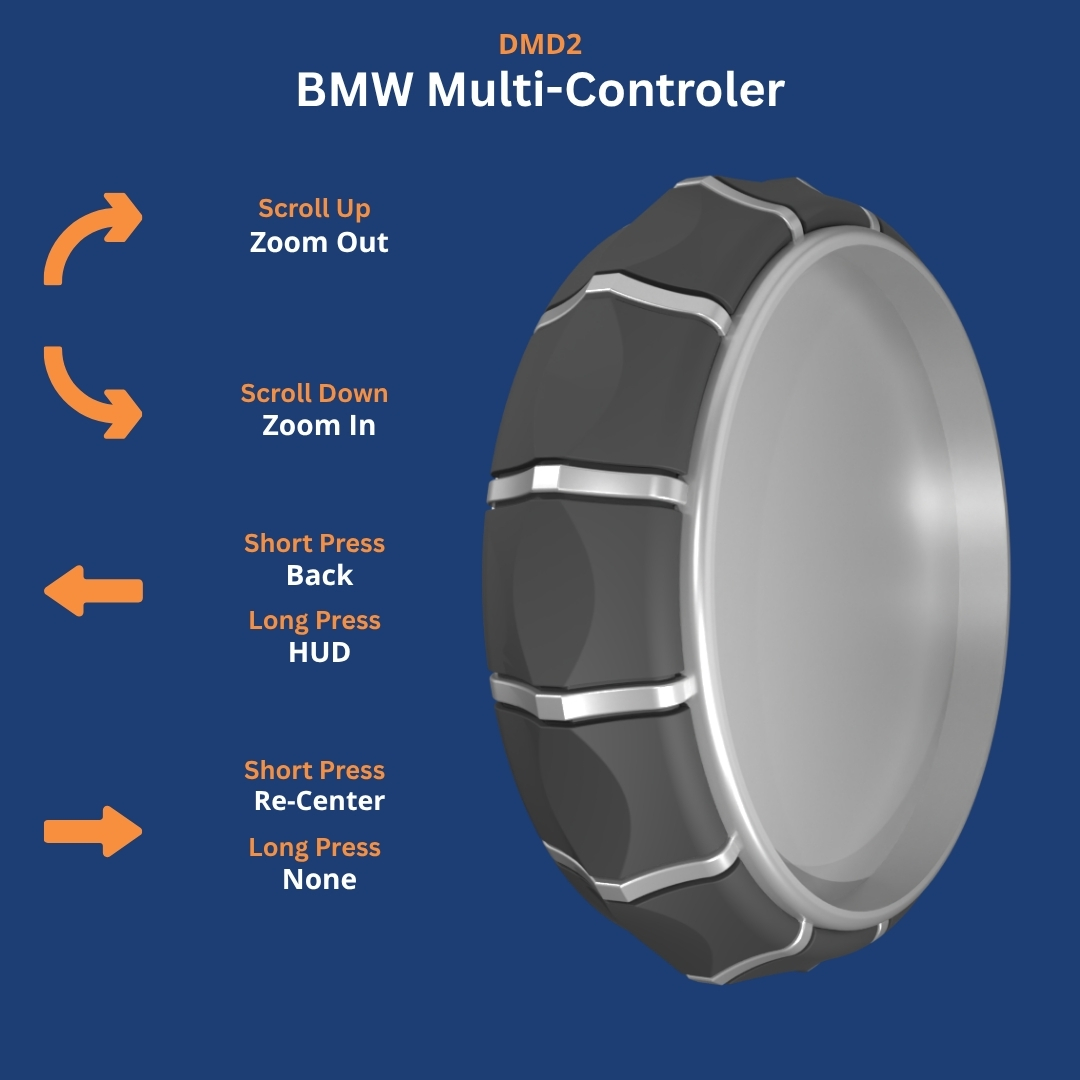
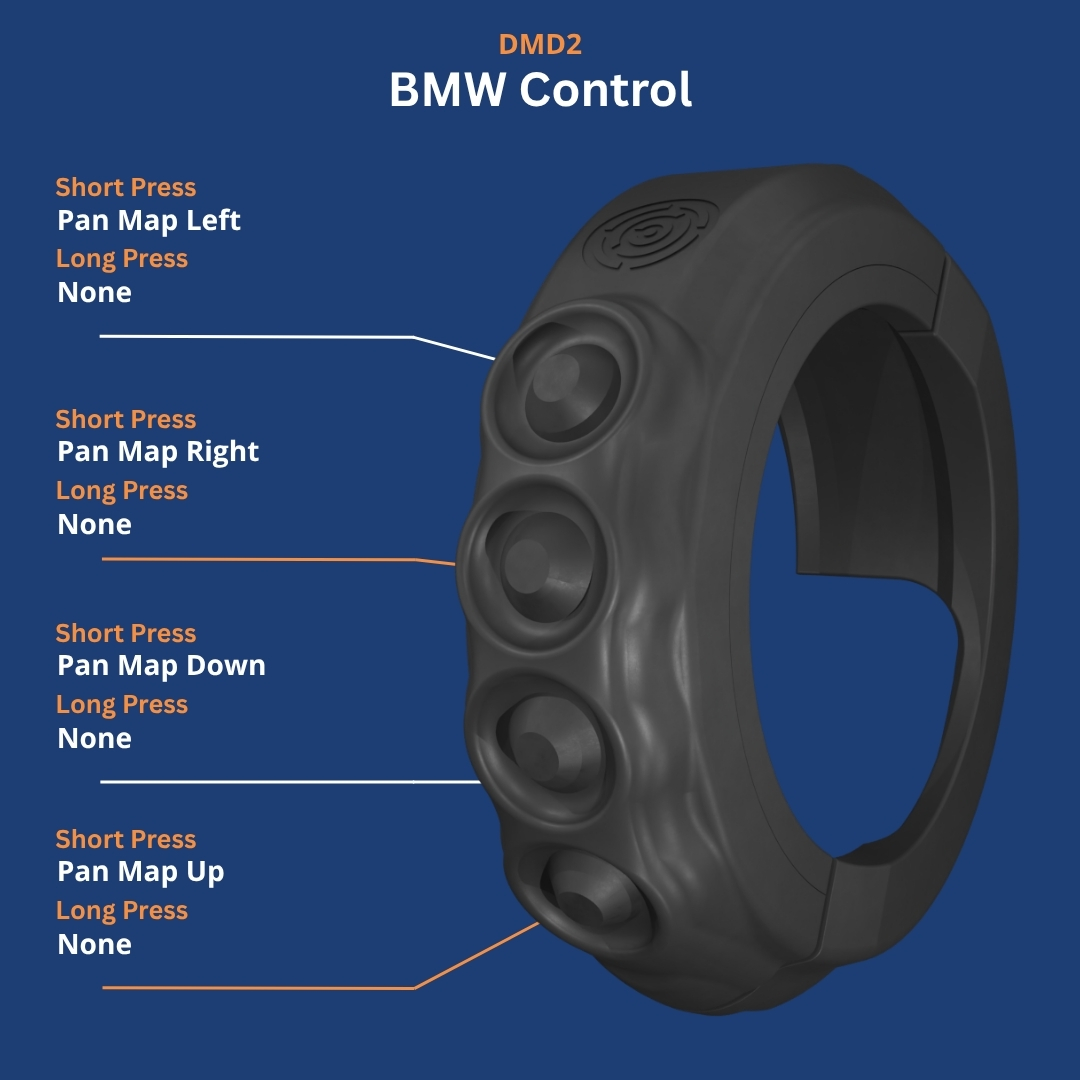
Troubleshooting & Setup Notes
- Ensure NGH has been granted Accessibility permissions in Android System Settings.
- Open NGH → Settings → Controller and verify Automatic Profile Switching is toggled ON.
- If DMD2 is open but buttons do not respond, verify that DMD2 is updated to the latest Play Store release and that you did not modify the default keys DMD is listening to. Our controller profile respects the default DMD2 settings.
Was this article helpful?
That’s Great!
Thank you for your feedback
Sorry! We couldn't be helpful
Thank you for your feedback
Feedback sent
We appreciate your effort and will try to fix the article