

The Bluetooth pairing procedure for Carpe Iter controllers follows the standard process for Android devices. Below are instructions for manually pairing and unpairing your controller across standard Android and brand-specific interfaces.
Manually Pairing the Controller
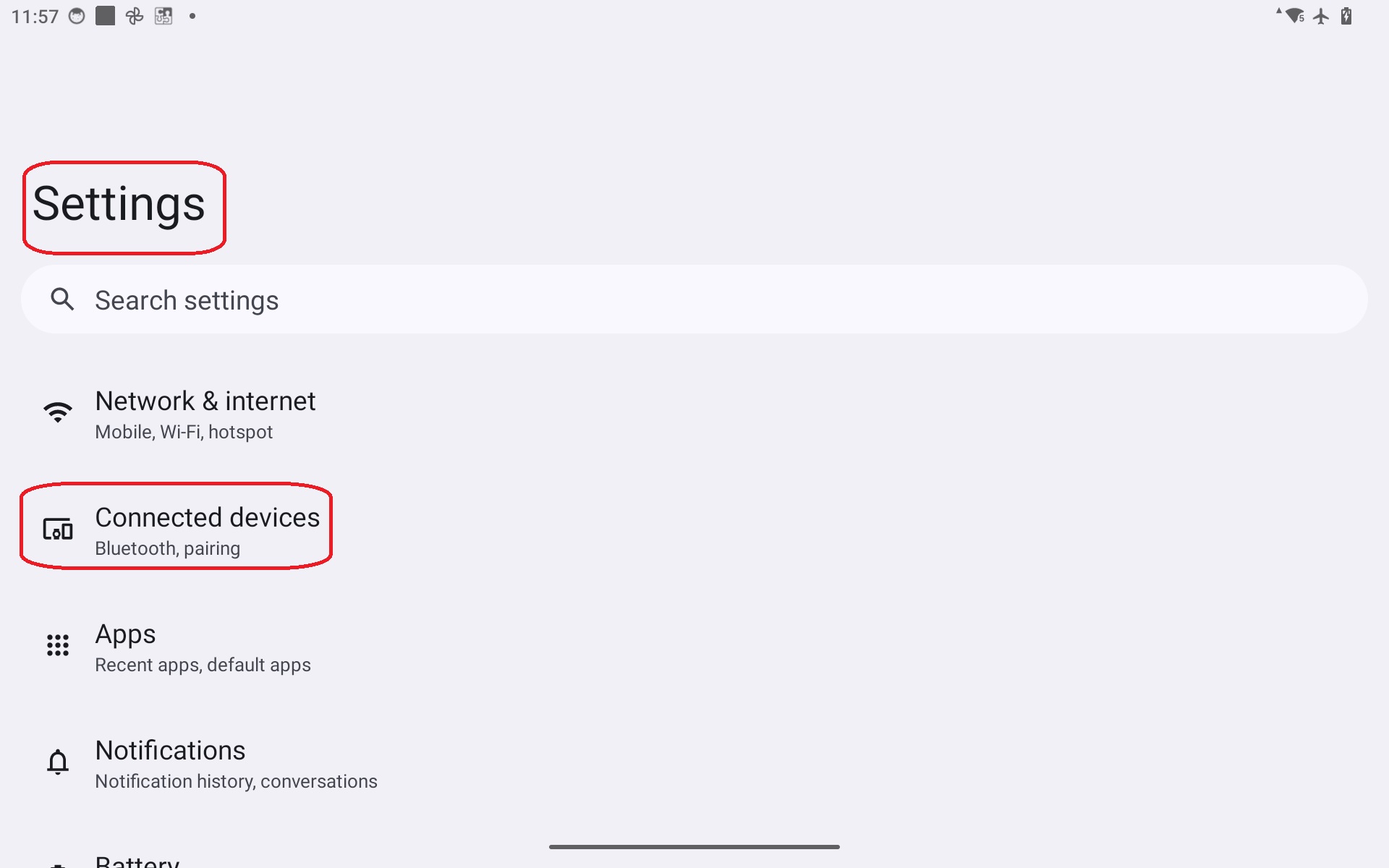
- Open the Bluetooth manager on your Android device and tap Pair new device. On stock Android, this is typically located under Settings > Connected devices:
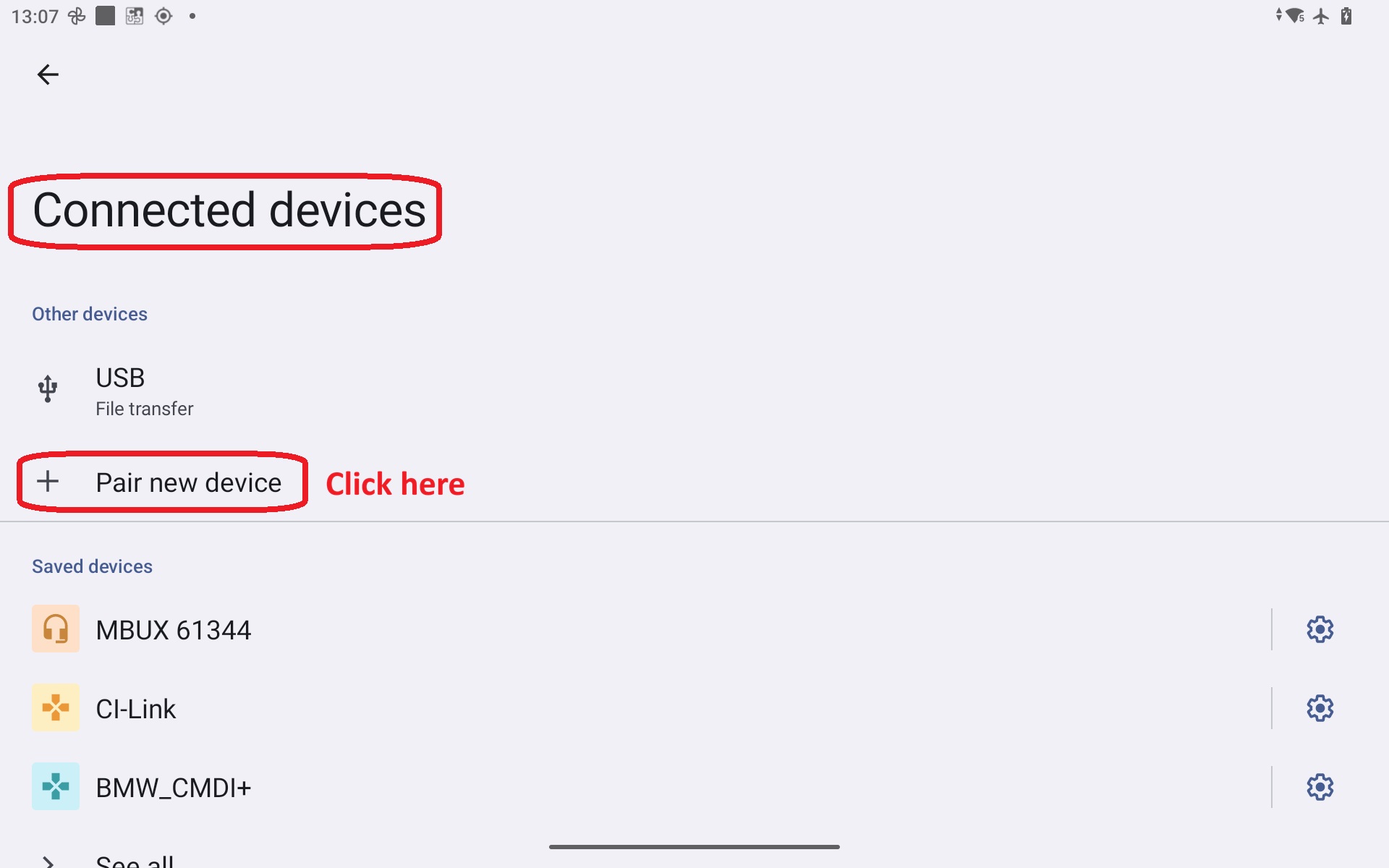
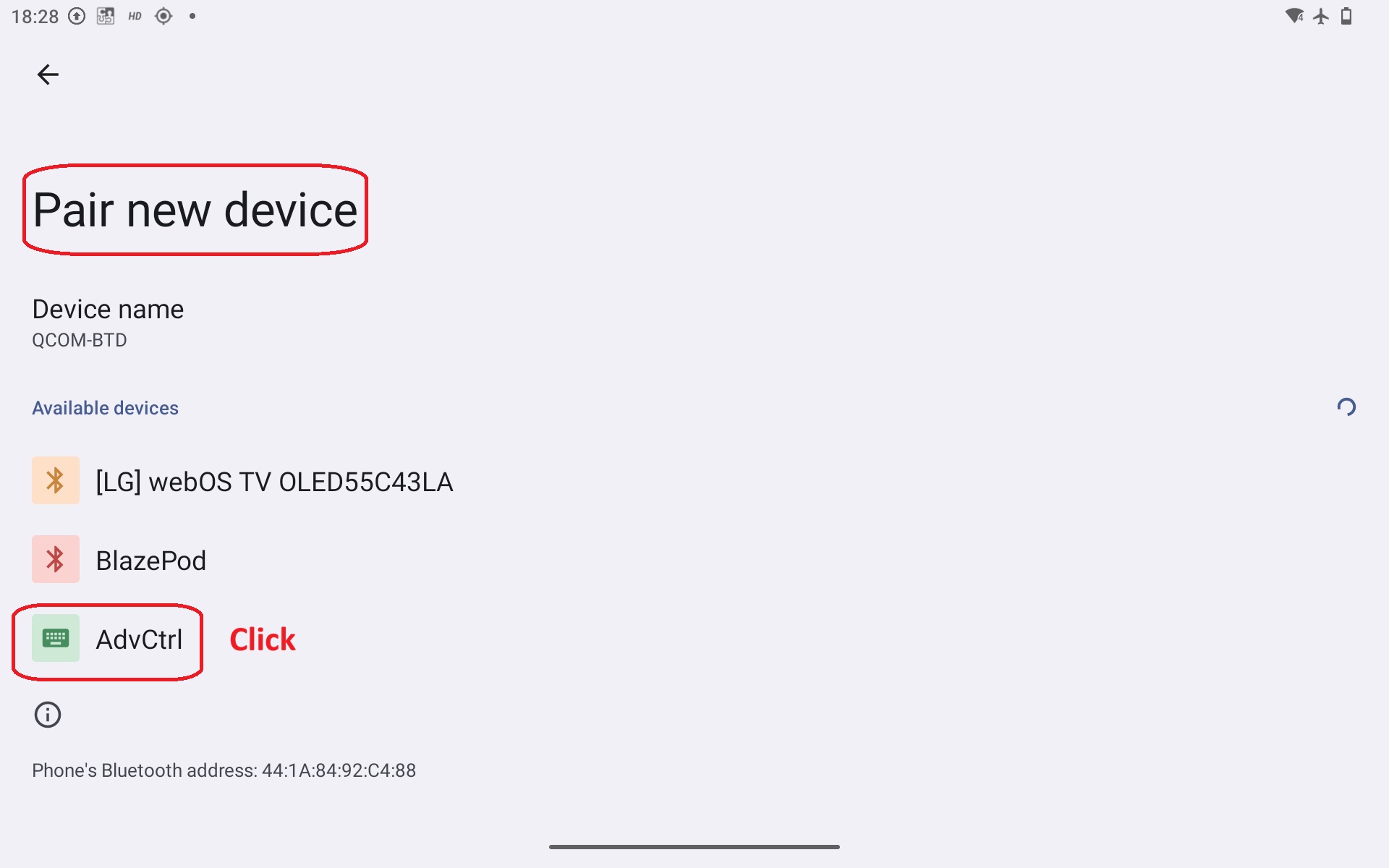
- The Android device will scan for nearby available Bluetooth devices. Press any button on the controller to wake it. The controller will appear in the device list within a few seconds.
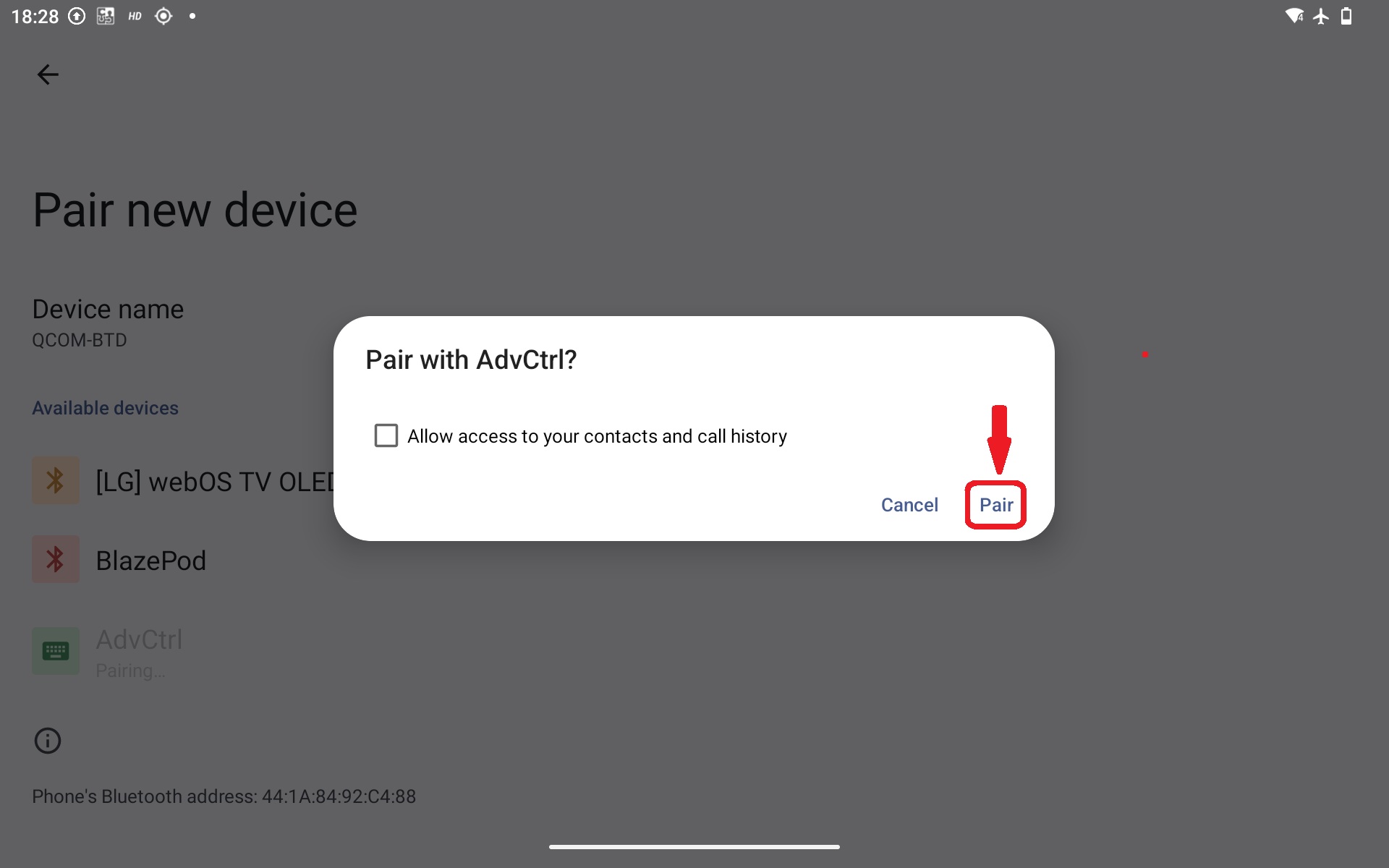
- Tap the controller name and confirm the pairing request.
Note: If the controller does not appear on the list within 30 seconds, please refer to this support article (the controller is either not receiving power or is already connected to another device).
Alternative Navigation (Samsung and Customized Android Skins)
On certain devices, such as Samsung smartphones, the Bluetooth pairing menu may be placed under additional sub-menus:
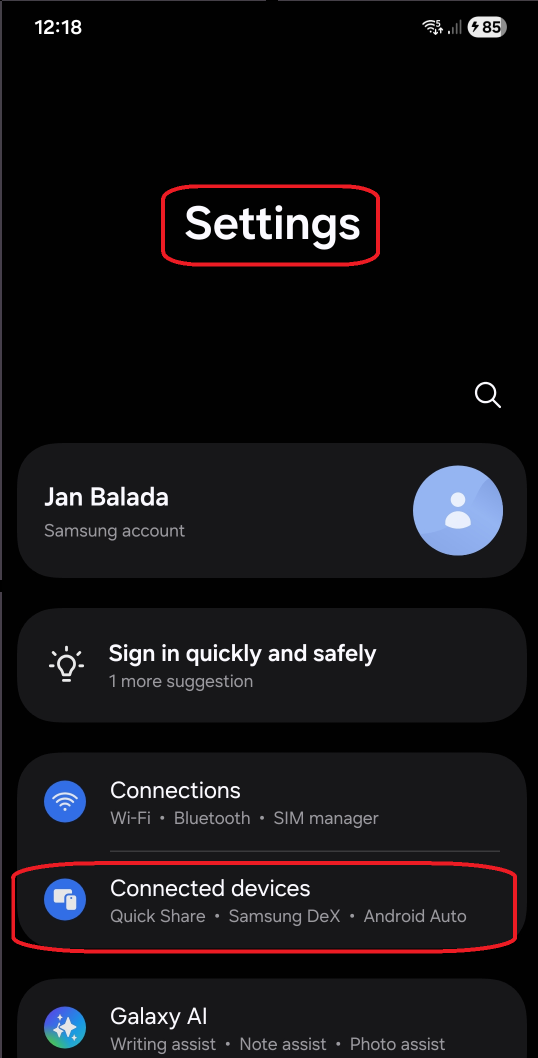
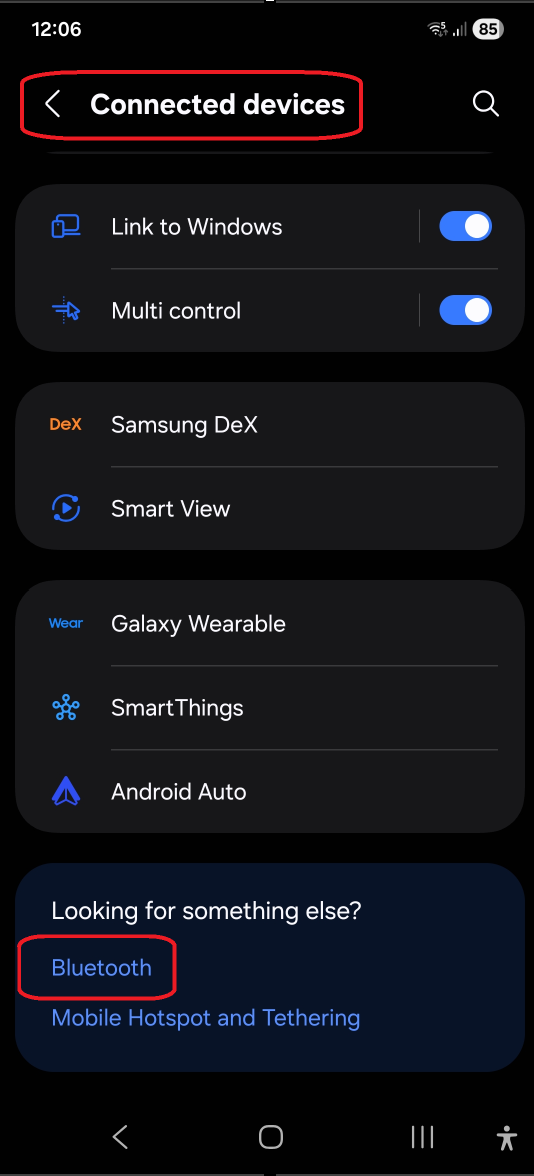
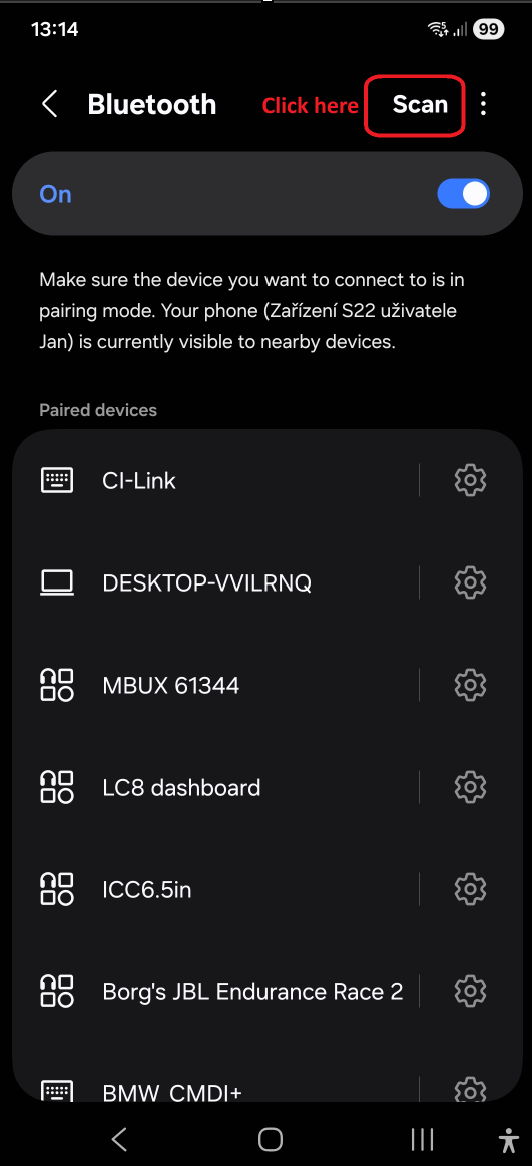
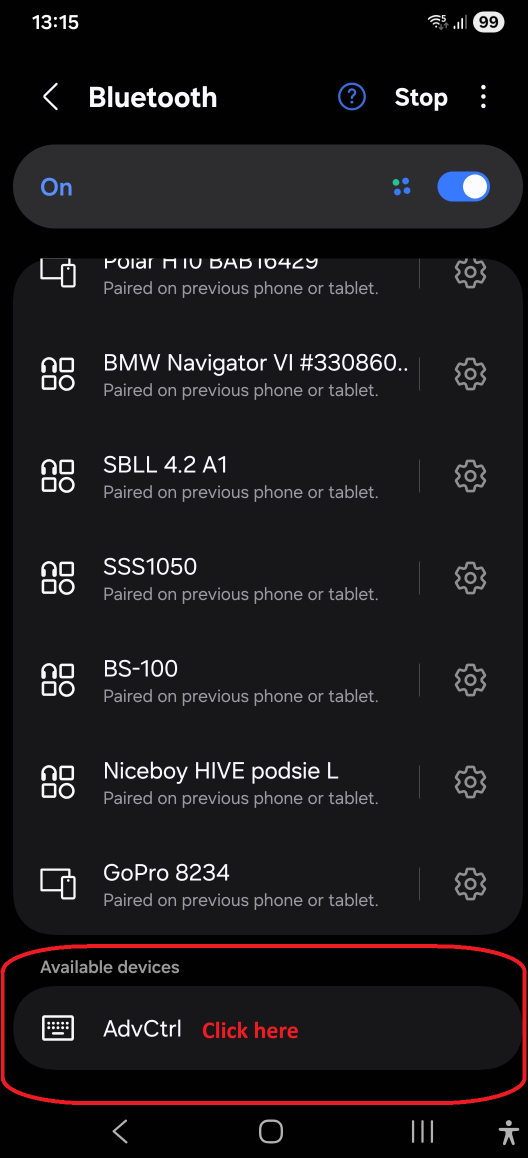
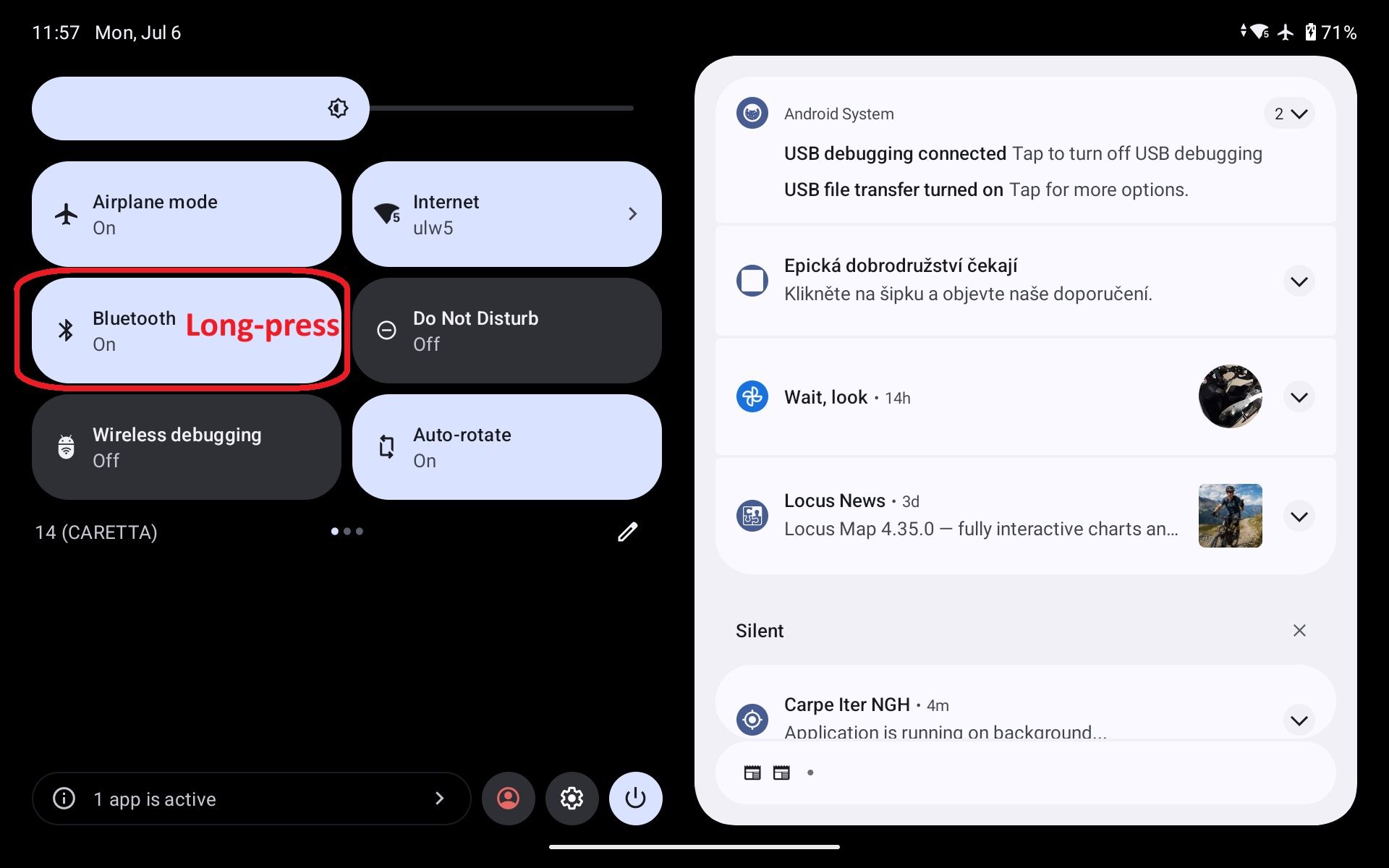
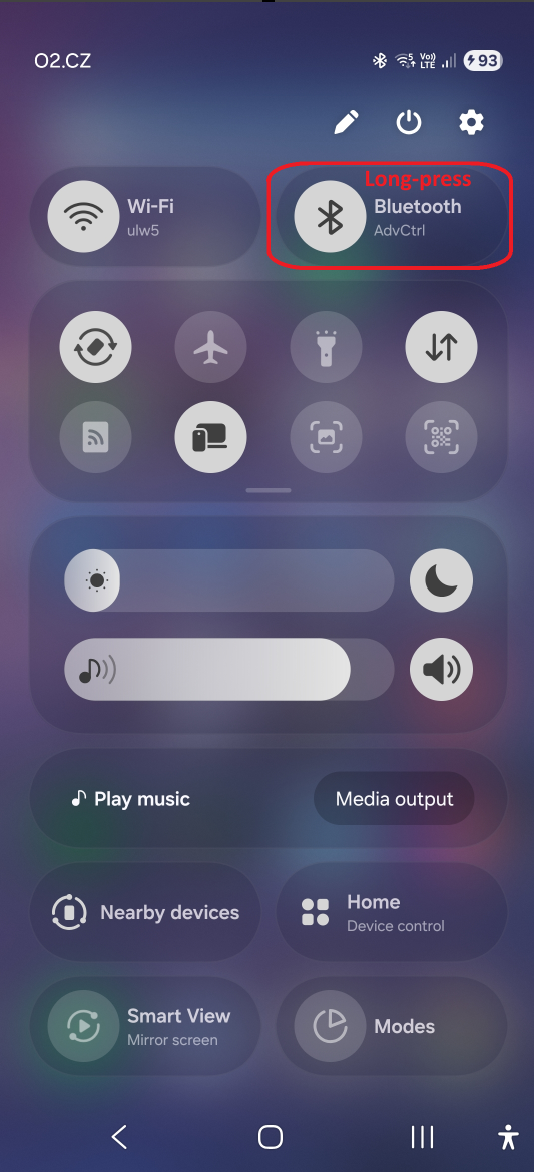
Alternatively, long-press the Bluetooth toggle in the pull-down Quick Settings menu:
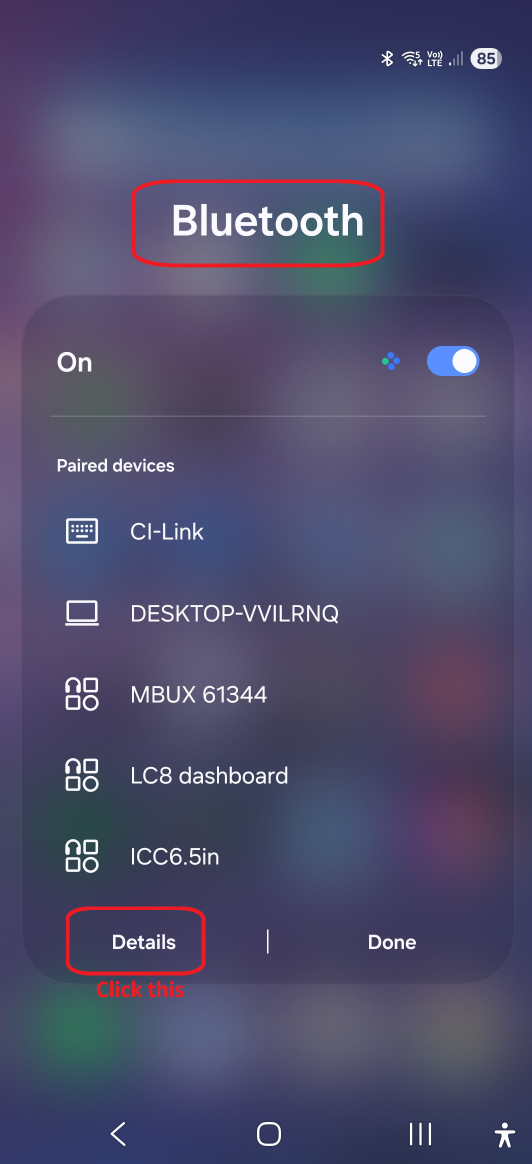
On some Samsung devices, access the full list of devices by selecting Details:
How to Manually Forget / Unpair a Controller
- Open the Bluetooth settings menu on your Android device.
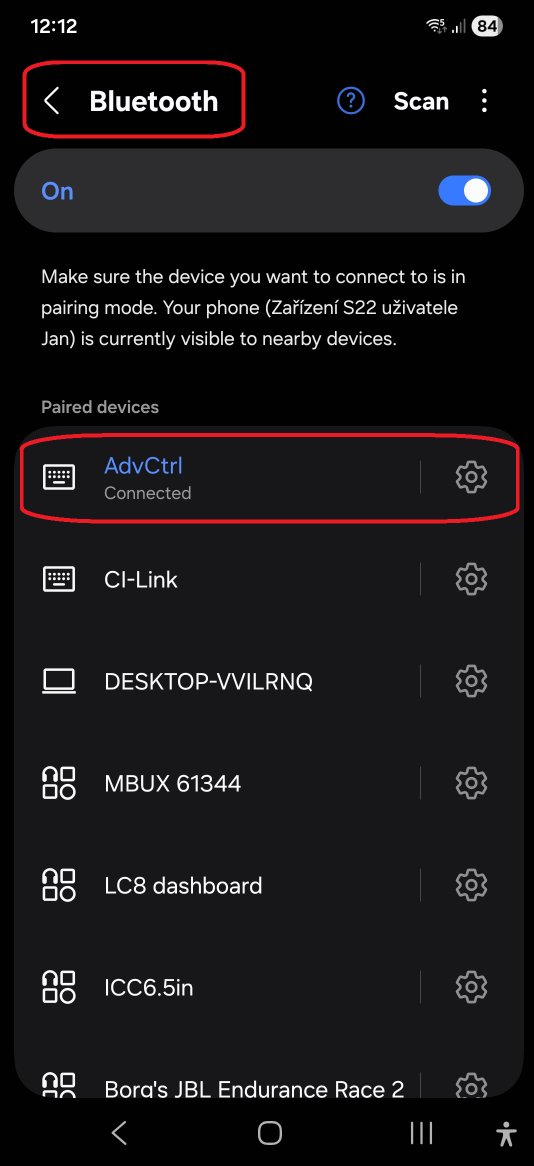
- Tap the gear / settings icon next to the controller you wish to unpair.
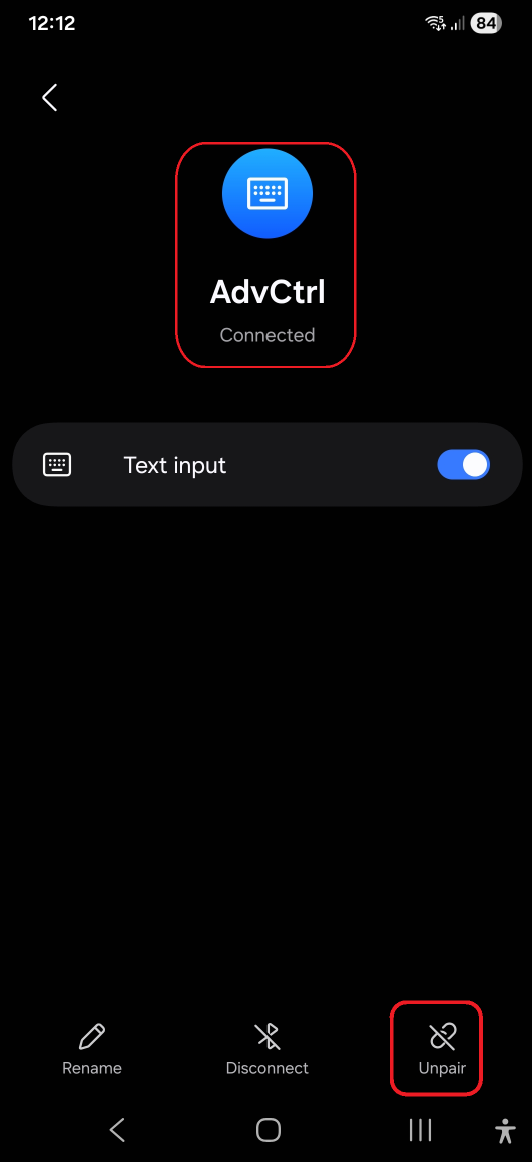
- Select Forget or Unpair (label depends on the Android version).
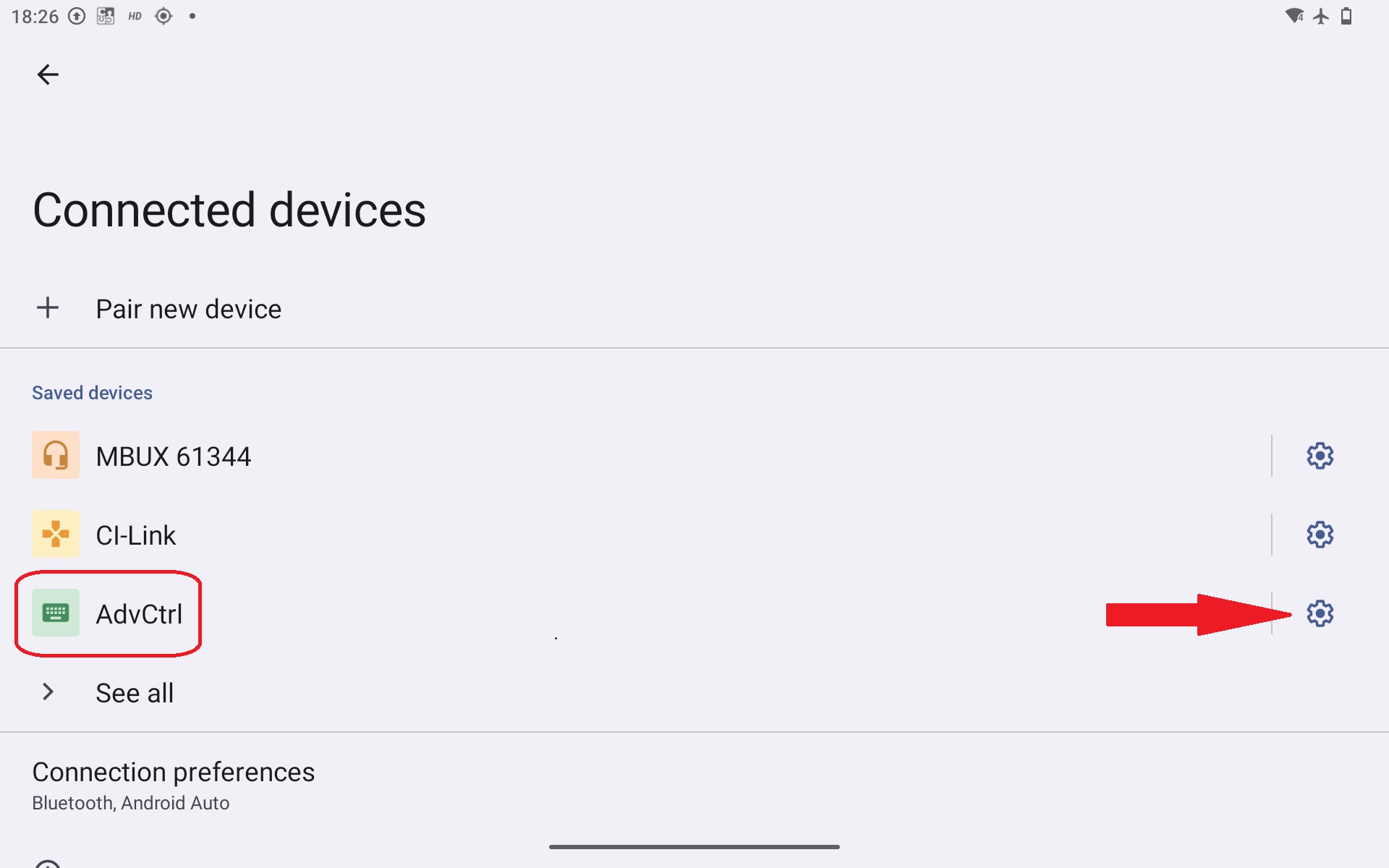
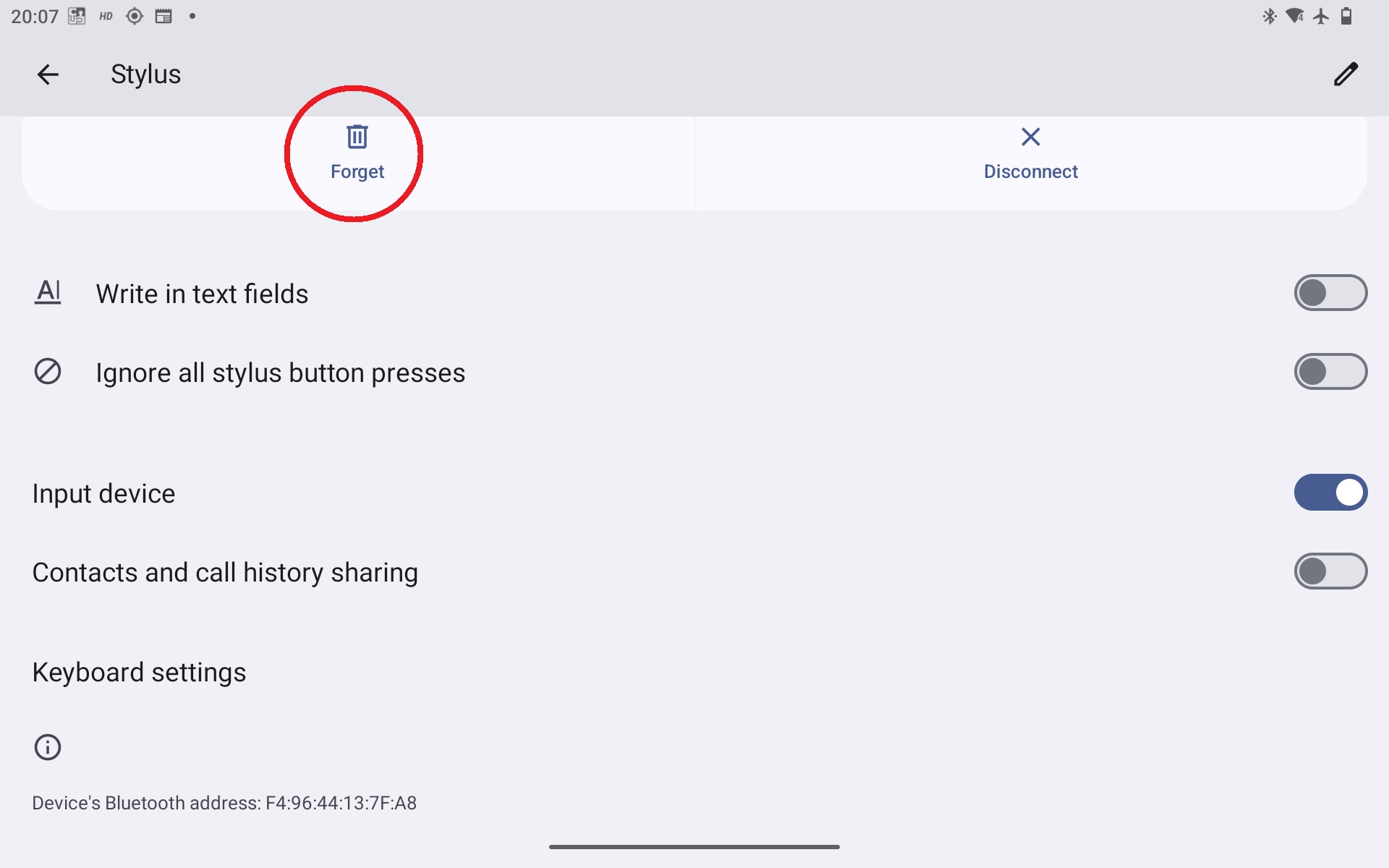
On Samsung devices and other custom interfaces, the unpair confirmation appears at the bottom of the screen:
Was this article helpful?
That’s Great!
Thank you for your feedback
Sorry! We couldn't be helpful
Thank you for your feedback
Feedback sent
We appreciate your effort and will try to fix the article