

Carpe Iter remote controllers require their companion software—NGH (Next-gen HUD)—to be installed and active on your Android device to function correctly.
After completing the initial configuration, the setup rarely requires maintenance, except for an occasional Accessibility Service restart if Android battery optimization terminates the background process.
First Step: Restart your Android device. A simple reboot resolves most connectivity and accessibility service issues before proceeding with further debugging.
If your controller is connected to your Android device, you have installed NGH, and the controller is selected as the active device in NGH, use the troubleshooting sections below based on your symptoms.
I. Controller Commands Fail in a Specific Application Only
- Update the affected application: Ensure you are running the latest version from the Google Play Store.
- Disable the legacy Controller App Accessibility Service: If migrating from the older Carpe Controller app, ensure its accessibility service is disabled. It is recommended to uninstall the legacy app entirely on non-CI Pad devices. Refer to this migration guide for details.
- Ensure the NGH Accessibility Service is enabled: Toggle the NGH Accessibility Service off and back on in Android Settings, even if it appears active. See: How to restart NGH accessibility service.
- Disable third-party key mapper applications: Software that intercepts or remaps hardware key inputs will interfere with controller functionality.
- Revert to default software keyboard: Some third-party on-screen keyboards remap hardware key events. Switch back to the system default keyboard or Gboard, which is fully tested and verified.
- Submit a support ticket: If the steps above do not resolve the issue, contact Carpe Iter support with:
- Android OS version
- Device manufacturer and model
- Name and version of the affected application
- Specific command(s) failing to execute
II. Global Issue: Controller Fails Across All Applications
A. Controller Status Icon Remains Red (Not Connected in NGH)
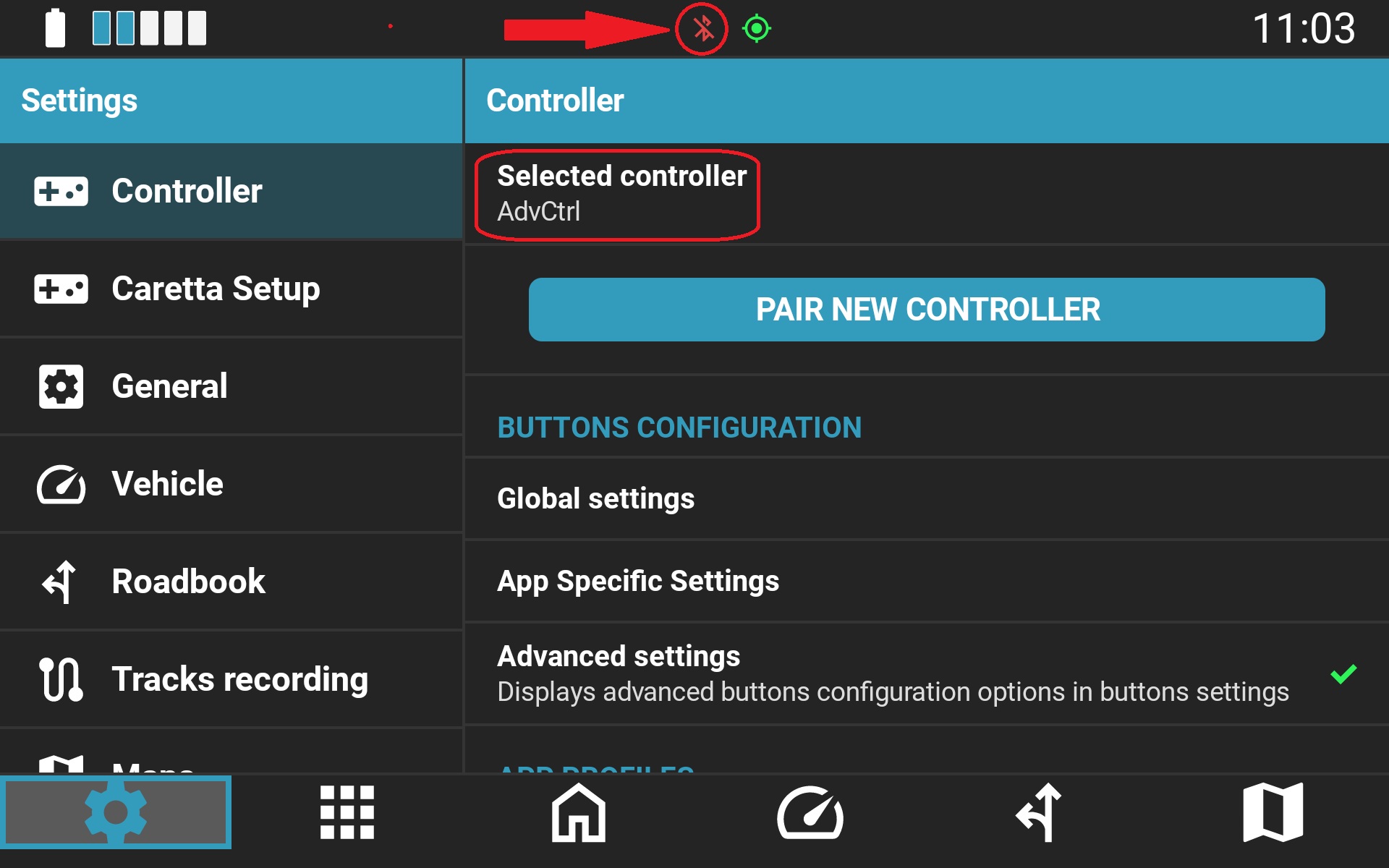
- Force close NGH: Open the recent apps screen (tap the square navigation icon or swipe up in gesture mode) and swipe NGH away to close it.
- Restart your Android device: Perform a standard reboot via the power menu.
- Launch NGH and verify permissions: At startup, NGH validates required system permissions. Grant all requested permissions.
- Re-select the controller: Set the active controller to None, then re-select your controller model (e.g., Adventure Control).
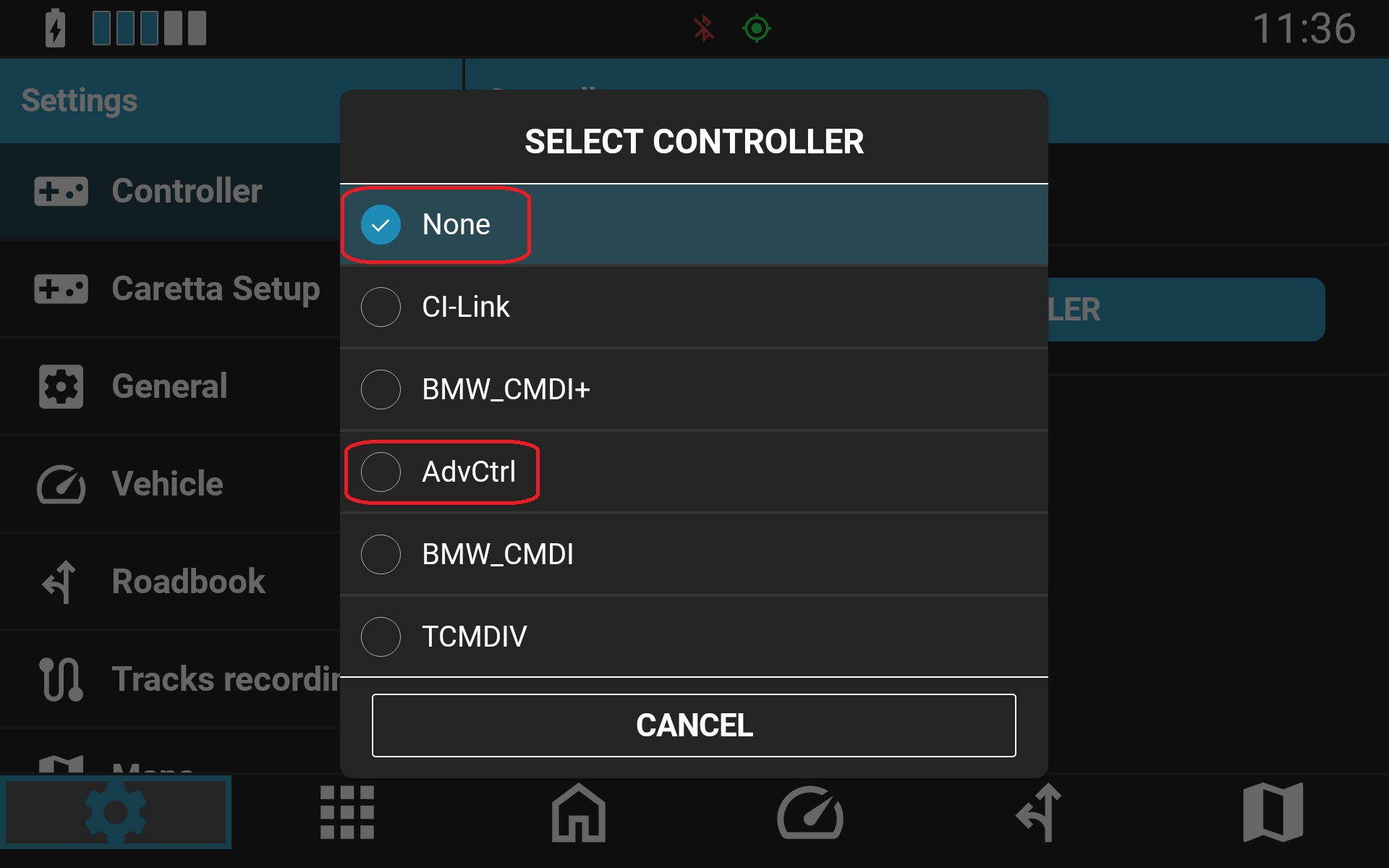
If the status icon remains red: Unpair ("Forget") the controller in Android Bluetooth Settings and pair it again. For detailed pairing instructions, refer to this support article.
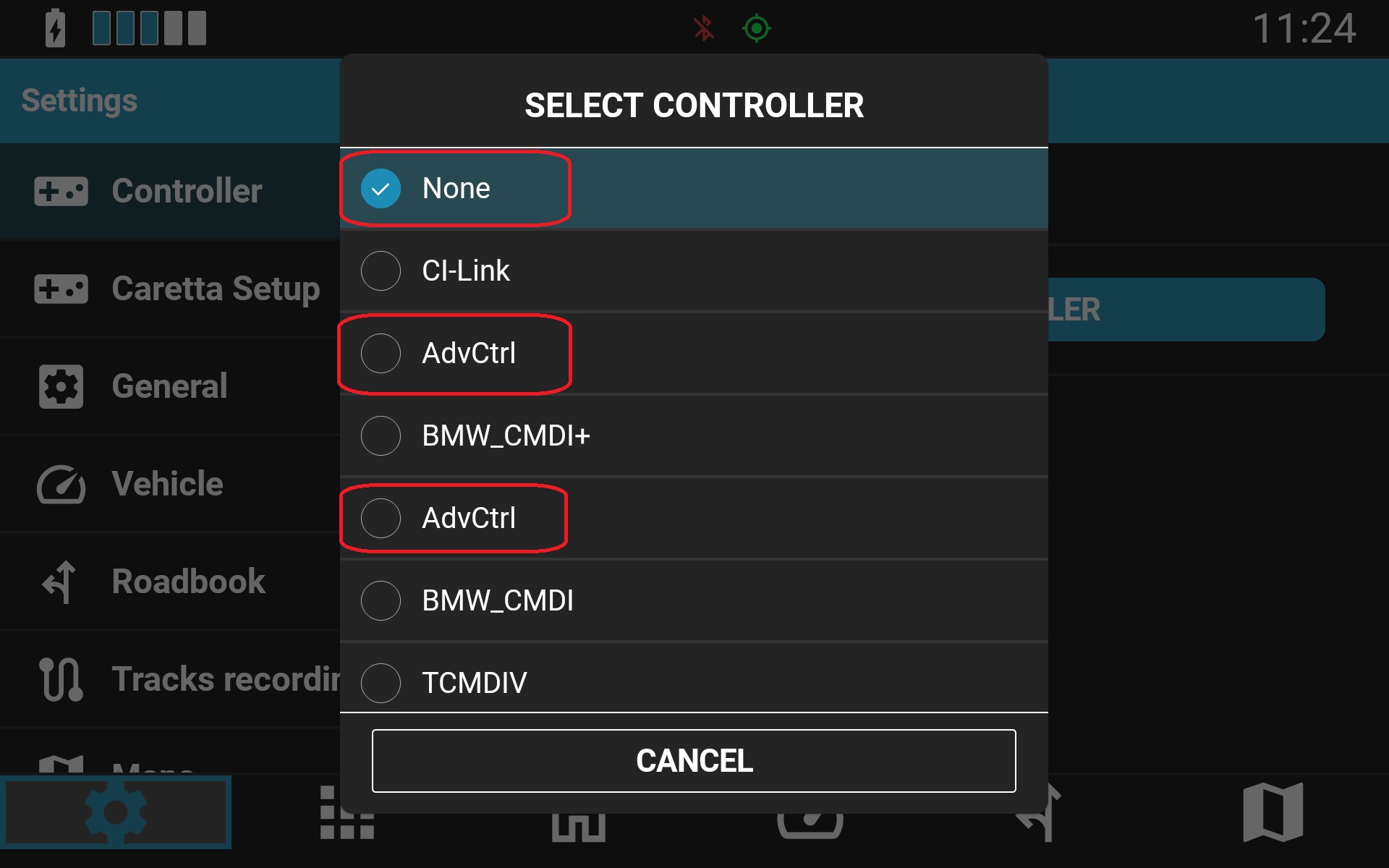
When using multiple Carpe Iter controllers of the same type: Ensure the specific connected controller is selected in NGH. If multiple units of the same model (e.g., AdvCtrl, BMCD, TCMD) are present in the list, select the alternate entry, force-close NGH, and reopen it.
B. Controller Status Icon is Green, but Commands Do Not Execute

Perform the following troubleshooting steps in order:
- Update NGH: Check Google Play Store for pending updates. See: this support article.
- Update controller firmware: Controller firmware updates are managed directly inside NGH. Follow the instructions in this support article.
- Verify and reload NGH Accessibility Service:
Launch NGH or summon the HUD overlay on your home screen. If the service is disabled, NGH will prompt you to open Android Accessibility settings.
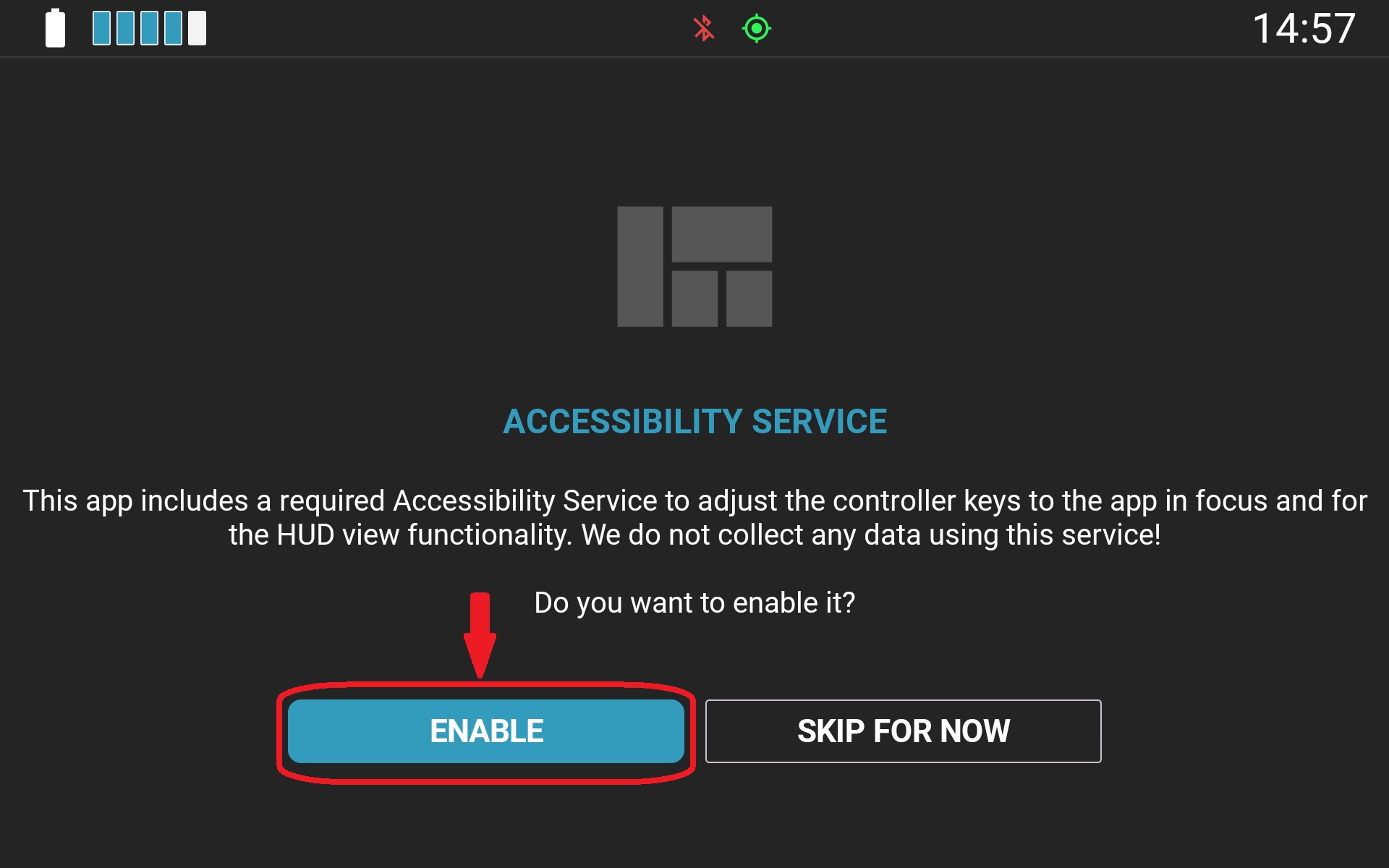
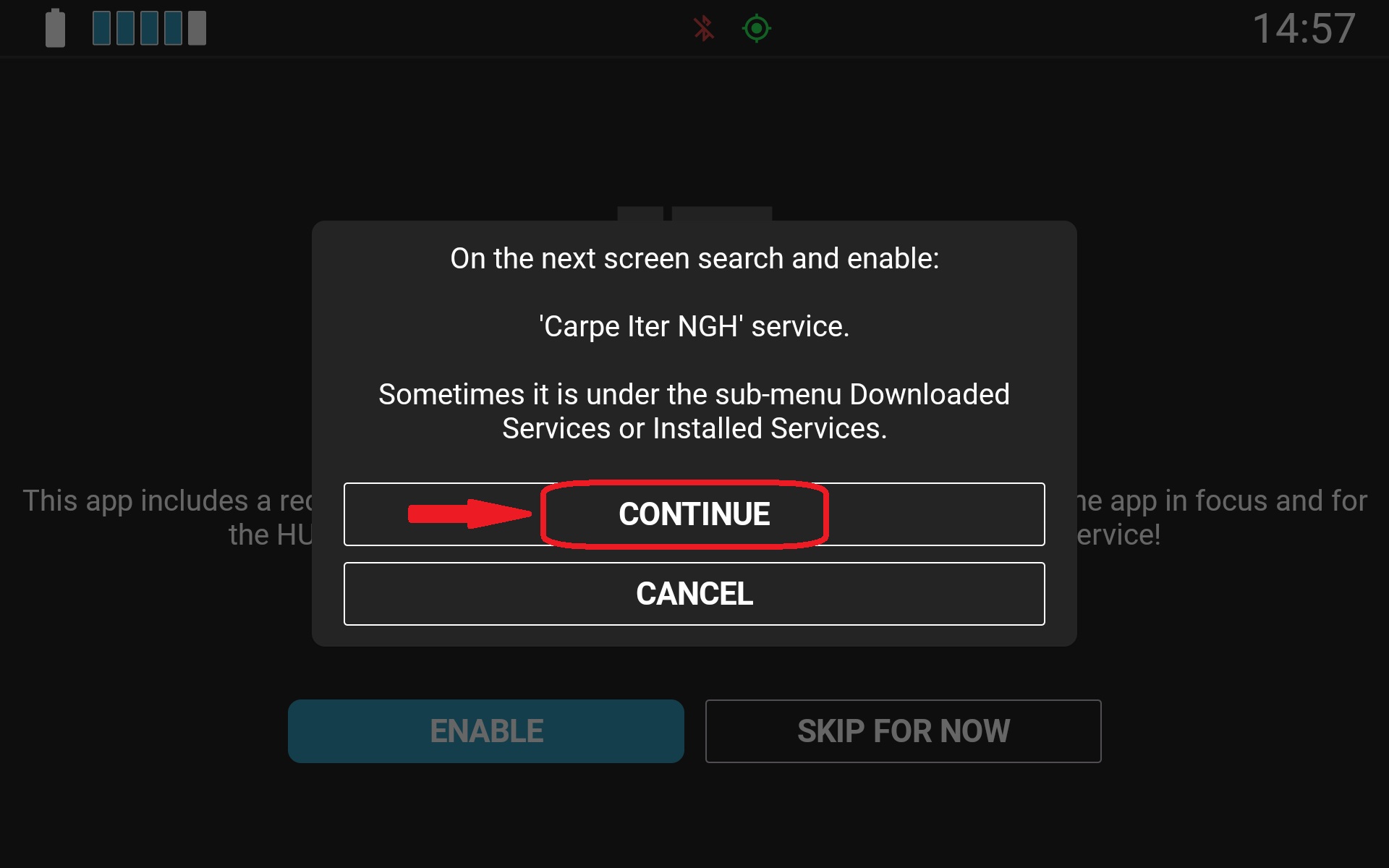
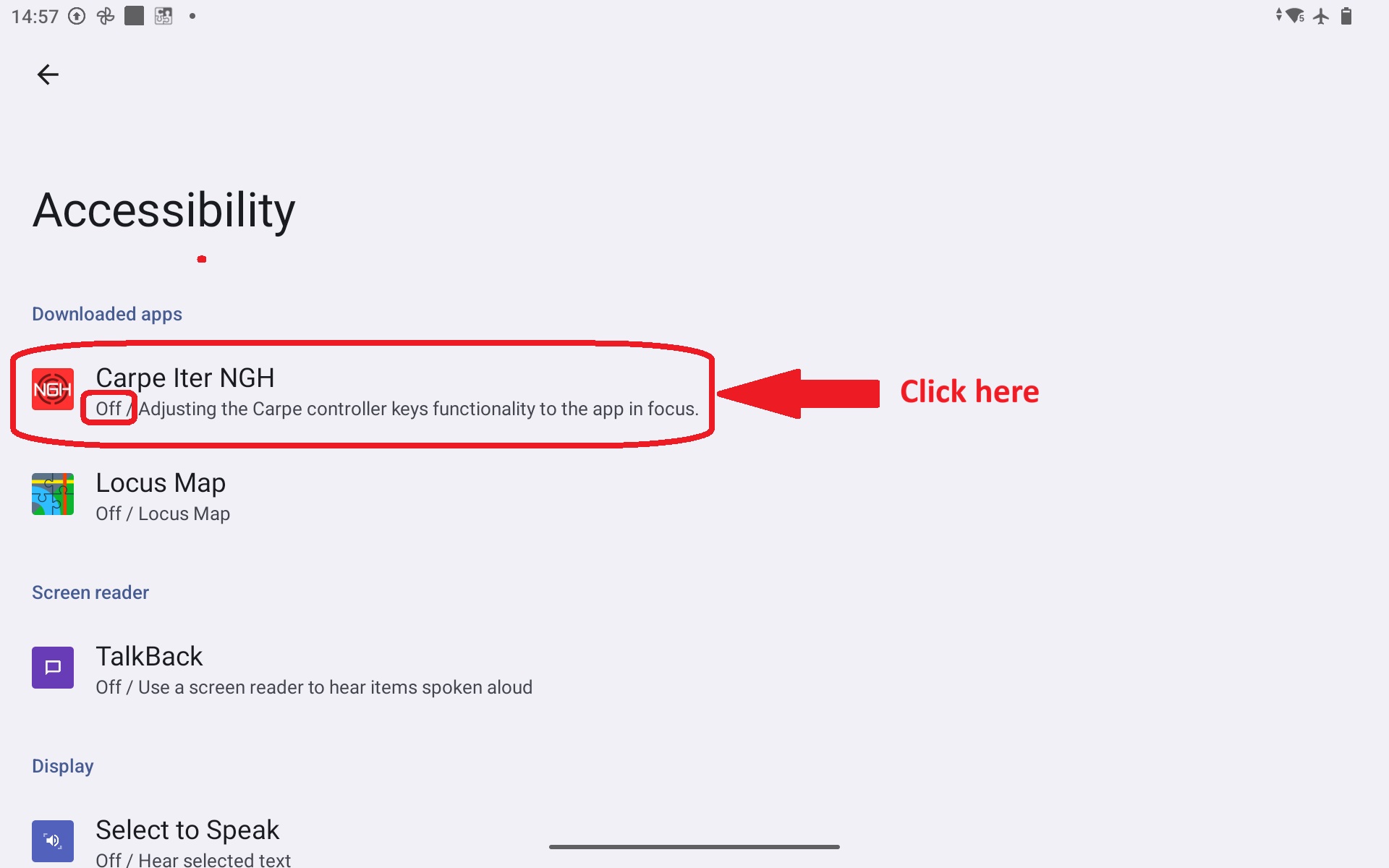
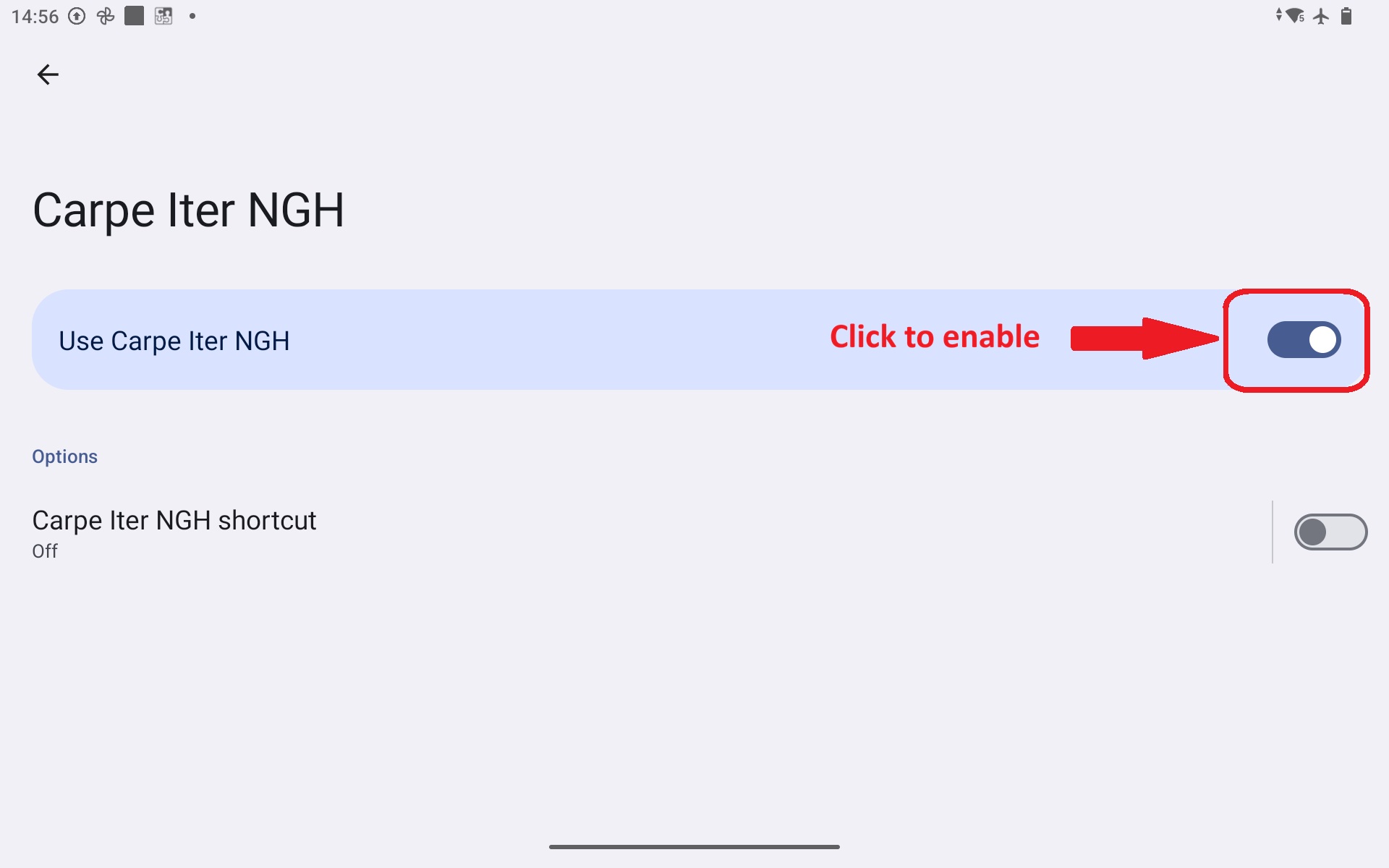
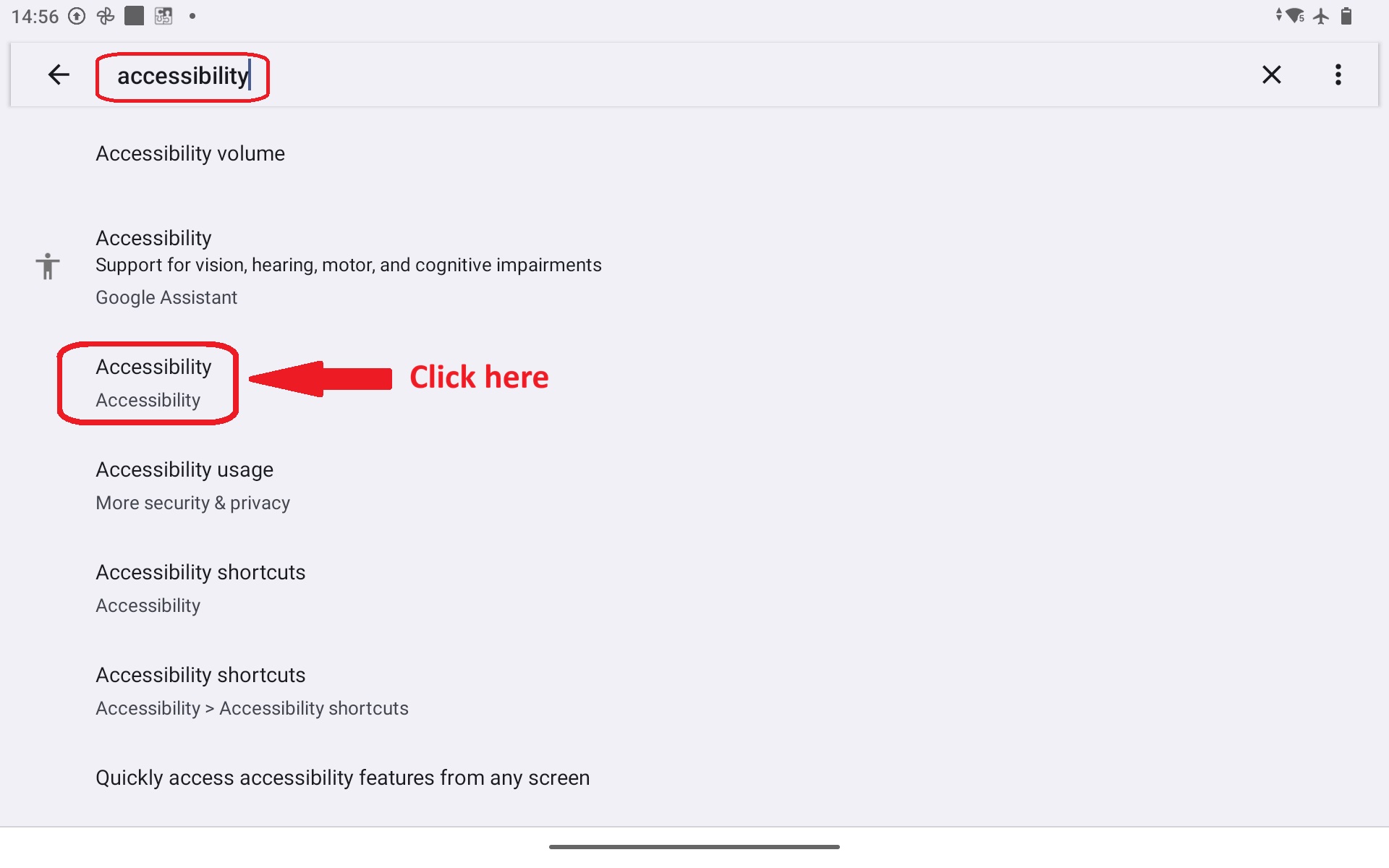
If the HUD does not appear when invoked, Android may have partially killed the Accessibility process. Navigate to Android Settings > Accessibility, toggle NGH Accessibility Service OFF, and turn it back ON to force-reload the service.
- Check controller configuration profile lock:
By default, NGH dynamically switches controller profiles based on the active foreground app. If the profile is manually locked to a specific app, inputs will not adapt to other applications.
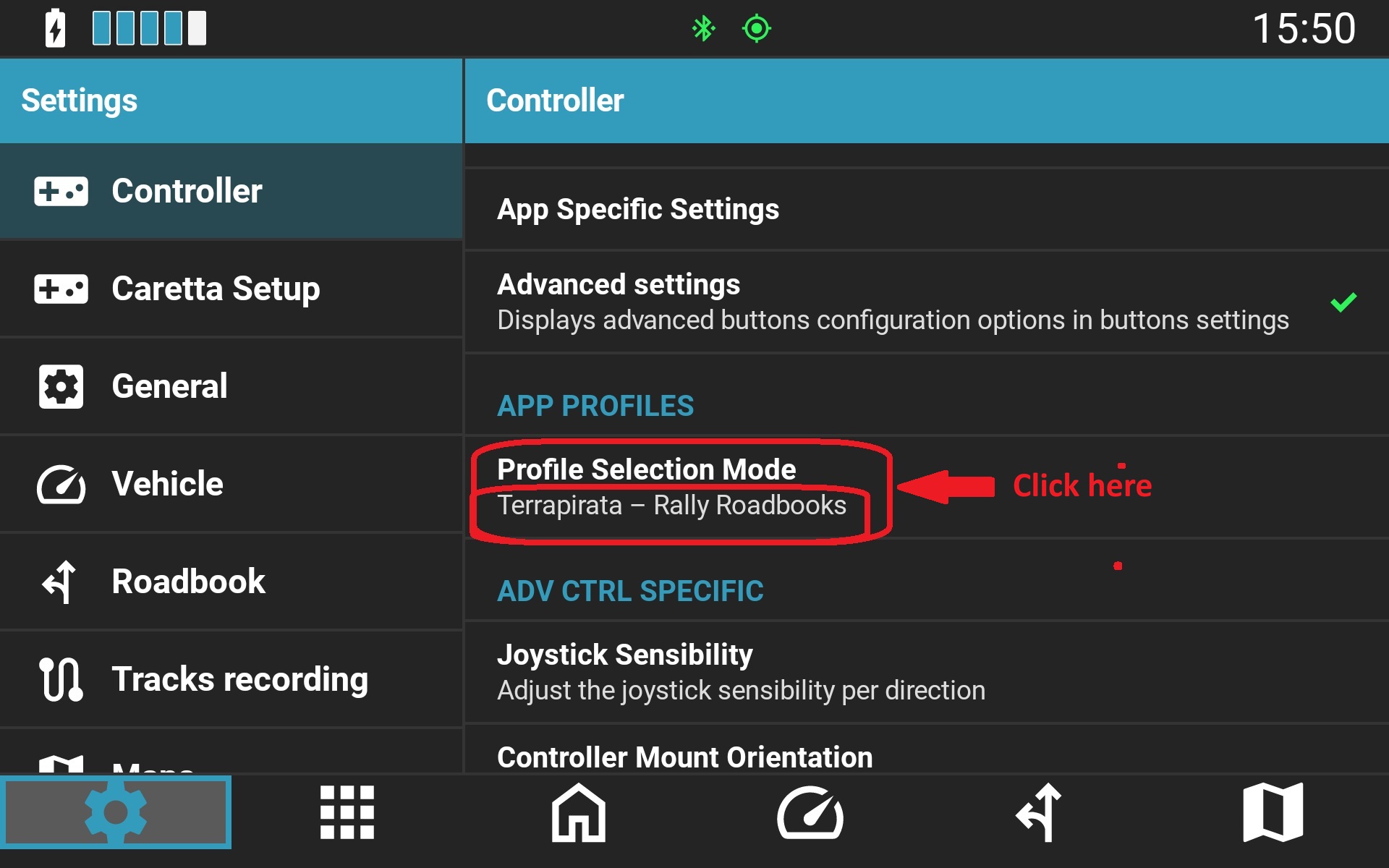
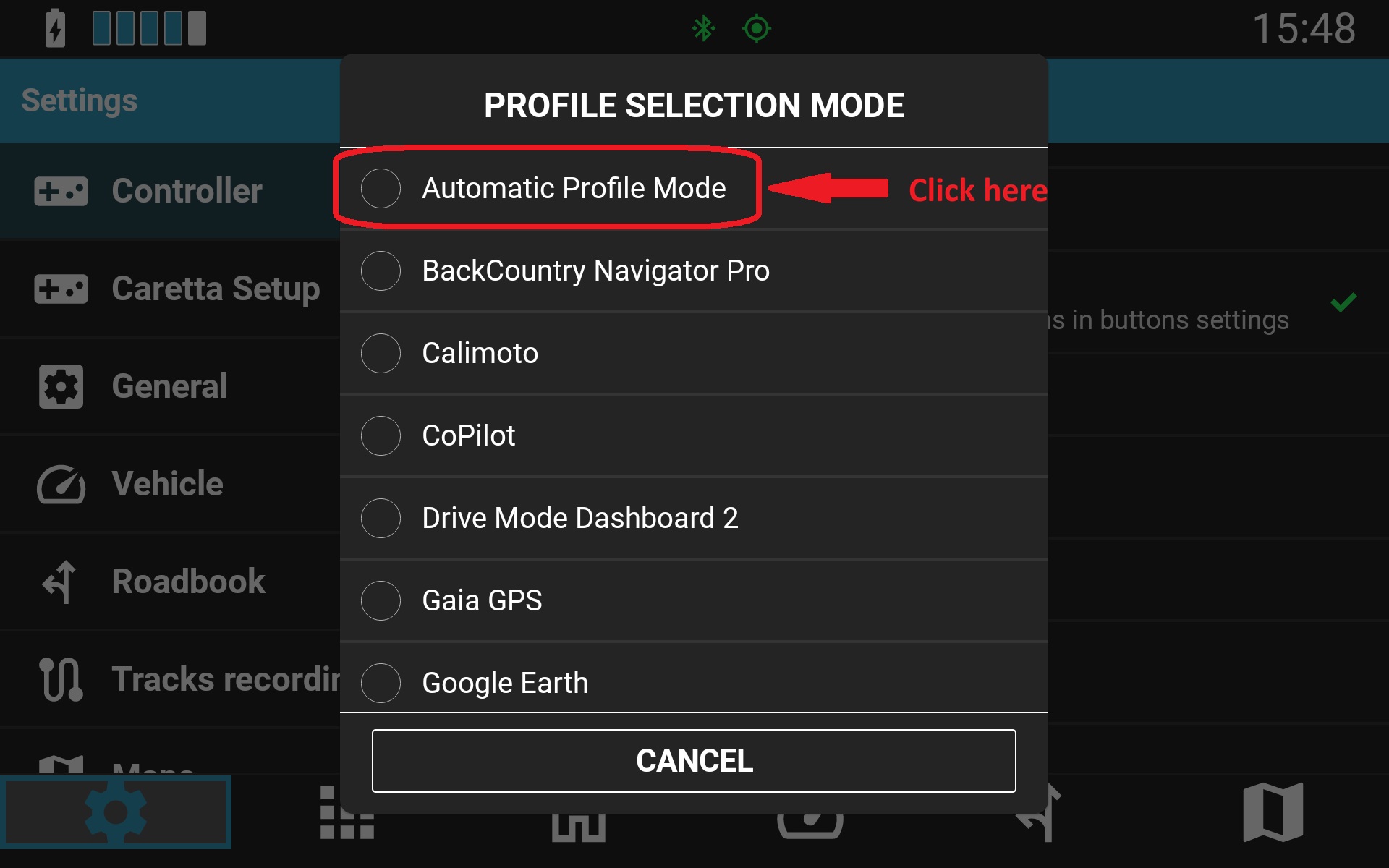
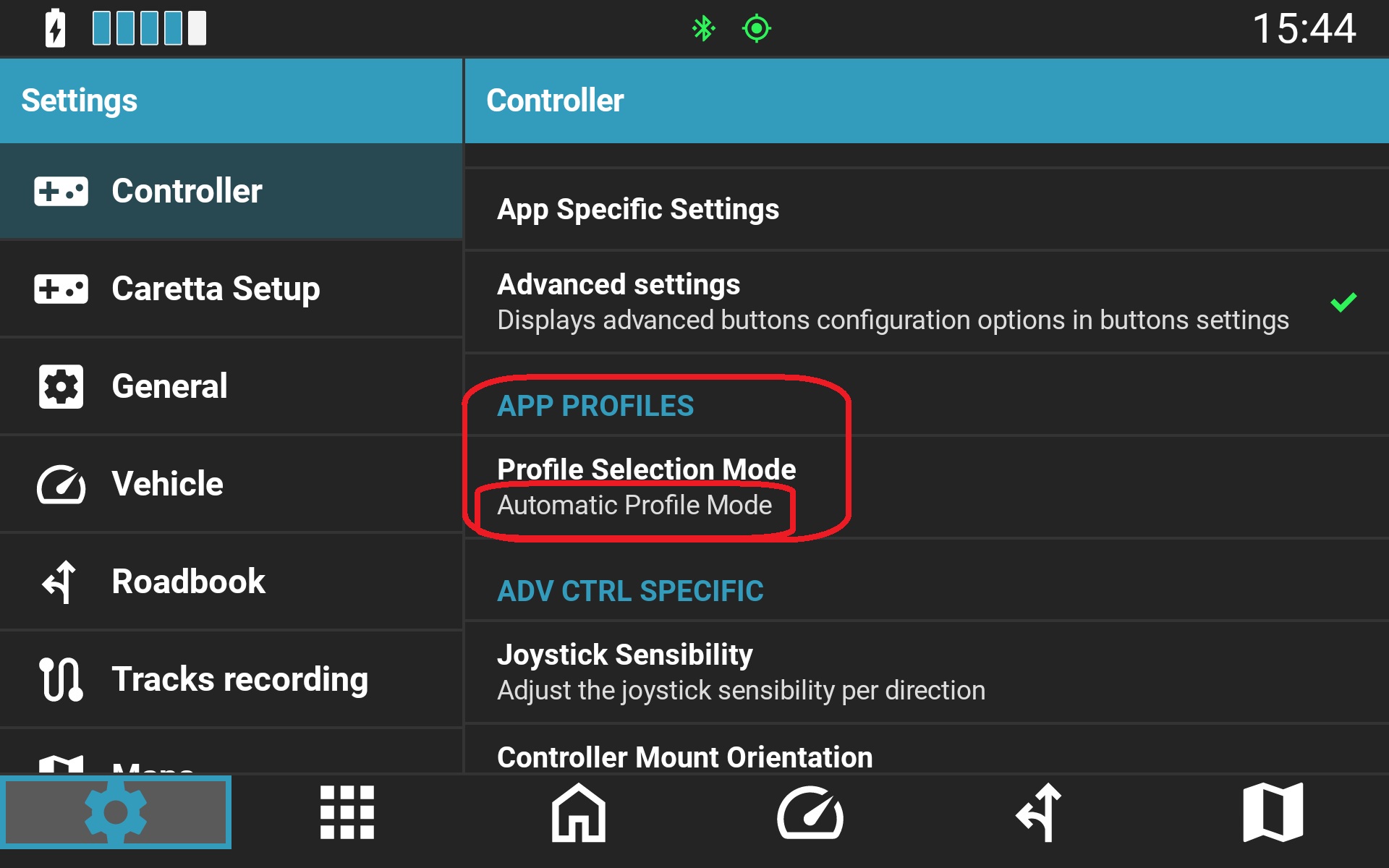
- Disable legacy Controller app service: Review the migration guide: How to migrate from Carpe Controller app to Carpe Iter NGH and restart instructions: How to restart NGH accessibility service.
- Disable third-party key mappers.
- Revert to default software keyboard (Gboard).
- Toggle Bluetooth: Turn Bluetooth OFF in Android settings, wait 5 seconds, and turn it ON.
- Restart the Android device.
- Unpair and re-pair the controller.
App Compatibility Notice
Carpe Iter controllers support specific motorcycle and navigation applications. Verify that your target application is listed in the Supported Applications Overview.
If a previously working function in a supported app ceases to work following an external app update, contact Carpe Iter support with full device and version details so an update can be released.
Was this article helpful?
That’s Great!
Thank you for your feedback
Sorry! We couldn't be helpful
Thank you for your feedback
Feedback sent
We appreciate your effort and will try to fix the article