

Note: Hardware failure on Carpe Iter remote controllers is extremely rare. Please follow the troubleshooting steps below before contacting technical support.
Problem Description
The Carpe Iter remote controller was previously paired with an Android device, but does not automatically reconnect.
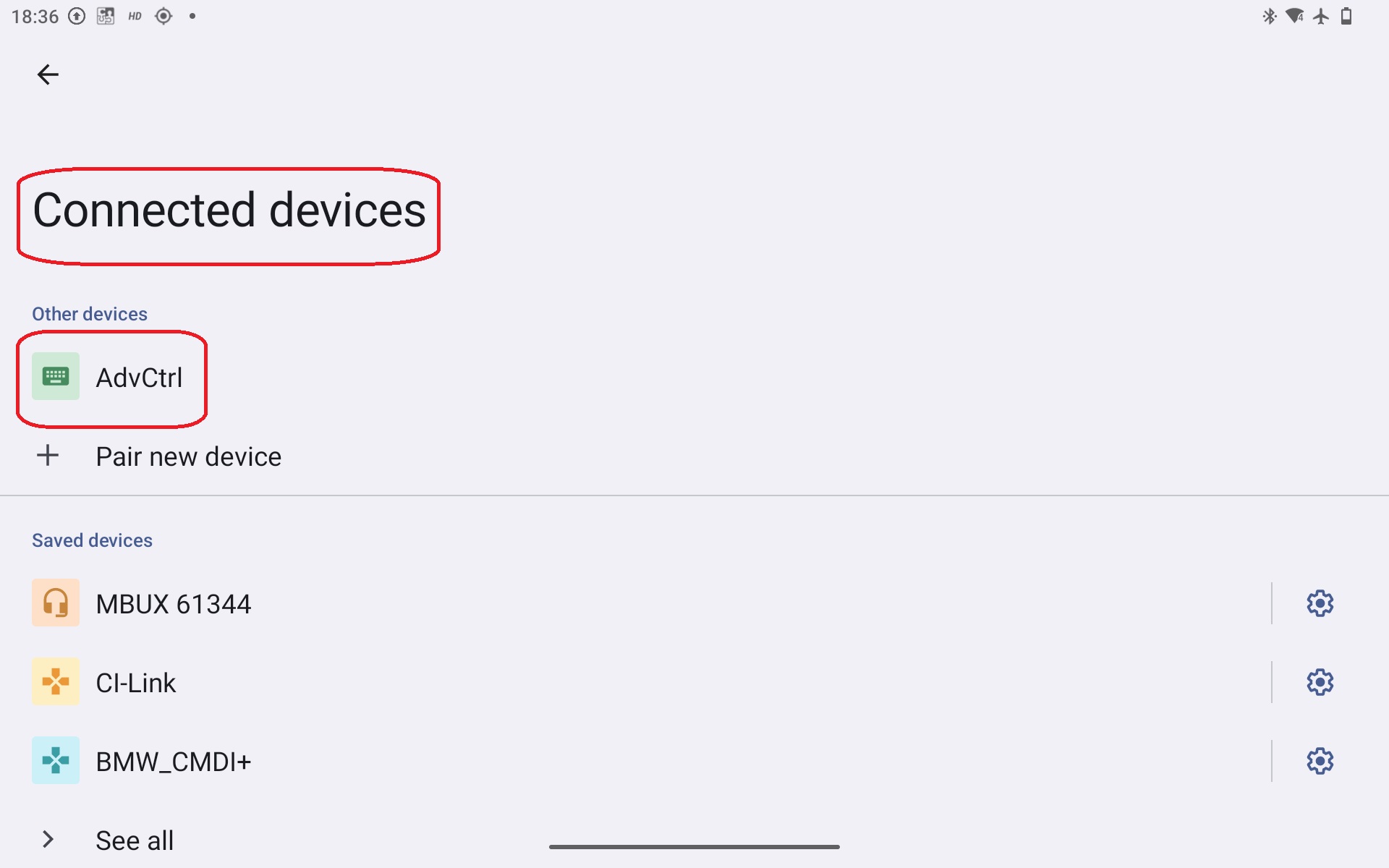
Important: This guide applies when the controller is not listed among actively connected devices in the Android Bluetooth manager.
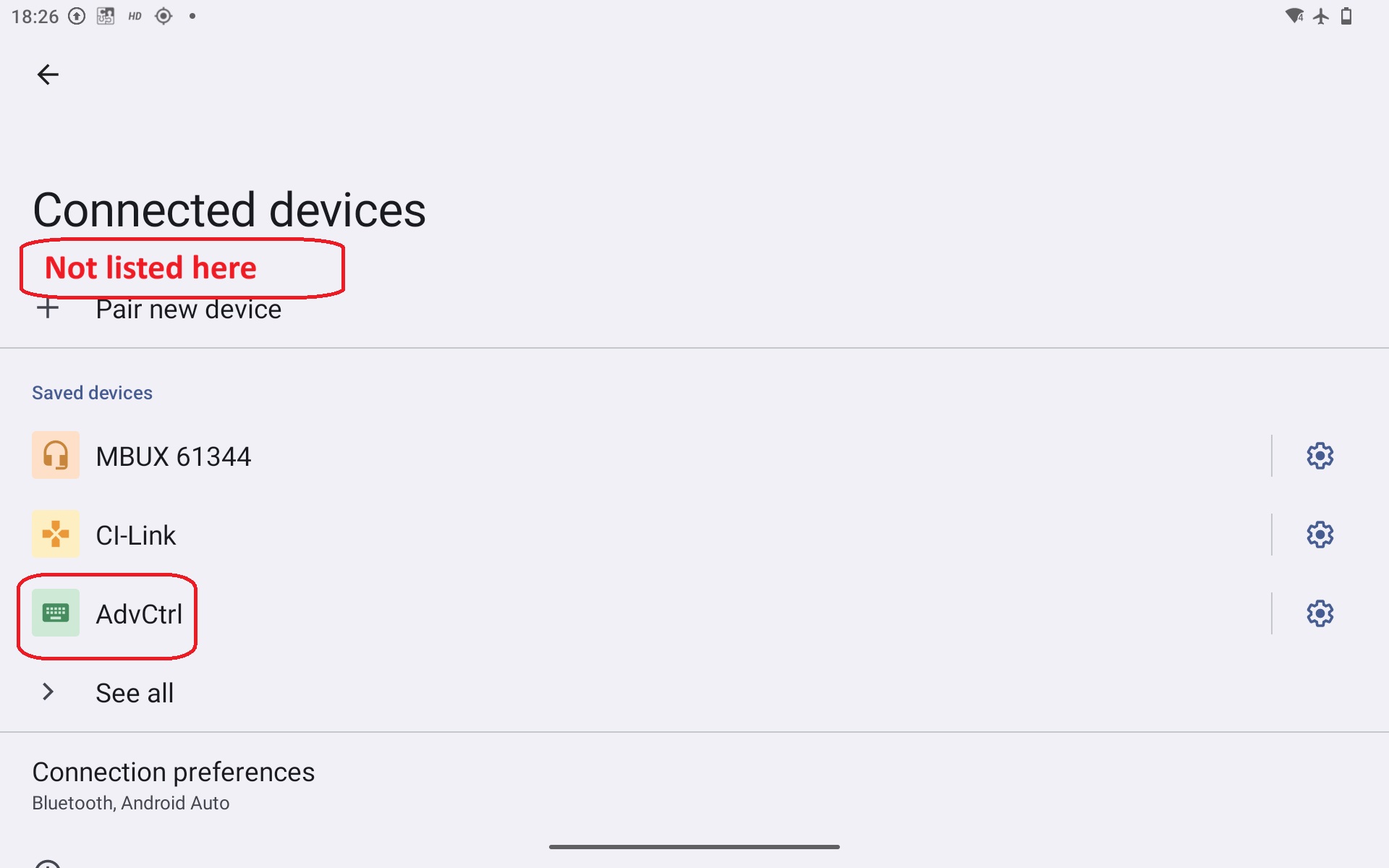
If the controller is listed as actively connected (as shown below) but does not respond or function as intended, please refer to the dedicated controller troubleshooting guide instead.
Troubleshooting Steps
- Cycle Bluetooth: Turn off Bluetooth on your Android device and wait a few seconds. Turn Bluetooth back on, wait a few seconds, and press any button on the controller.
- Check Power Supply: Verify that the controller is powered. Each controller has a status LED. If the LED is off, the controller is not receiving power. Common causes include an improperly seated connector or a blown fuse. If connected to an ignition-switched auxiliary power outlet, ensure the ignition is on and the engine is running.
- Wake from Idle Mode (Adventure Control): If using the Adventure Control, press the button with the "Enter" key symbol (located below the joystick). The unit may simply be in Idle mode.
- Check for Active Connection Elsewhere (Solid Blue LED): If the status LED is solid blue, the controller is already connected to another host device in Bluetooth range (for example, if previously paired with both a Caretta unit and a smartphone). The controller cannot maintain multiple simultaneous connections. Disable Bluetooth or unpair the controller on other devices within range, then re-check the connection to your primary device.
- Re-establish Pairing (Flashing Blue LED): If the status LED is flashing blue, the controller is in pairing mode, but no valid bonding relationship exists on your Android device. Refer to this support article for pairing instructions. If the controller is already listed under saved/paired devices, perform the following steps:
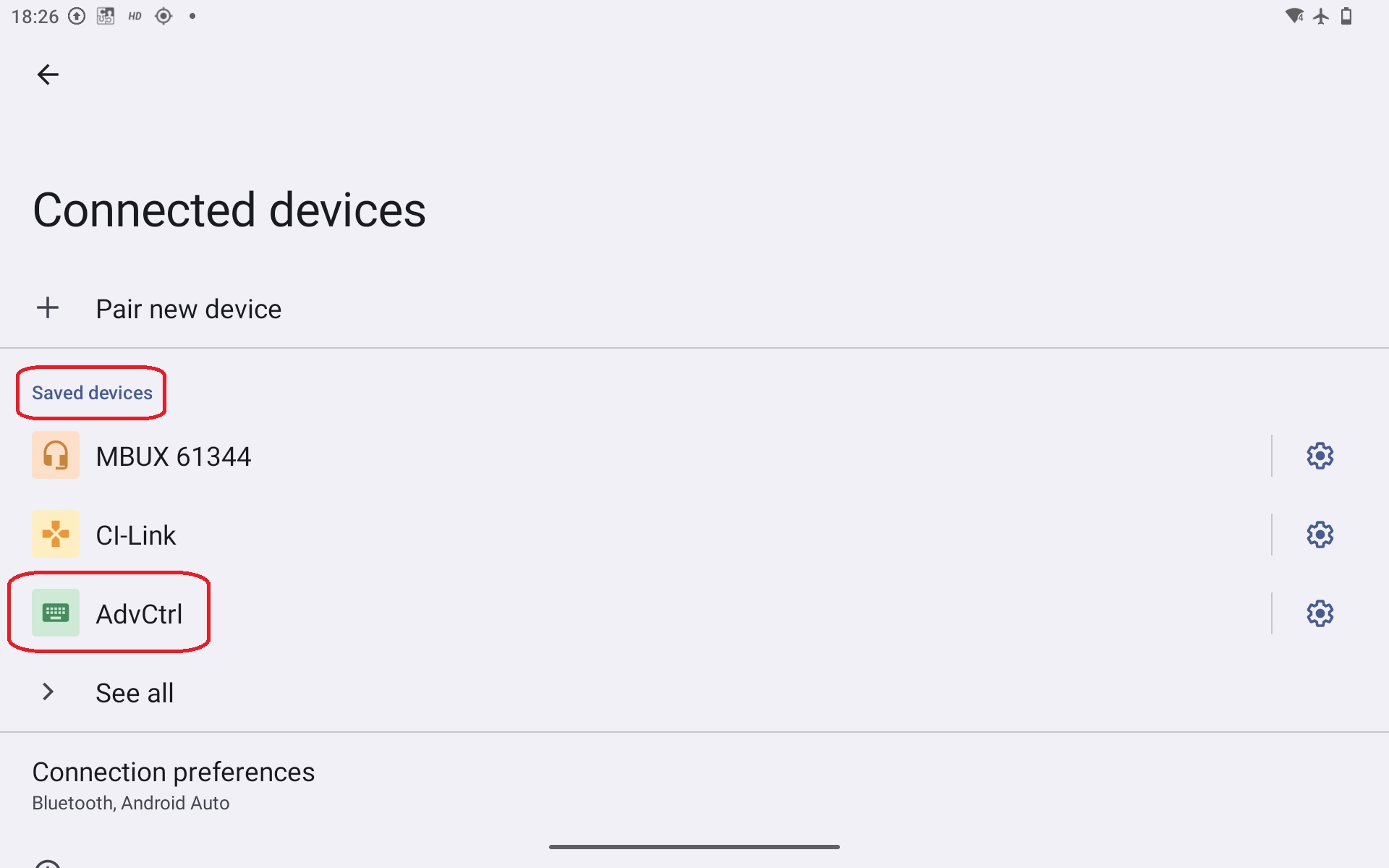
- Wake the controller: Press any button on the controller, wait a few seconds, and check the connection status in your Android Bluetooth settings.
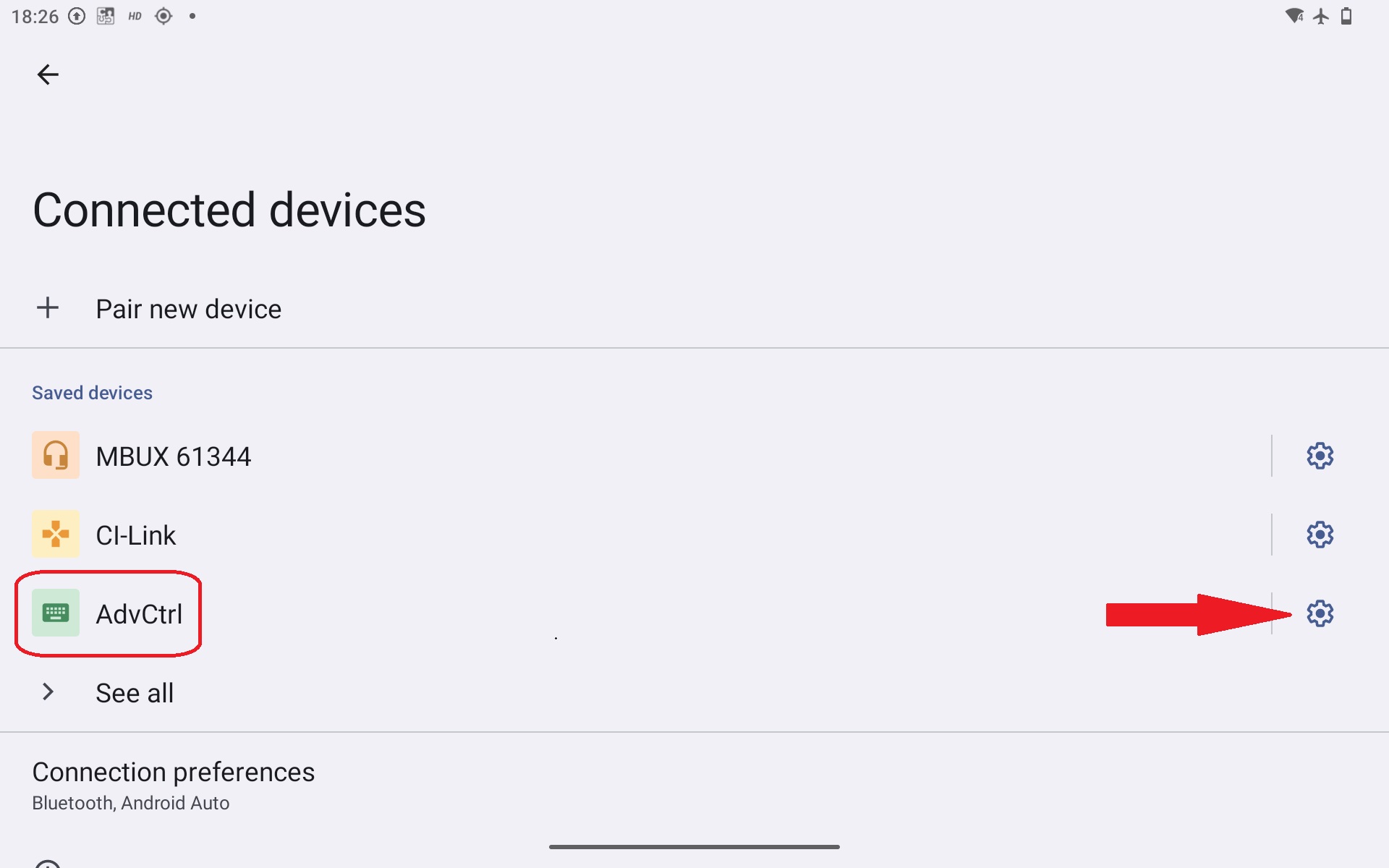
- Unpair/Forget the controller: Tap the gear/settings icon next to the controller entry and select Unpair or Forget. For detailed steps, see this support article.
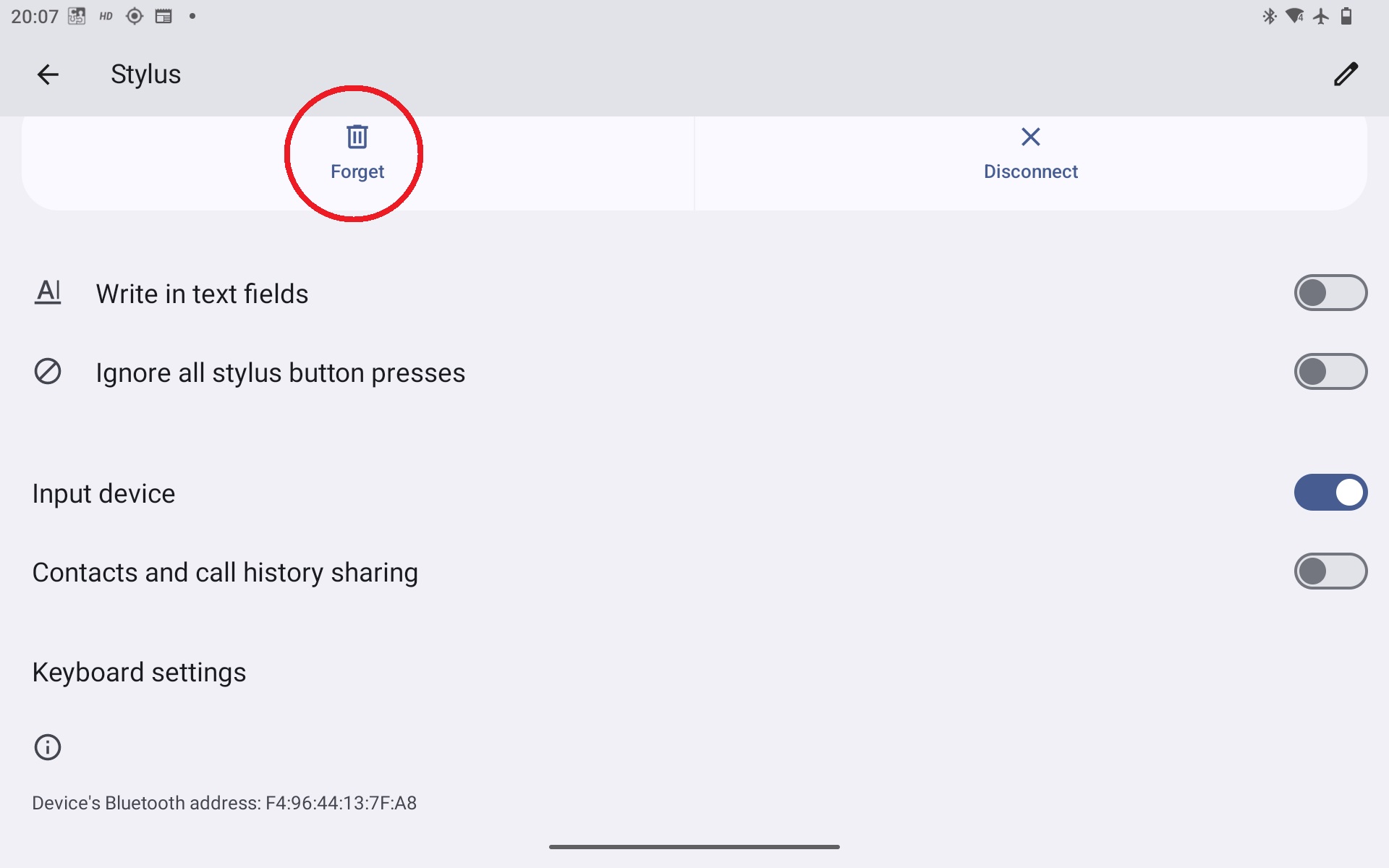
- Verify LED state: Ensure the controller status LED is flashing blue (indicating pairing readiness). If the LED is off or solid blue, repeat steps 1 through 4 above.
- Re-pair the controller: Pair and bond the controller anew as described in this support article.
Was this article helpful?
That’s Great!
Thank you for your feedback
Sorry! We couldn't be helpful
Thank you for your feedback
Feedback sent
We appreciate your effort and will try to fix the article