

Autoprofiling Overview
Autoprofiling automatically adapts and reconfigures the Carpe Iter controller for each supported application as soon as the app is opened, requiring no manual user intervention.
Prerequisites: Autoprofiling requires Next-gen HUD (NGH) to be active on your Android device with the Carpe Iter NGH Accessibility Service enabled.
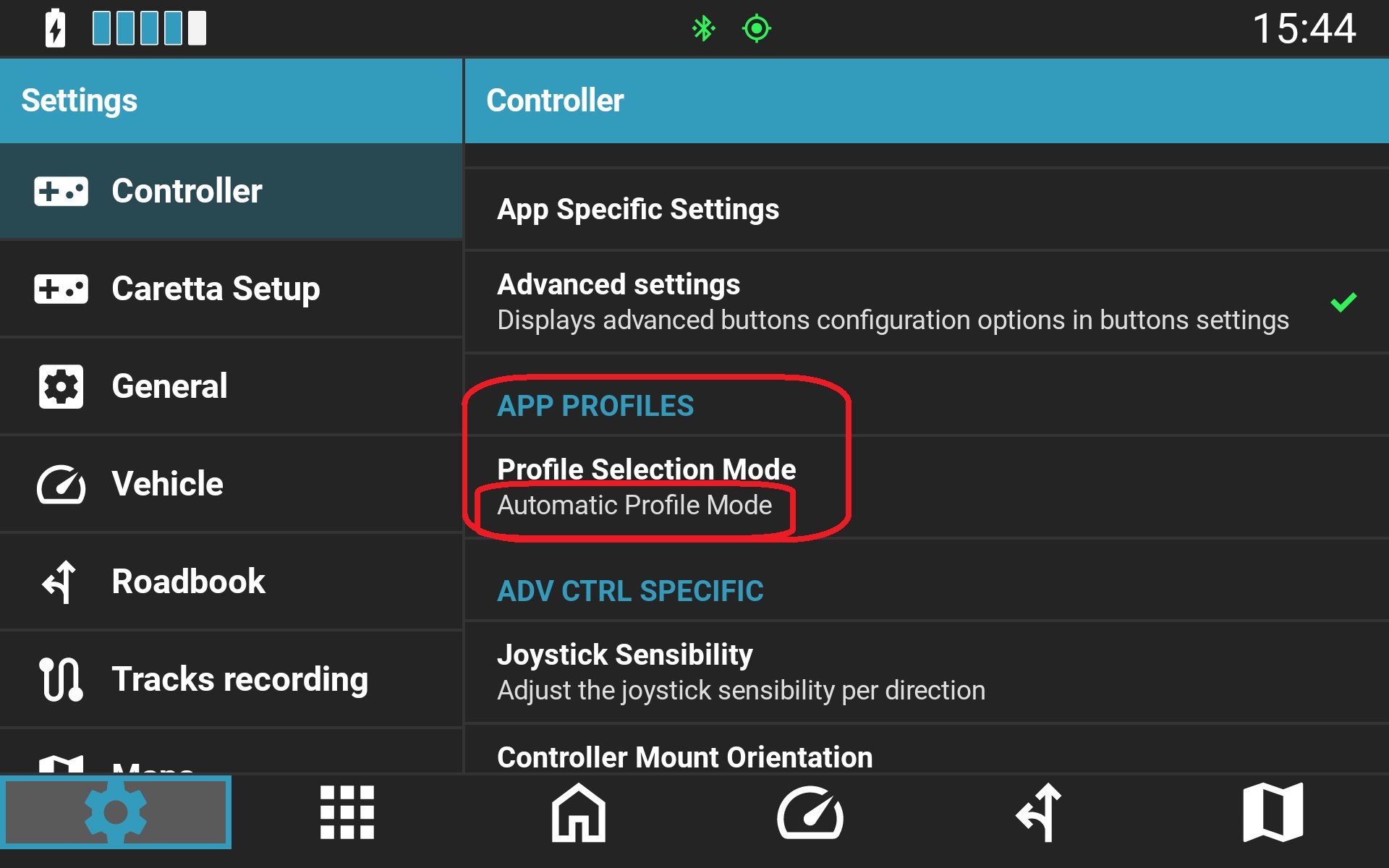
Autoprofiling is enabled by default and is displayed under NGH > Controller > App profiles with the status Automatic profile.
Locking a Controller Profile
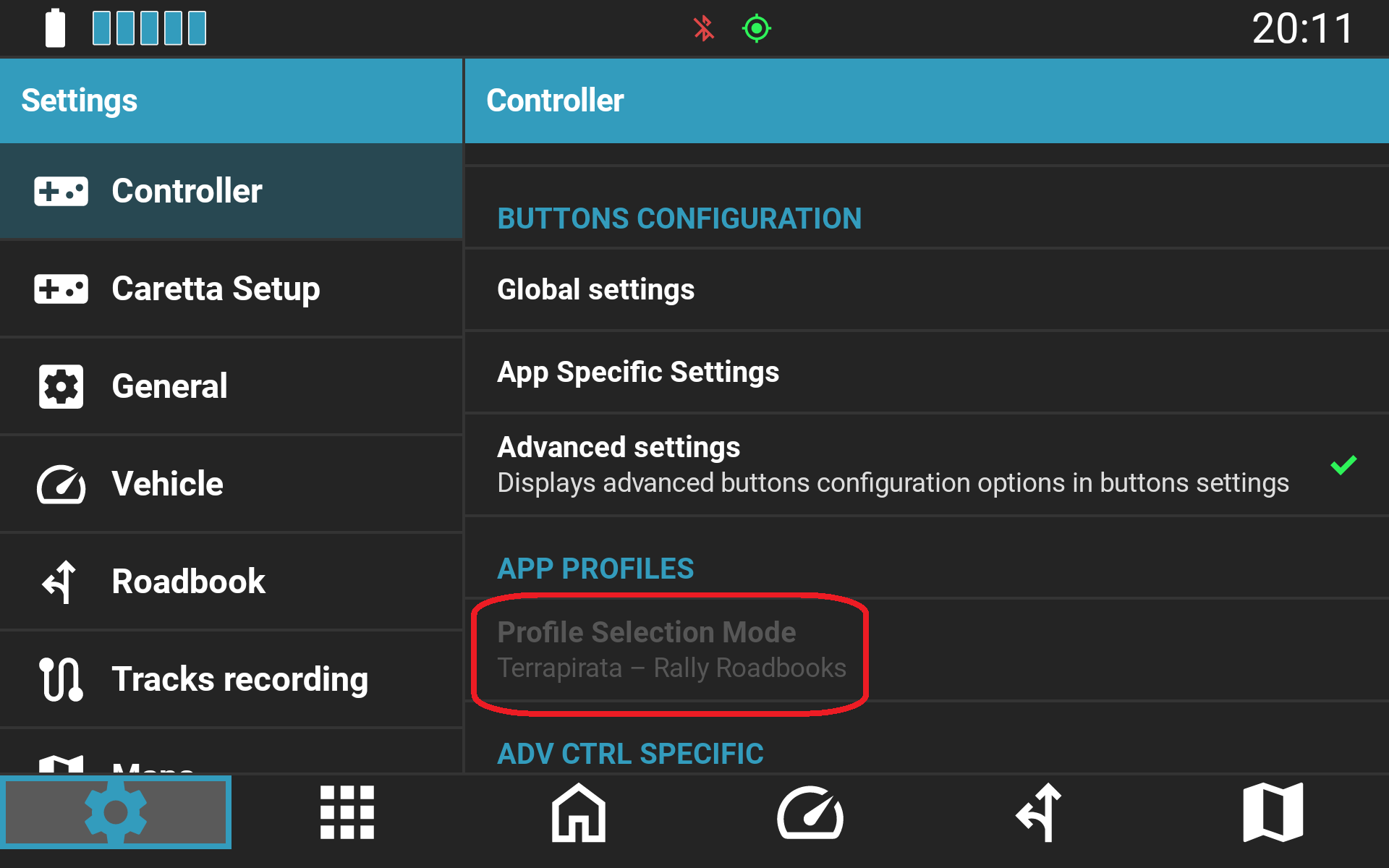
In high-reliability environments such as rally raid competitions, locking the controller profile to a specific navigation app (e.g., Terrapirata) eliminates unintended profile switching.
How to Lock a Profile
- Ensure the controller is connected and selected in NGH (the option will remain greyed out if disconnected).
- Tap Profile Selection Mode in the configuration menu.
- Select the application to which the controller profile should be locked.
Hardware Failsafe: If the selected app relies on keyboard keycodes (such as Terrapirata), the keycodes are flashed directly to the controller firmware. The controller will continue operating correctly in the selected app even if the Carpe Iter NGH Accessibility service is disabled or interrupted, ensuring maximum reliability during races.
Was this article helpful?
That’s Great!
Thank you for your feedback
Sorry! We couldn't be helpful
Thank you for your feedback
Feedback sent
We appreciate your effort and will try to fix the article