

Carpe Iter handlebar remote controllers connect via Bluetooth to your Android device (including Caretta, CI Pad, and compatible Android smartphones or tablets).
Pairing via NGH Interface (Recommended)
The recommended procedure is to pair your Carpe Iter controller using the NGH connection interface.
- Connect Power: Connect your controller to power. The status LED on the controller will illuminate.
- Enable Bluetooth: Turn on Bluetooth on your Android device.
- Launch NGH: Open NGH and verify that NGH is installed and updated to the latest version.
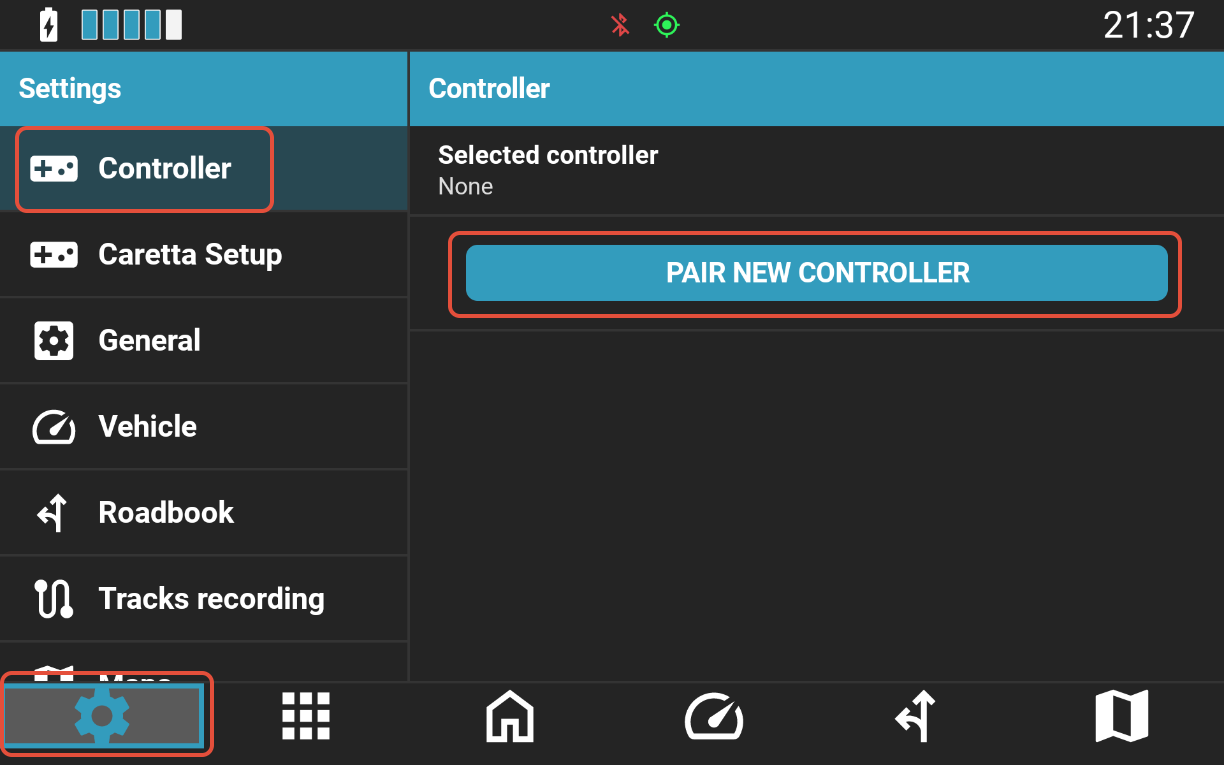
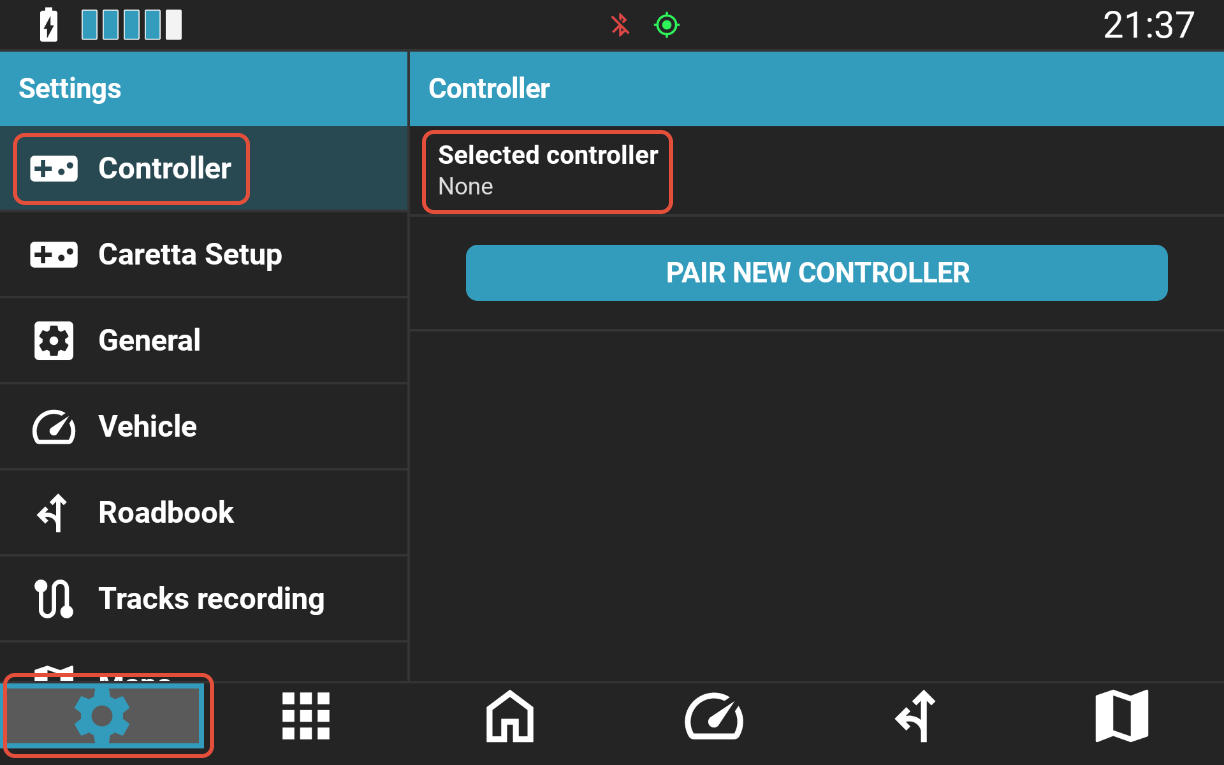
- Initiate Pairing: Navigate to NGH Settings > Controller and tap Pair New Controller.
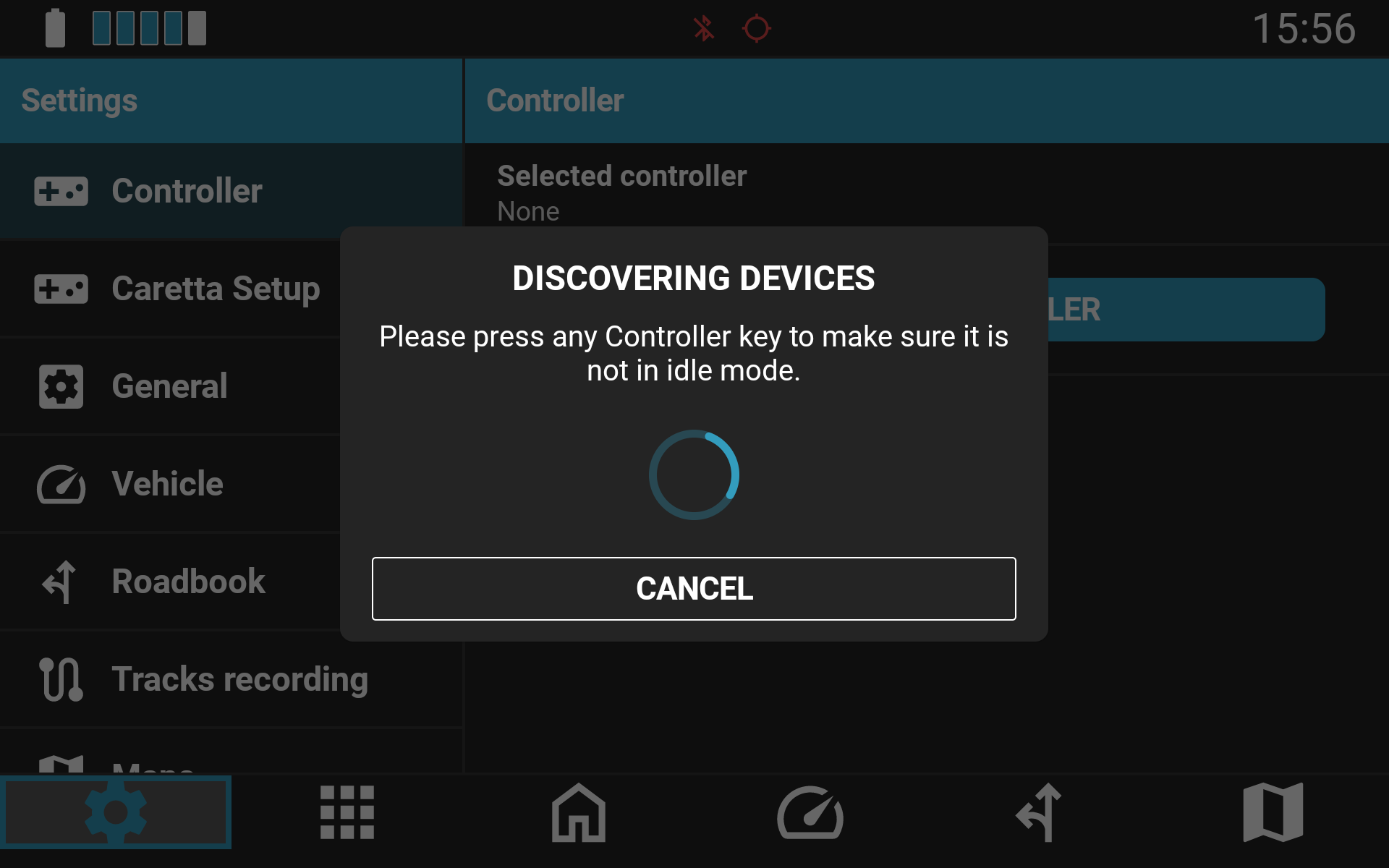
- Scan for Controllers: NGH will scan for available Carpe Iter controllers in range. If discovery takes more than a few seconds, press any button on the controller to wake it.
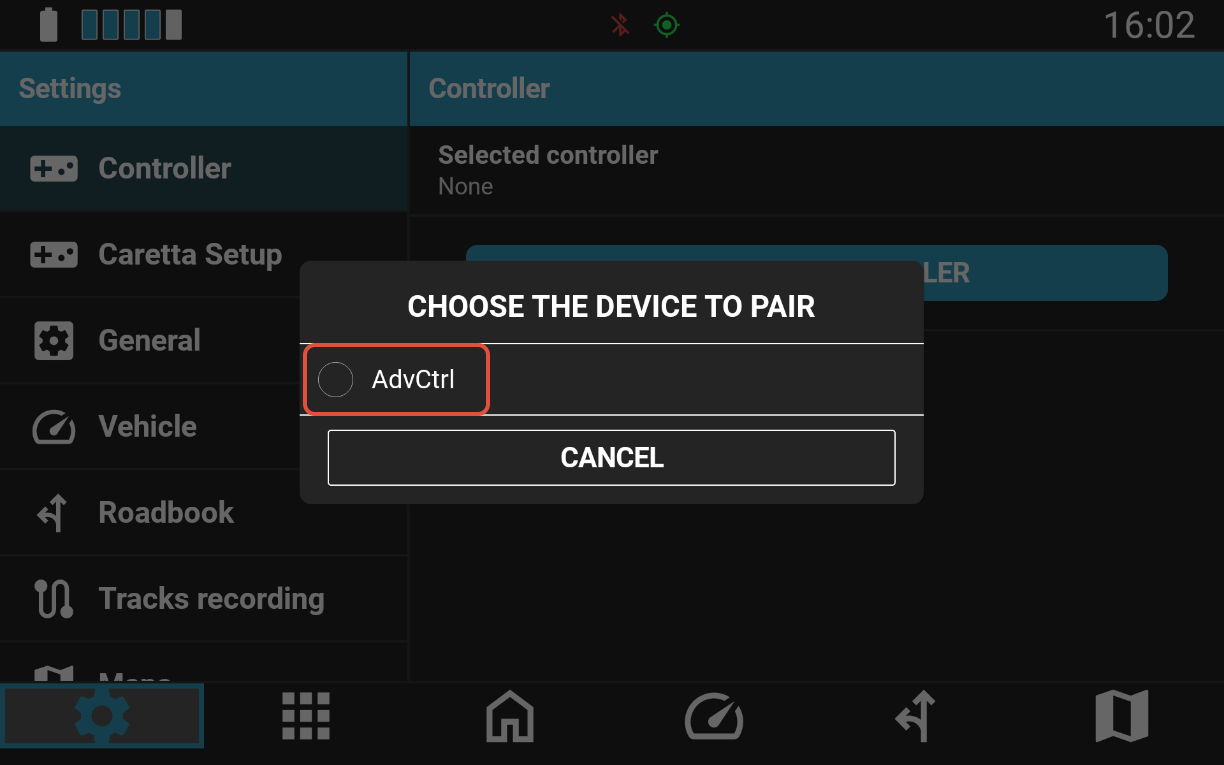
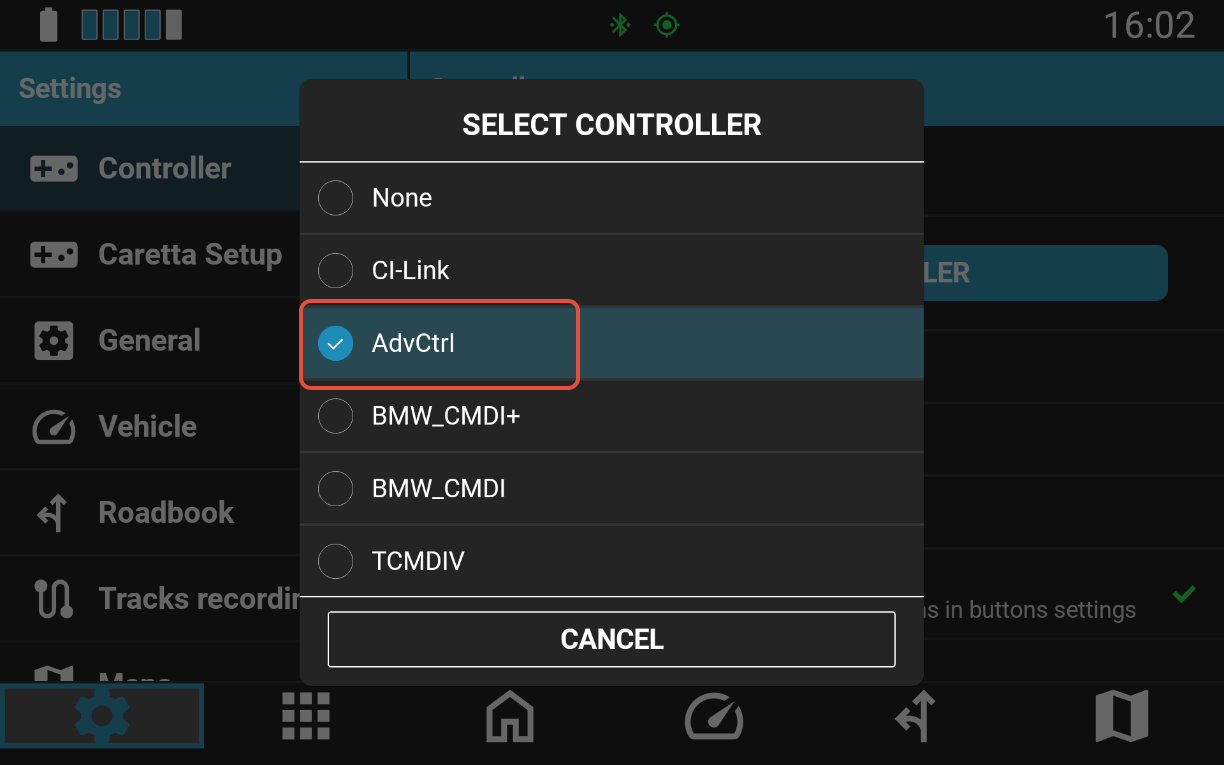
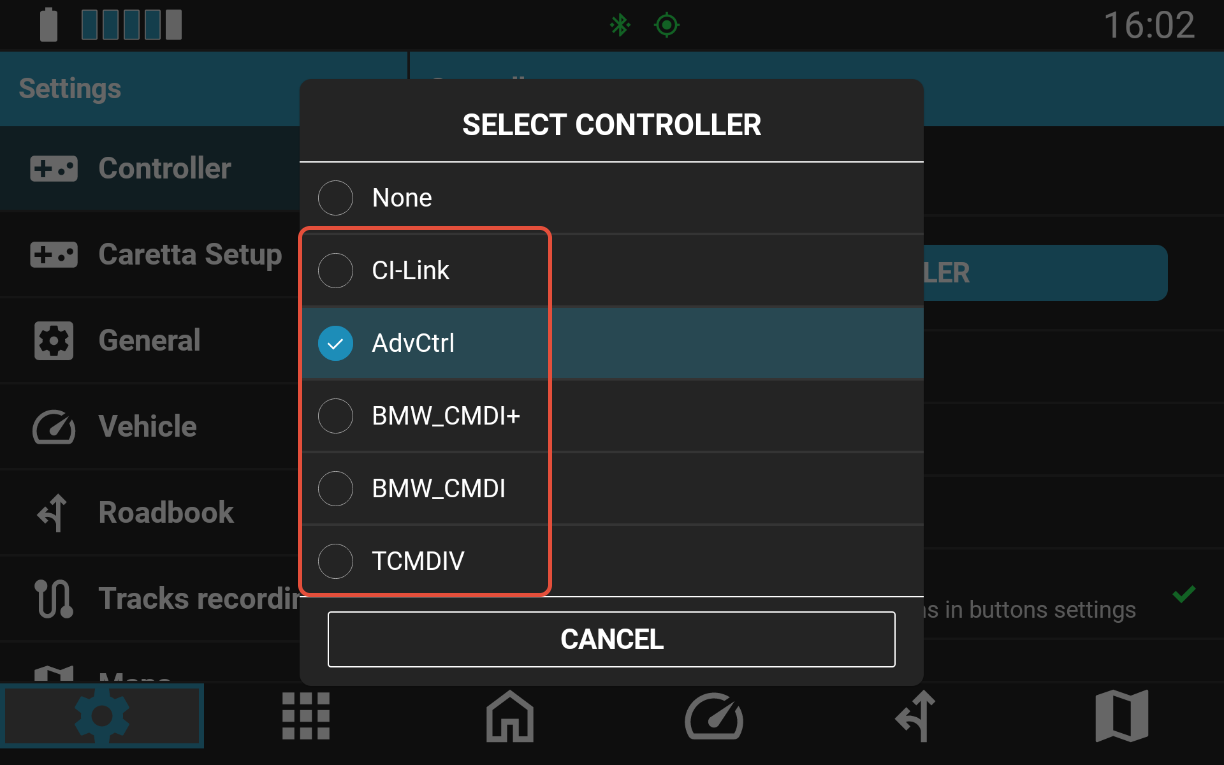
- Select Controller: Select your controller from the discovered devices list. This process applies to all Carpe Iter Bluetooth controller models (e.g., Adventure Control / AdvCtrl, Terrain Command III, BMW Control).
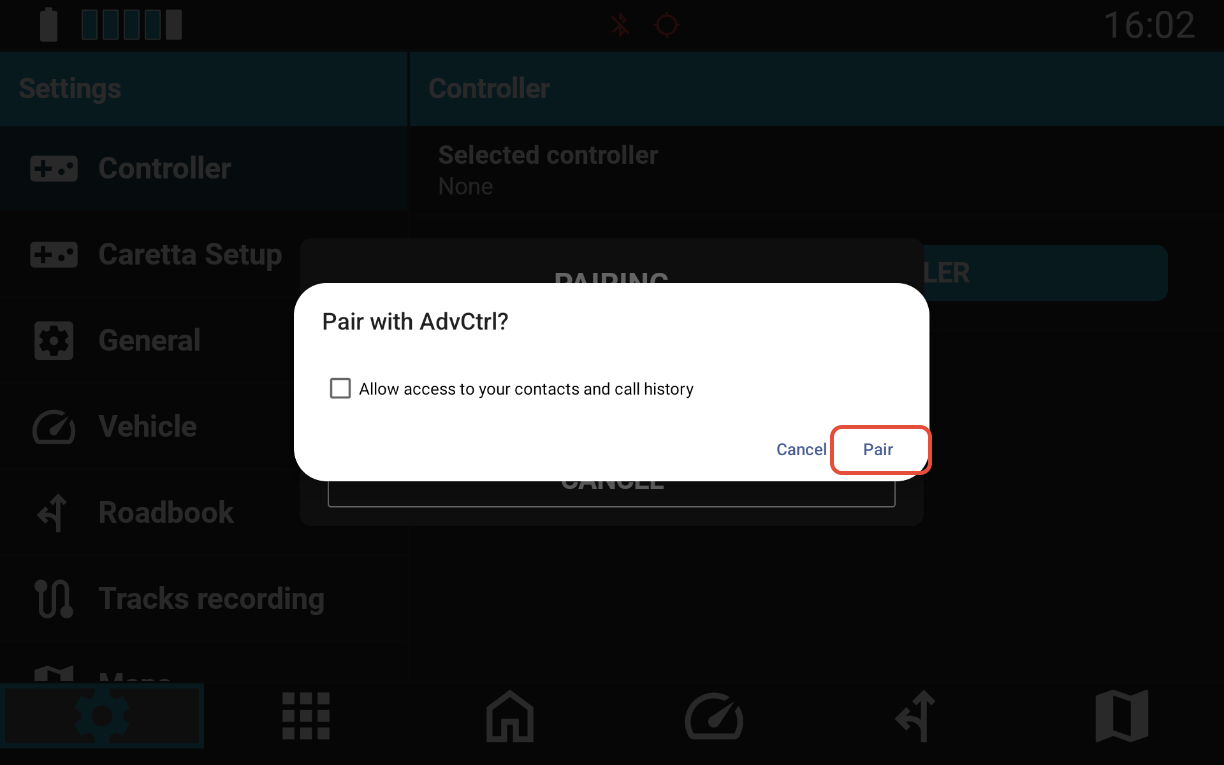
- Confirm Pairing: When the system pairing dialog appears, tap Pair. A confirmation message will appear in NGH upon completion.
Note: If the operating system pairing prompt does not appear, pair the controller manually via your Android device's native Bluetooth manager (following the standard procedure for Bluetooth peripherals). Once paired, the controller will appear in NGH.
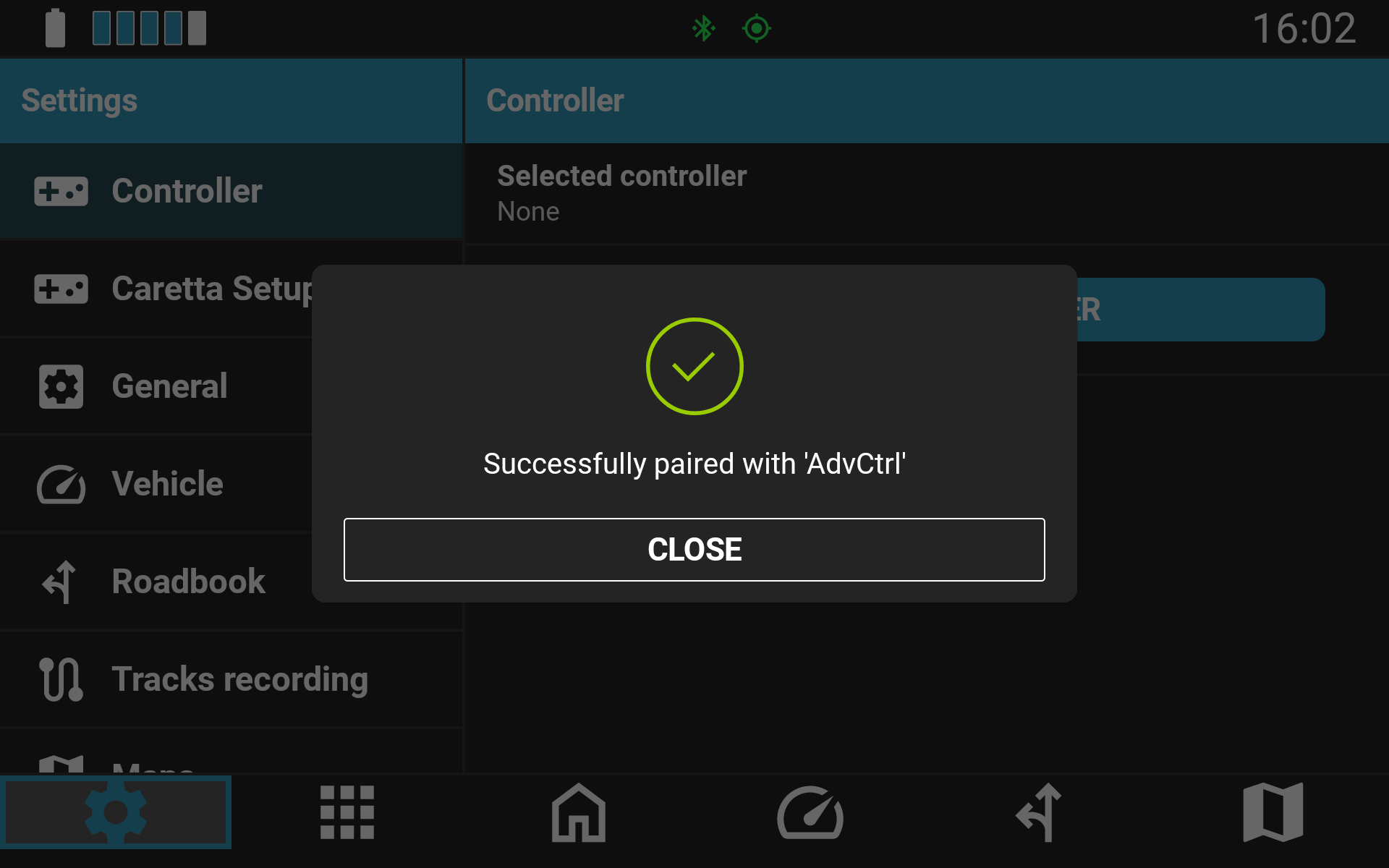
Selecting and Activating the Controller in NGH
- Select Active Controller: Once paired, select the controller in NGH under NGH Settings > Controller > Selected controller.
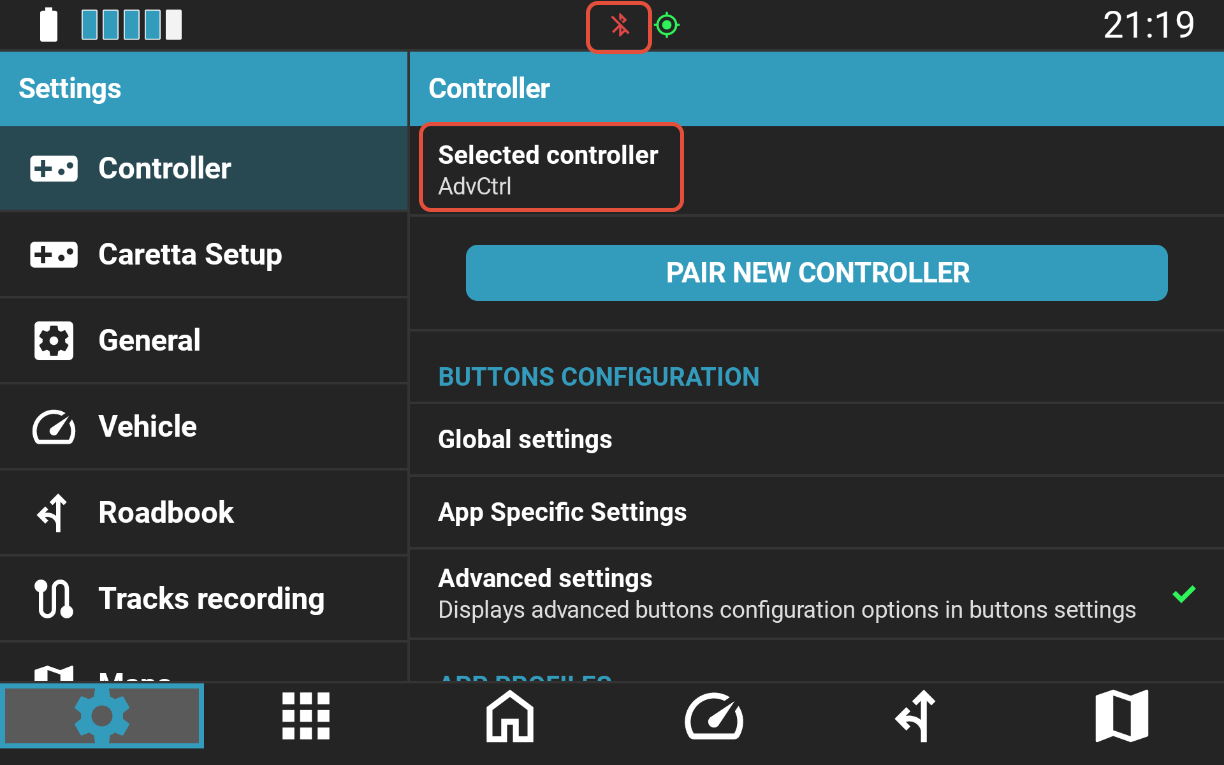
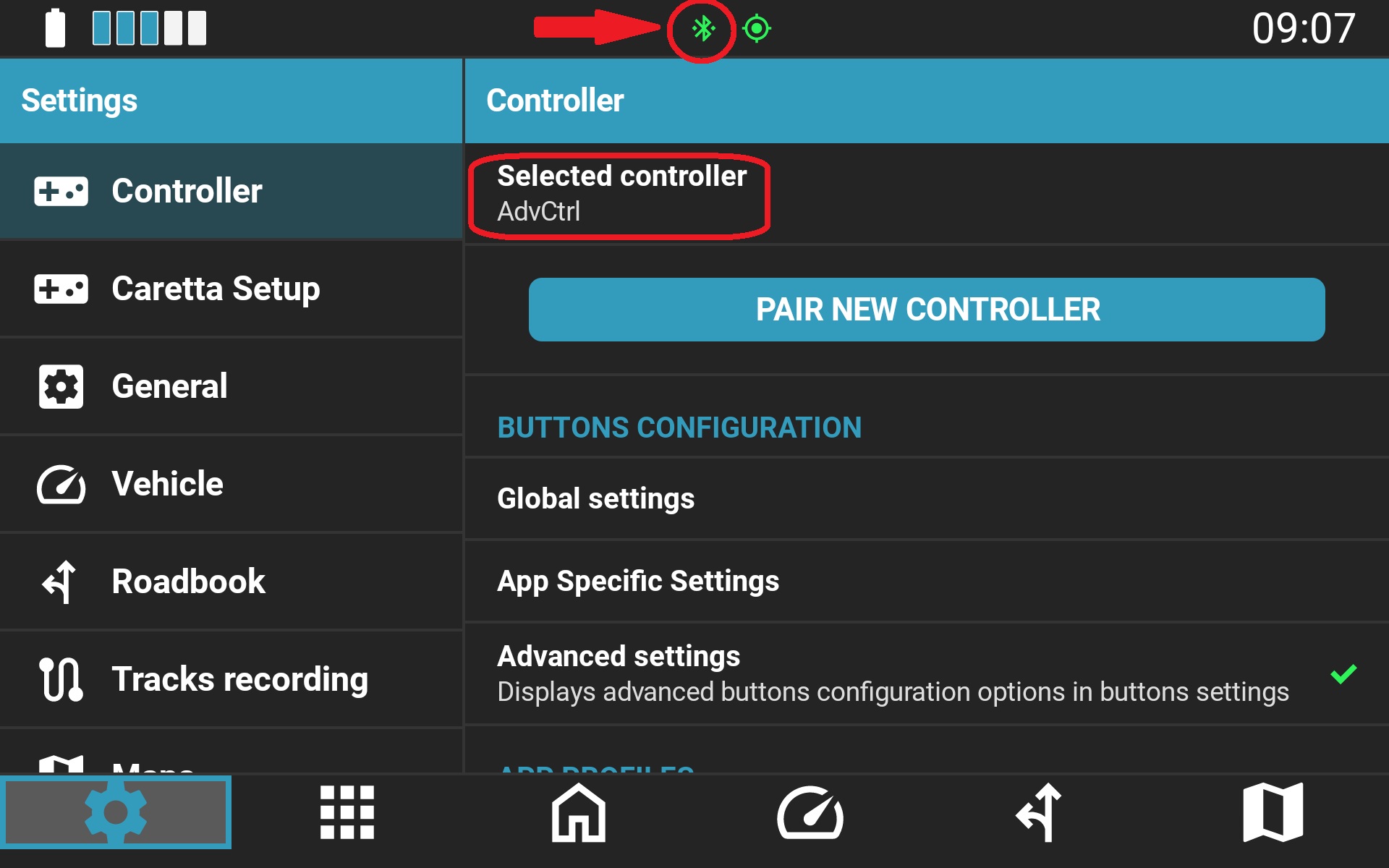
- Verify Connection: Once selected, the controller will show as active in the settings menu, and the controller icon in the NGH status bar will turn green.
Automatic Reconnection & Multi-Controller Management
After initial pairing, the controller connects automatically whenever it receives power and the Android device is in range with Bluetooth enabled. If it does not connect immediately, press any button on the controller to wake the Bluetooth connection.
Multi-Controller Support
NGH supports pairing multiple Carpe Iter remote controllers (e.g., when using one tablet across multiple motorcycles with dedicated controllers). You can pair all units and switch between them in the NGH configuration menu. Note that while multiple controllers can be paired, only one active controller can register inputs at a time.
When a paired controller is connected and selected for use, the Bluetooth icon in the NGH status bar indicates active status by changing from red to green:
Was this article helpful?
That’s Great!
Thank you for your feedback
Sorry! We couldn't be helpful
Thank you for your feedback
Feedback sent
We appreciate your effort and will try to fix the article