

Another exciting addition to Next-Gen HUD (NGH) is direct control of supported Insta360 action cameras right from your Carpe Iter handlebar controllers.
No more reaching for your helmet or crash bars while riding. Key camera functions can now be operated safely without taking your hands off the handlebars—with on-screen camera status indicators and interactive floating widgets coming soon to complete the experience.
Prerequisites & Supported Models
Requirements
- Software: NGH App updated to v1.33 or higher.
- Hardware: Any Carpe Iter Remote Controller (Terrain Command, Adventure Control, BMW Control) or Caretta (including BMW Wonderwheel integration).
Supported Camera Models
- X5
- X4 Air
- X4
- X3
- ONE X2 (Note: Possible glitches due to known Insta360 firmware bugs—a camera firmware downgrade may be necessary for full stability)
Additional camera models will continue to be added in future software updates.
Available Camera Commands
Once camera support is enabled and a compatible camera is bonded, a dedicated Camera submenu appears in your Controller Configuration with the following actions:
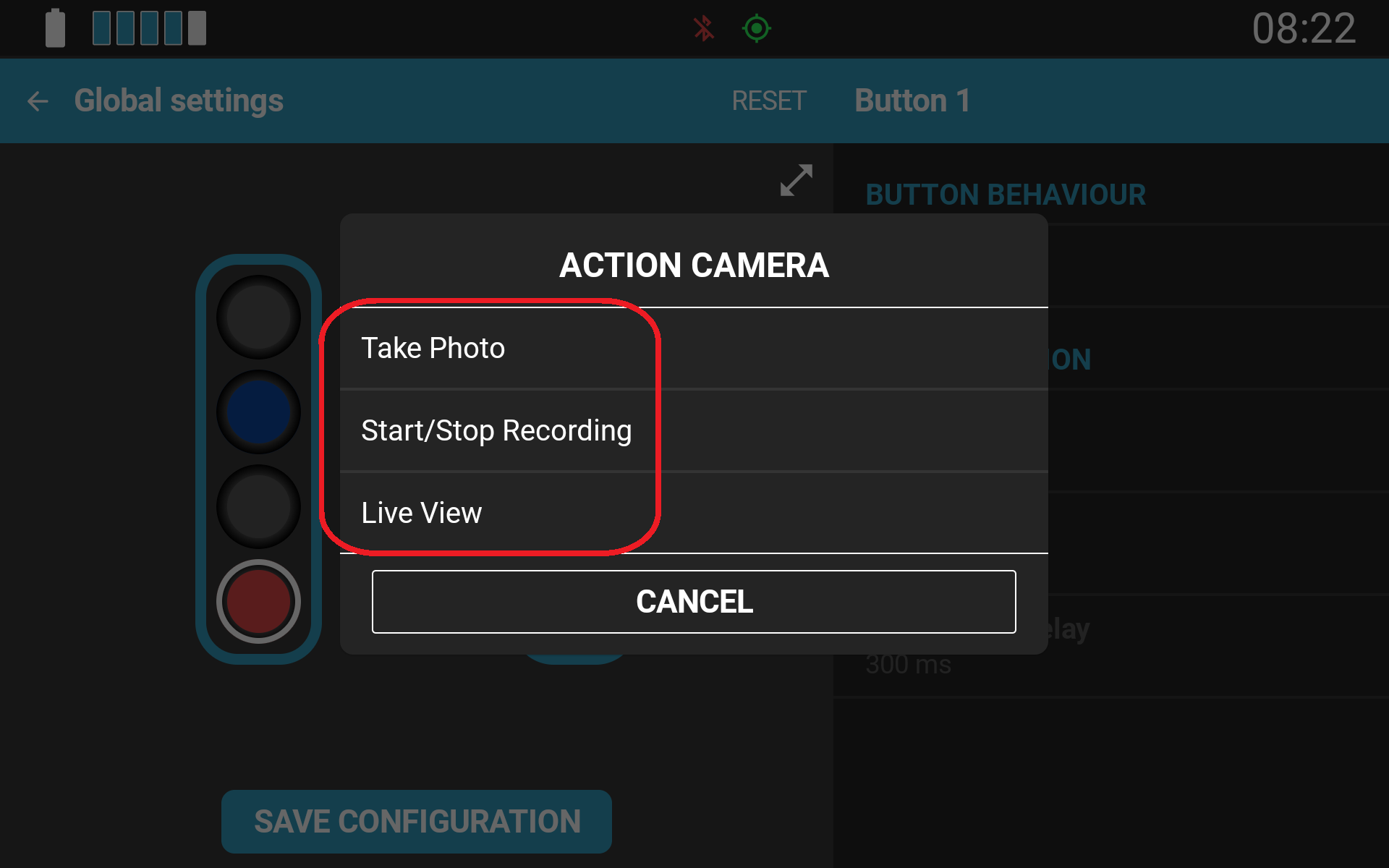
- Recording Start/Stop
- Take Still Picture
- Live Preview Toggle
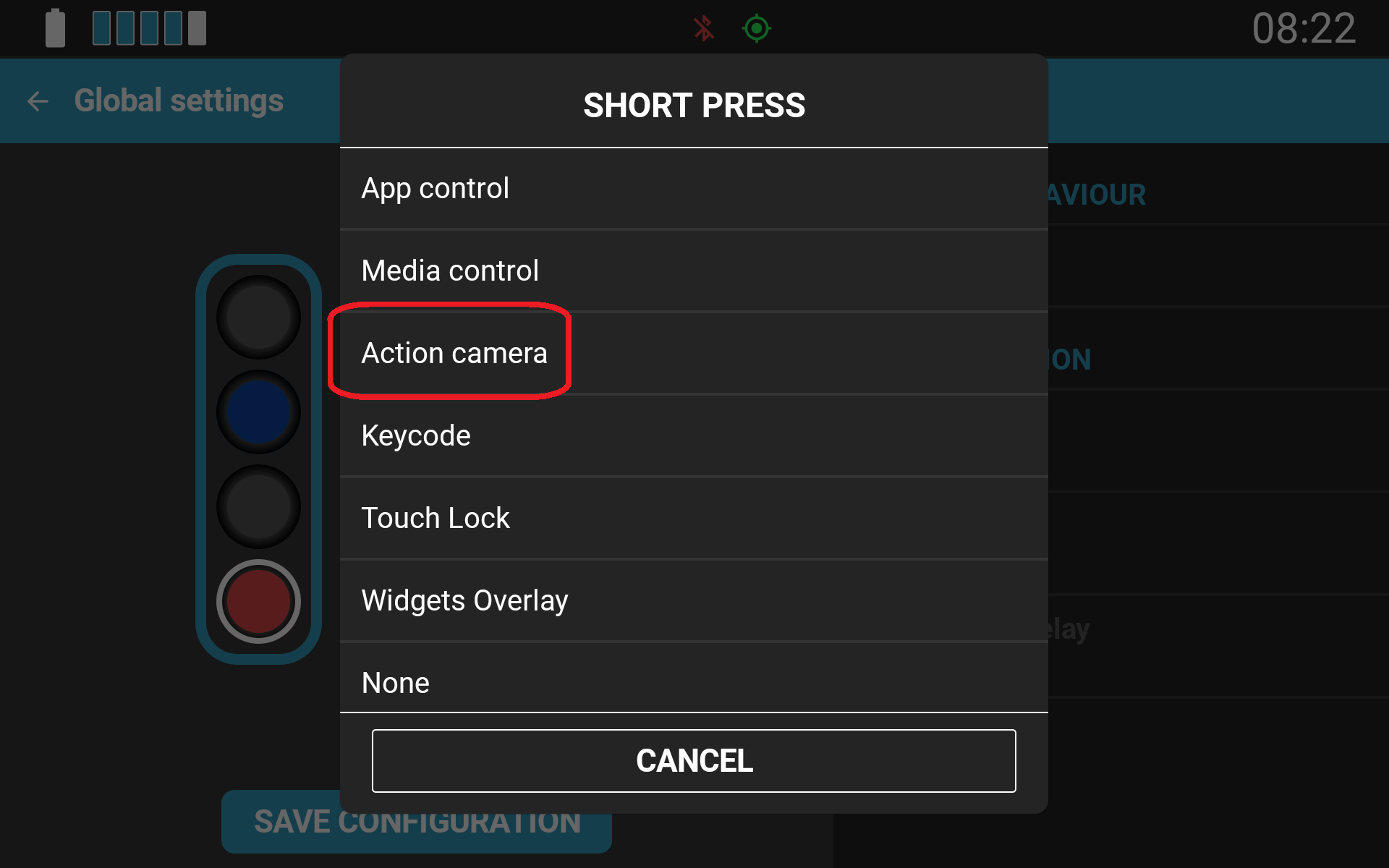
These commands can be assigned to any button, short press, long press, or application-specific profile.
Live Preview Overlay (Your Digital Rearview Mirror)
One of the most powerful features of this integration is Live Preview. When activated via a controller button, a live video feed from the camera pops up directly on your screen as a semi-transparent overlay over whatever navigation app you are currently running.
Since you are using a 360-degree camera, Live Preview goes far beyond standard shot framing or checking lens alignment. When your 360 camera is mounted facing backward on the bike, Live Preview transforms into a digital rearview mirror—allowing you to monitor traffic behind you instantly without leaving your active navigation screen.
Active Recording Supported: Live Preview works seamlessly while the camera is actively recording video. You can trigger recording via your handlebar controller and maintain the live overlay to monitor your surroundings without interrupting your recording session.
⚠️ Important: How Connections Work & Wi-Fi Limitations
Action cameras use two distinct wireless protocols, and NGH manages them separately to keep your data flowing:
- Standard Camera Controls (Bluetooth / BLE Auto Connect): Start/Stop recording and snapping photos operates strictly over low-power Bluetooth. Your device's Wi-Fi remains completely free to connect to internet hotspots or share data with other devices.
- Live Preview Streaming (Wi-Fi / WiFi Auto Connect): Live Preview requires a direct Wi-Fi video stream between your Android device and the Insta360 camera. Like all action camera live feeds on Android, enabling Live Preview binds your device’s Wi-Fi interface directly to the camera.
While Live Preview is enabled, your device cannot connect to external Wi-Fi networks or host a Wi-Fi hotspot for other devices. If you only need handlebar controls to trigger recording and photos without video streaming, keep WiFi Auto Connect turned off to keep your Wi-Fi interface completely unblocked.
SDK Limitation Note: Due to limitations within the official Insta360 SDK, the Take Still Picture command cannot be executed while Live Preview is active. Exit Live Preview before snapping a photo.
Coming Soon: On-Screen Camera Widgets
The Insta360 integration will soon tie directly into our new floating NGH Widgets ecosystem. Upcoming updates will introduce floating camera widgets that can be anchored directly over your navigation apps, including:
- On-screen camera connection and recording status indicators
- Live camera battery and storage monitoring
- Floating touch controls for quick manual adjustments
How to Set Up Insta360 Camera Control
- Ensure your camera is powered on and NGH is updated to v1.35 or higher.
- Open the NGH App on your device.
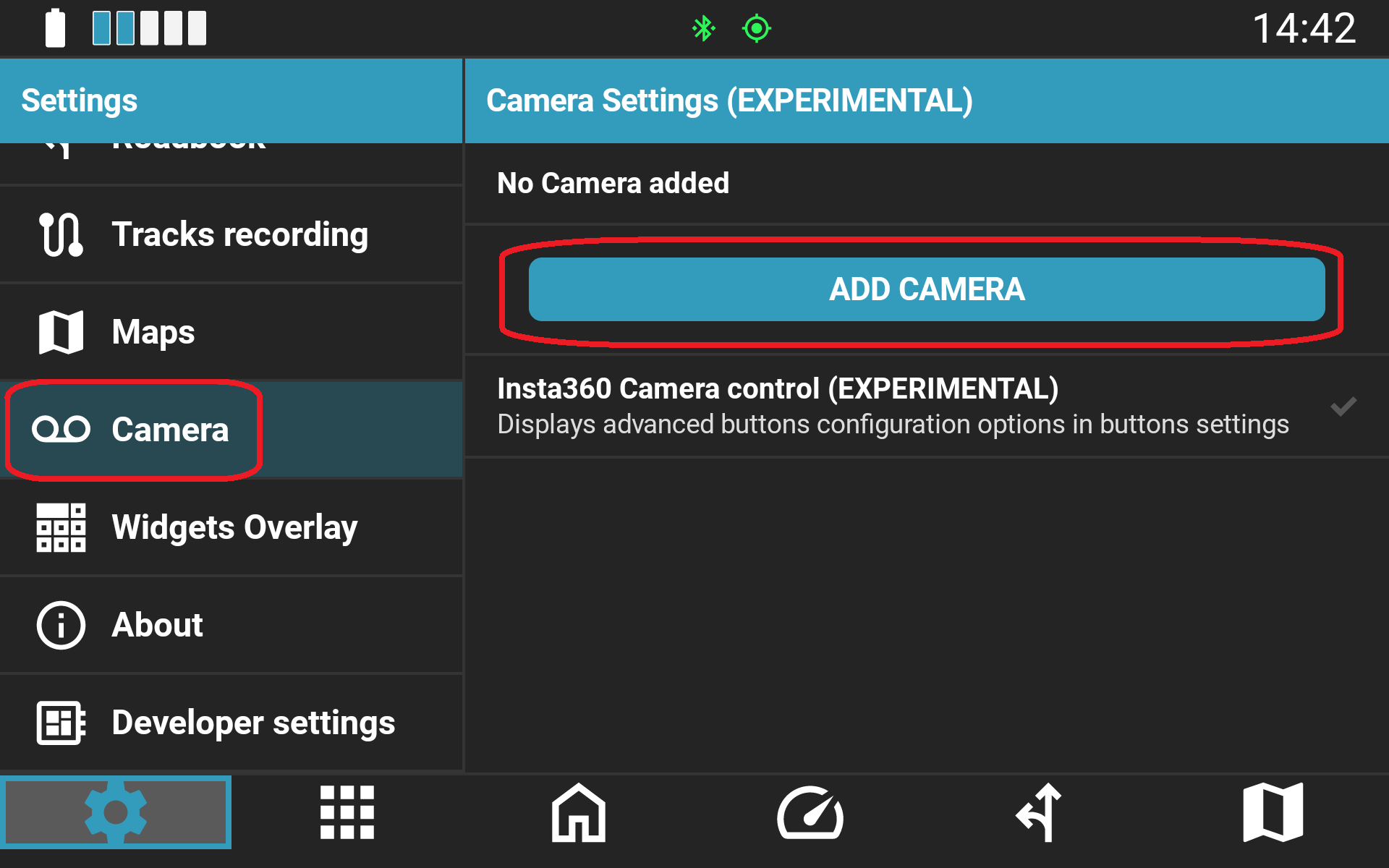
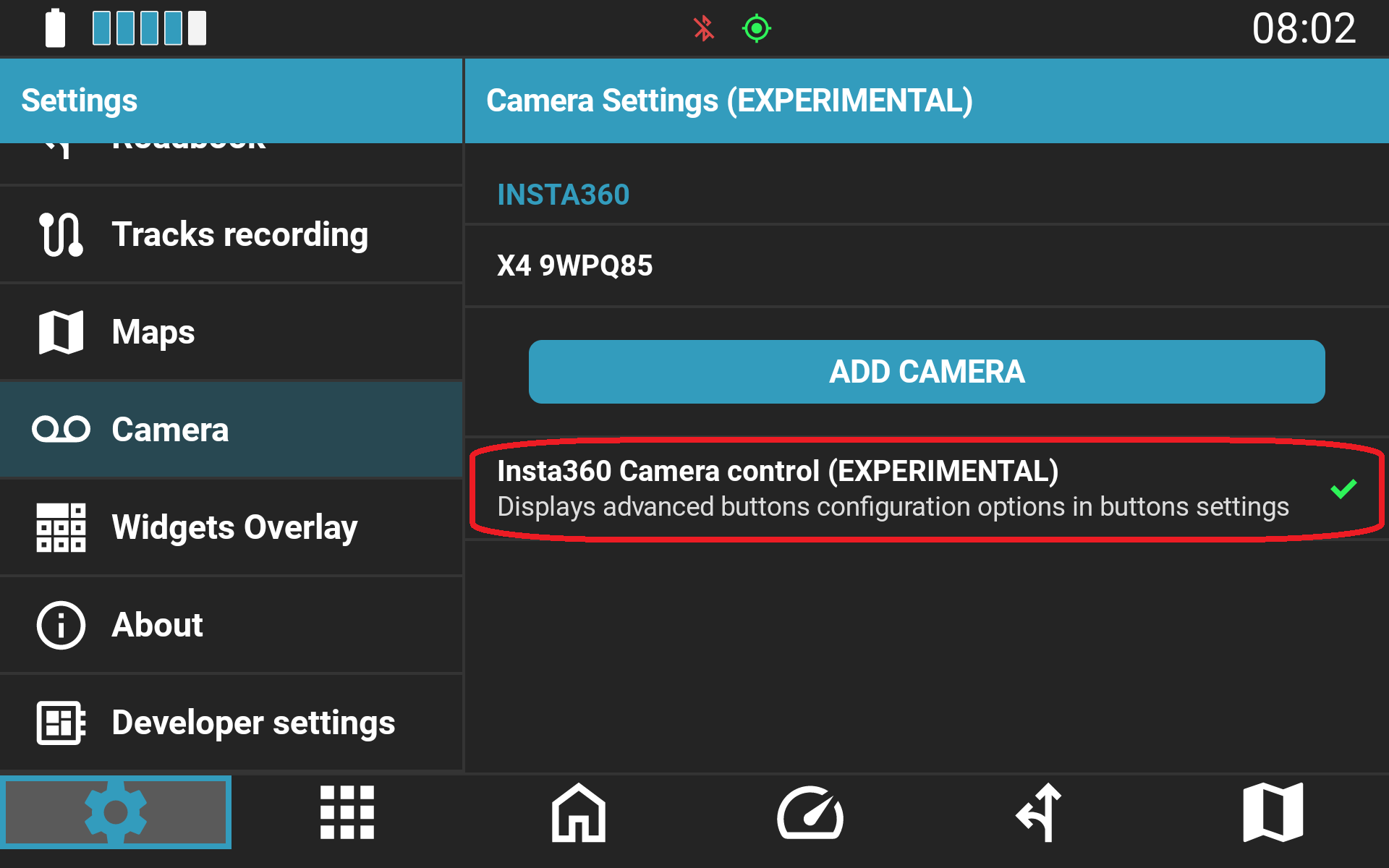
- Navigate to Settings → Camera.
- Enable Camera Control.
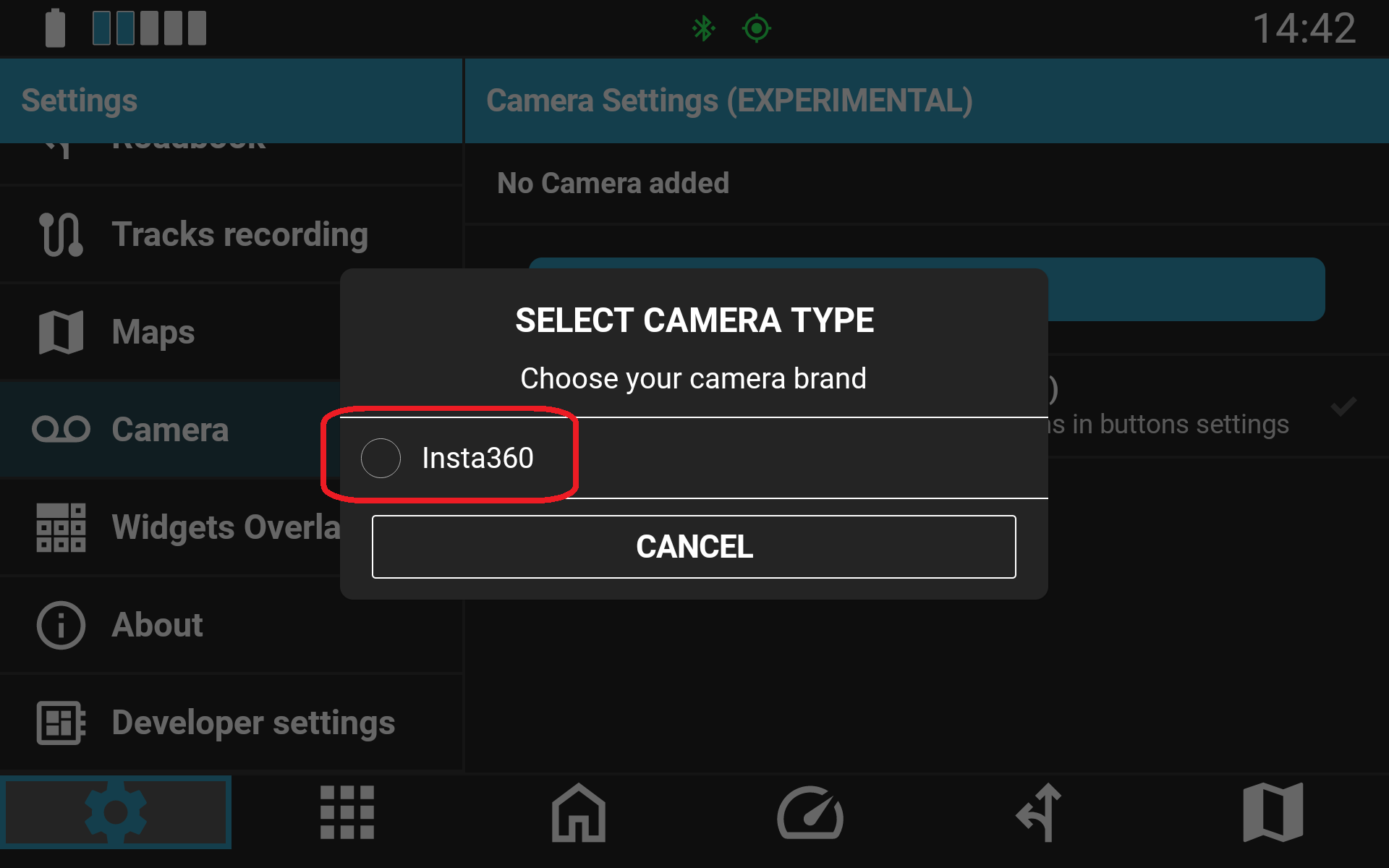
- Tap Add Camera and select your Insta360 camera from the discovered devices list.
- Once bonded, your camera will appear in the Paired Cameras Overview.
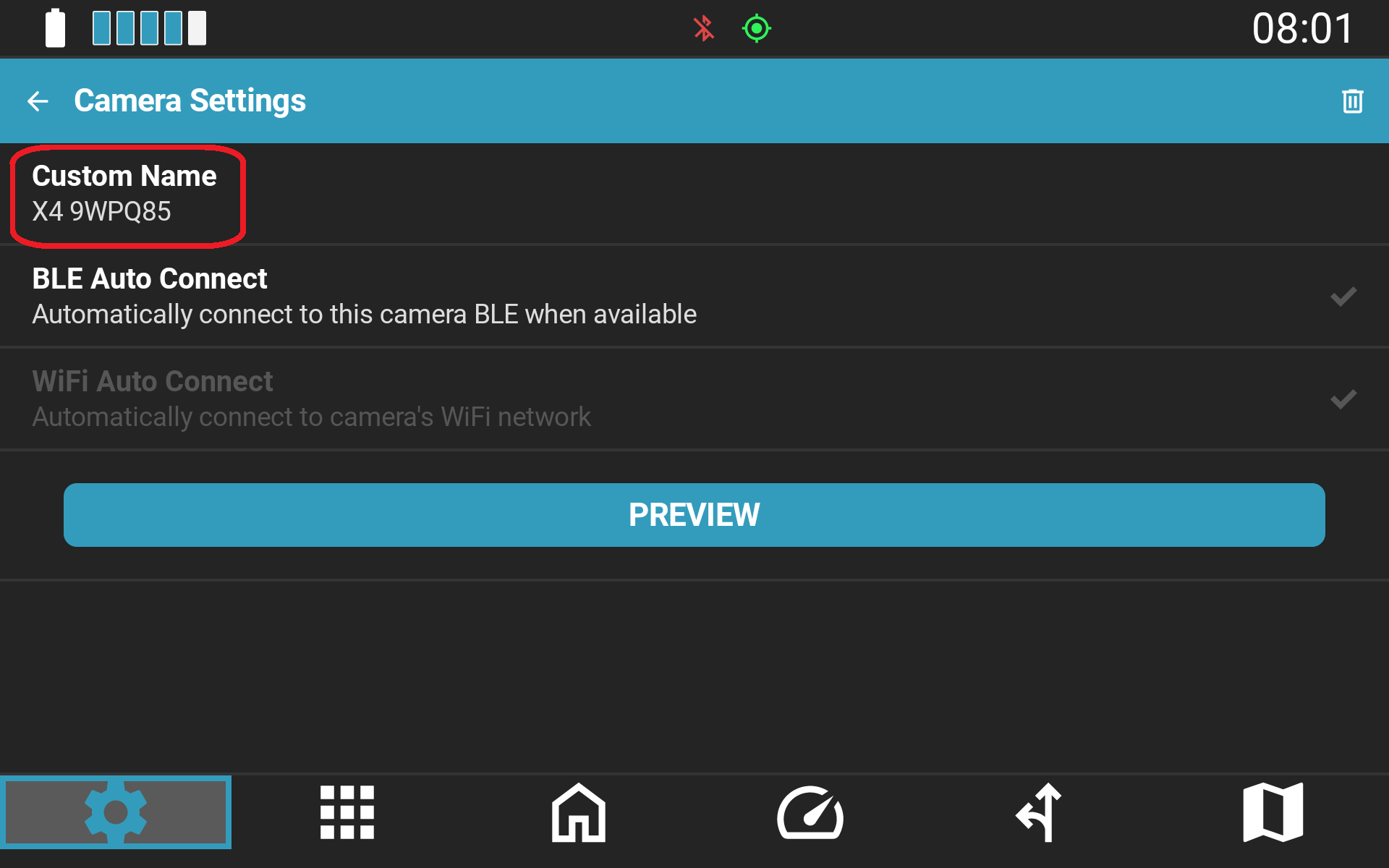
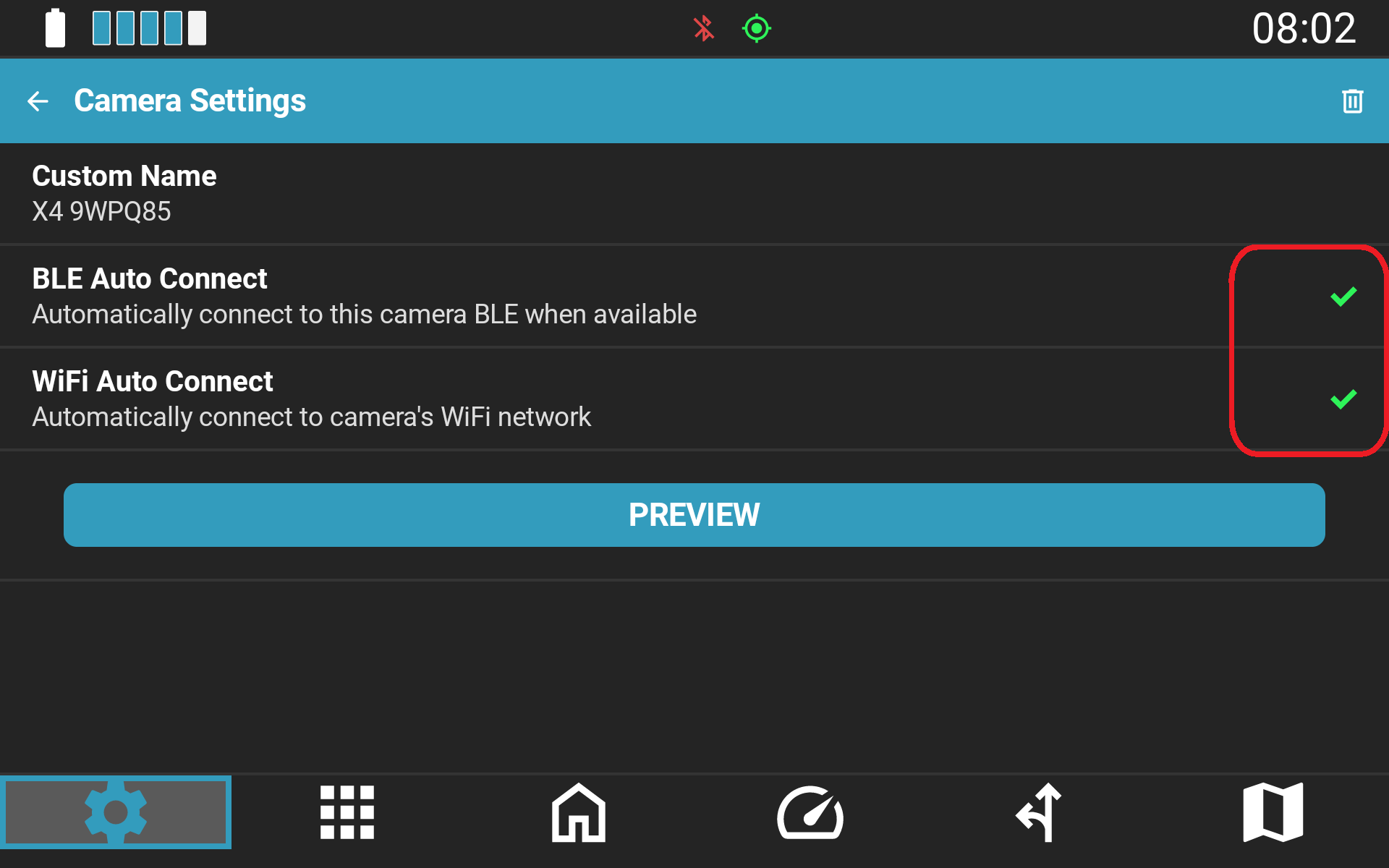
- Configure Camera Connection Options:Tap on your bonded camera in the overview list to open its specific settings:
- BLE Auto Connect (Recommended ON): Enables automatic Bluetooth connection for handlebar button control (Record, Photo) without affecting your Wi-Fi/data.
- WiFi Auto Connect: Enables automatic Wi-Fi connection for video streaming. Warning: Live Preview will only function when WiFi Auto Connect is enabled.
- Map Controller Buttons: Navigate to Settings → Controller, select your desired button, expand the new Camera category, and assign your actions.
Troubleshooting
Camera Not Detected / Connection Drops
- Verify that Camera Control is enabled in NGH settings.
- Ensure the camera is powered on.
- Verify that your camera model is supported and NGH is on v1.35+.
- Re-open Settings → Camera, tap your paired camera, and confirm BLE Auto Connect is enabled.
Live Preview Will Not Load / Black Screen
- Open Settings → Camera, tap your connected camera in the overview list, and confirm that WiFi Auto Connect is explicitly ON. Live Preview cannot render without the active Wi-Fi link.
- Remember that while WiFi Auto Connect is active, your Android device's Wi-Fi is dedicated to the camera feed and cannot connect to external Wi-Fi routers or host a mobile hotspot.
Still Photo Command Does Not Work
- Verify whether Live Preview is currently active. Due to Insta360 SDK limitations, photo capture is disabled while the video preview stream is rendering. Close Live Preview and try again.
ONE X2 Behaves Unexpectedly
- Certain ONE X2 camera firmware releases contain known bugs affecting third-party remote controls. If you experience unexpected disconnects, reverting/downgrading the ONE X2 camera firmware to a stable release usually resolves the issue.
Related Knowledge Base Articles
- How to update NGH
- How to Configure and Customize Your Carpe Iter Remote Controller
- Setting Up BMW Wonderwheel Integration on Caretta
- NGH Widgets & Overlays: Real-Time Data Over Any Navigation App
Was this article helpful?
That’s Great!
Thank you for your feedback
Sorry! We couldn't be helpful
Thank you for your feedback
Feedback sent
We appreciate your effort and will try to fix the article