

Another exciting addition to Next-Gen HUD (NGH) is the new Widgets system on version 1.33.
Think of it as a customizable floating dashboard for Android navigation apps. Instead of switching screens or searching for critical bike information, NGH places key telemetry directly on top of your navigation app—exactly where you want it. The NGH platform is designed as a modular riding dashboard tightly integrated with motorcycle telemetry and navigation.
What are NGH Widgets? (Motorcycle HUD & Telemetry Overlays)
Widgets are live overlays displayed by NGH on top of supported navigation and riding applications. Instead of switching back and forth between screens to check engine stats, you can now customize a dedicated floating dashboard that lives right where you need it.
Touch-through operation: Widgets don't block the navigation app touch controls.
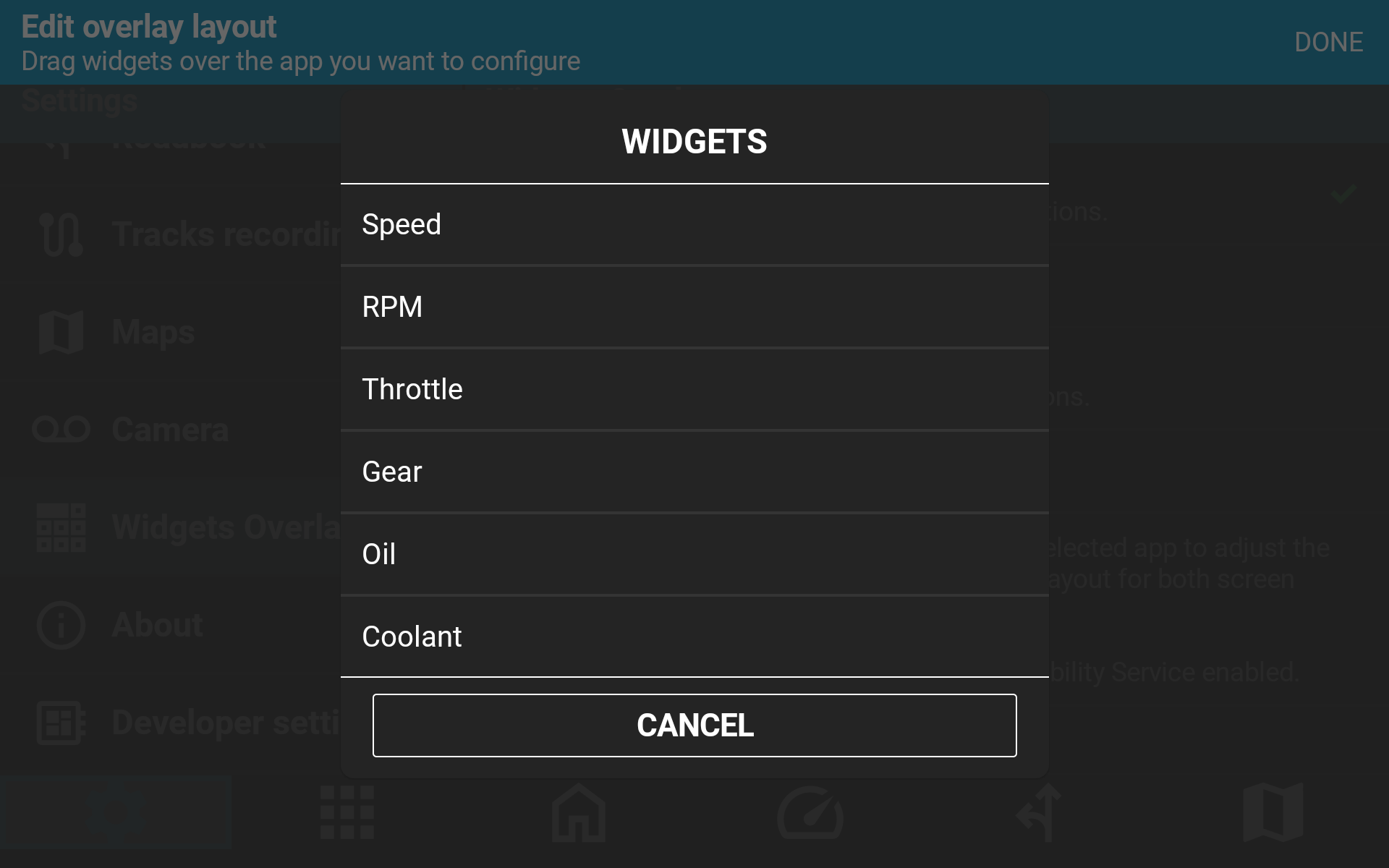
Currently Available Data Widgets
Vehicle Data Sources: Widget telemetry is directly populated using live data from your motorcycle via three supported hardware setups:
- Caretta OBD Integration: Direct vehicle OBD connection for Caretta devices.
- Caretta BMW Wonderwheel Integration: Direct BMW telemetry read directly by Caretta on supported BMW models.
- BMW Control Handlebar Controller: Live BMW telemetry streamed over Bluetooth to any Android device running NGH.
Note: Support for third-party standard Bluetooth OBD-II adapters is planned for a future update.
- Speed (Live vehicle speed)
- Engine Speed (RPM)
- Coolant Temperature
- Oil Temperature
- Throttle Position
- Gear Indicator
Additional widgets are already in development and more will follow over time. Planned examples include:
- Insta360 on-screen touch controls
- Additional telemetry indicators
- Further app-specific controls and integrations
Widgets are designed as a platform rather than a fixed feature. Today's release focuses on motorcycle telemetry, but future updates will introduce new integrations, controls, and data sources without requiring changes to your preferred screen layouts.
The long-term goal is simple: put the information and controls you need exactly where you need them, without forcing you to leave your navigation application.
Fully Flexible, App-Specific Layouts
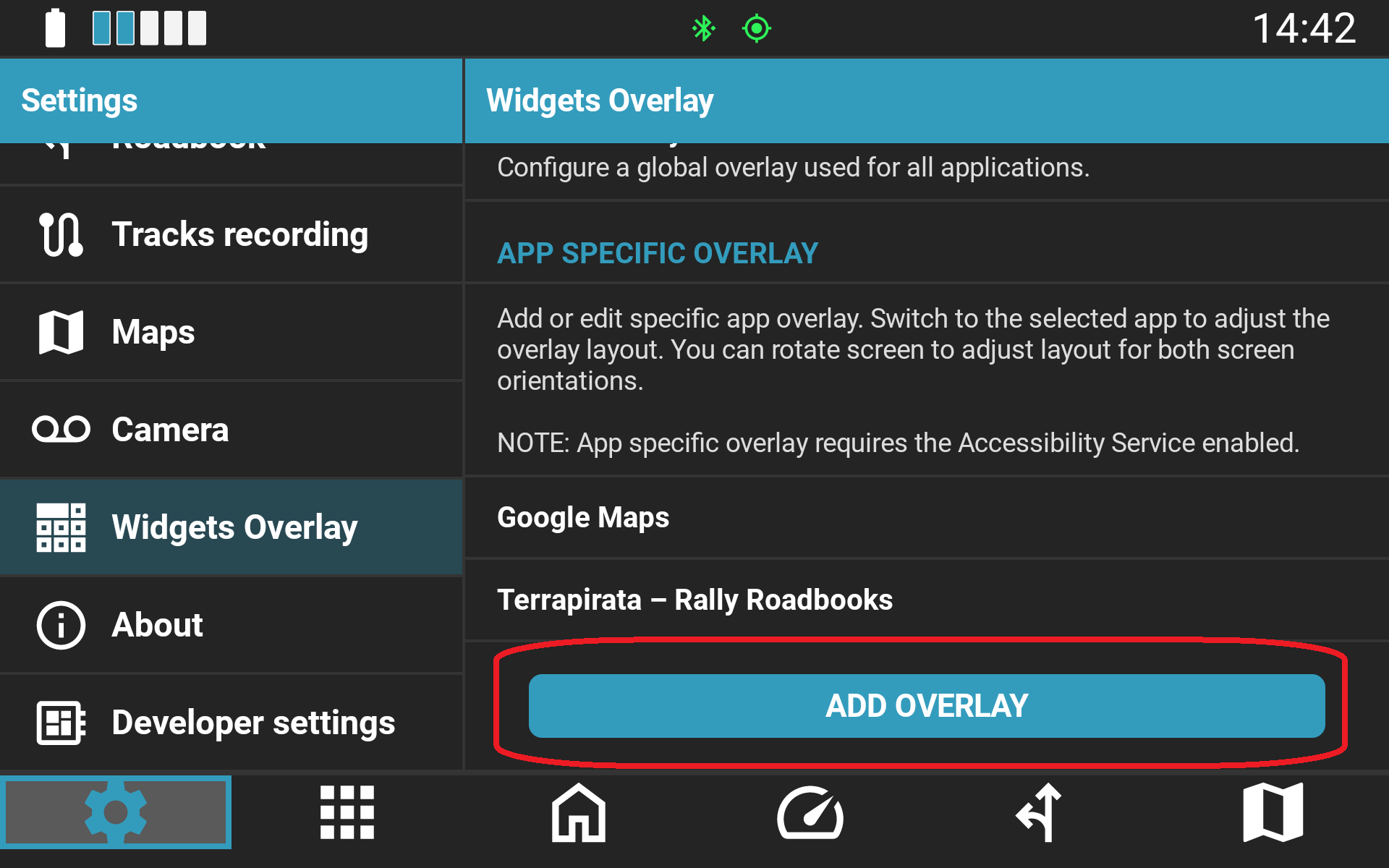
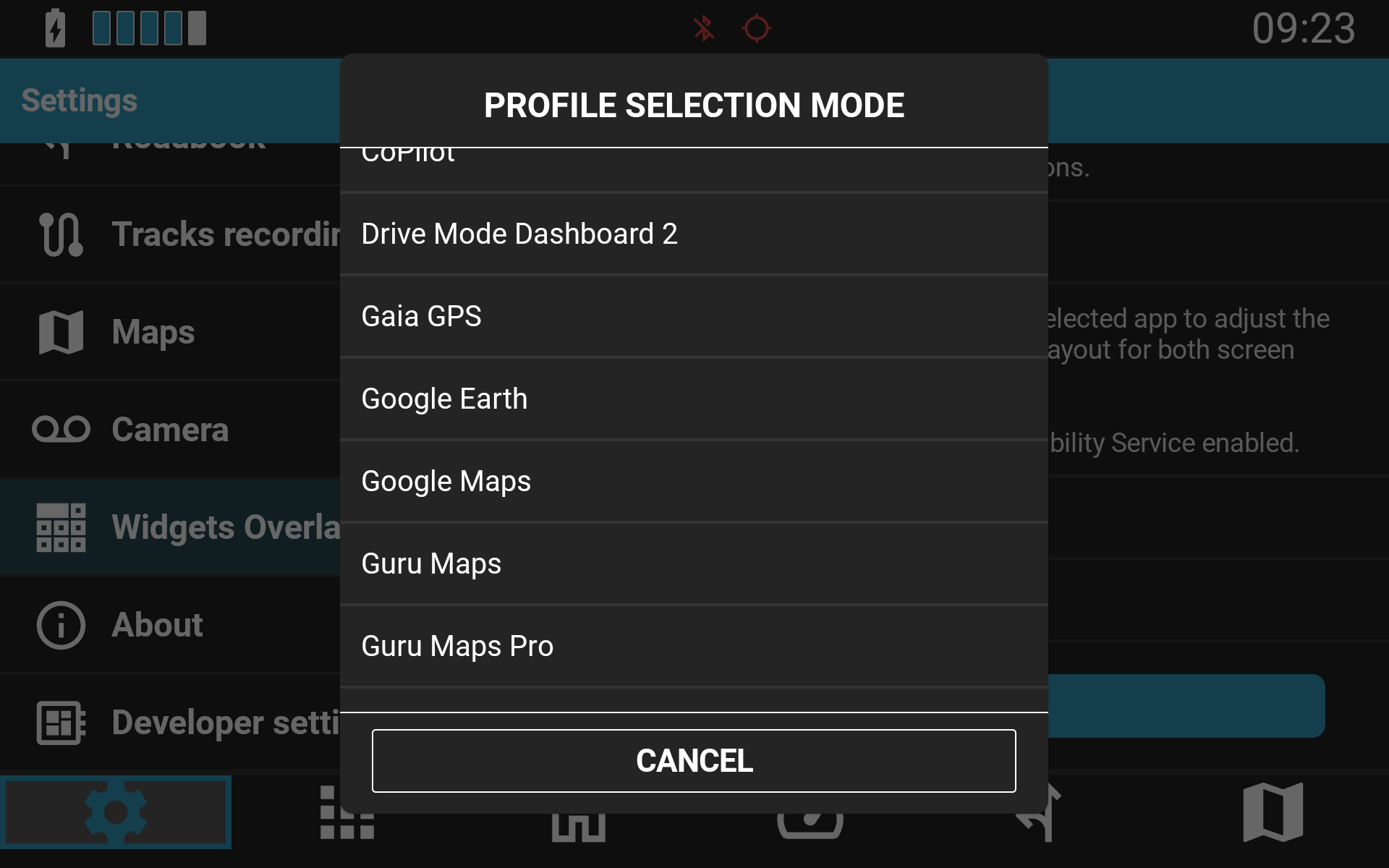
Every navigation app has its own distinct layout—what works for Google Maps might block a crucial turn instruction in Terrapirata. That’s why NGH Widgets are app-aware and let you create a dedicated widget layout for each officially supported application.
When NGH detects that a supported application has been opened, it automatically applies the corresponding widget configuration. You only configure the layout once; NGH automatically switches layouts as you switch between applications.
This means you can:
- Keep widgets away from crucial map controls
- Avoid covering important navigation information
- Optimize visibility for each application individually
- Switch between apps without manually rearranging the overlay
The same principles are already used elsewhere in NGH, where application-specific controller profiles can override global settings when a supported app is running.
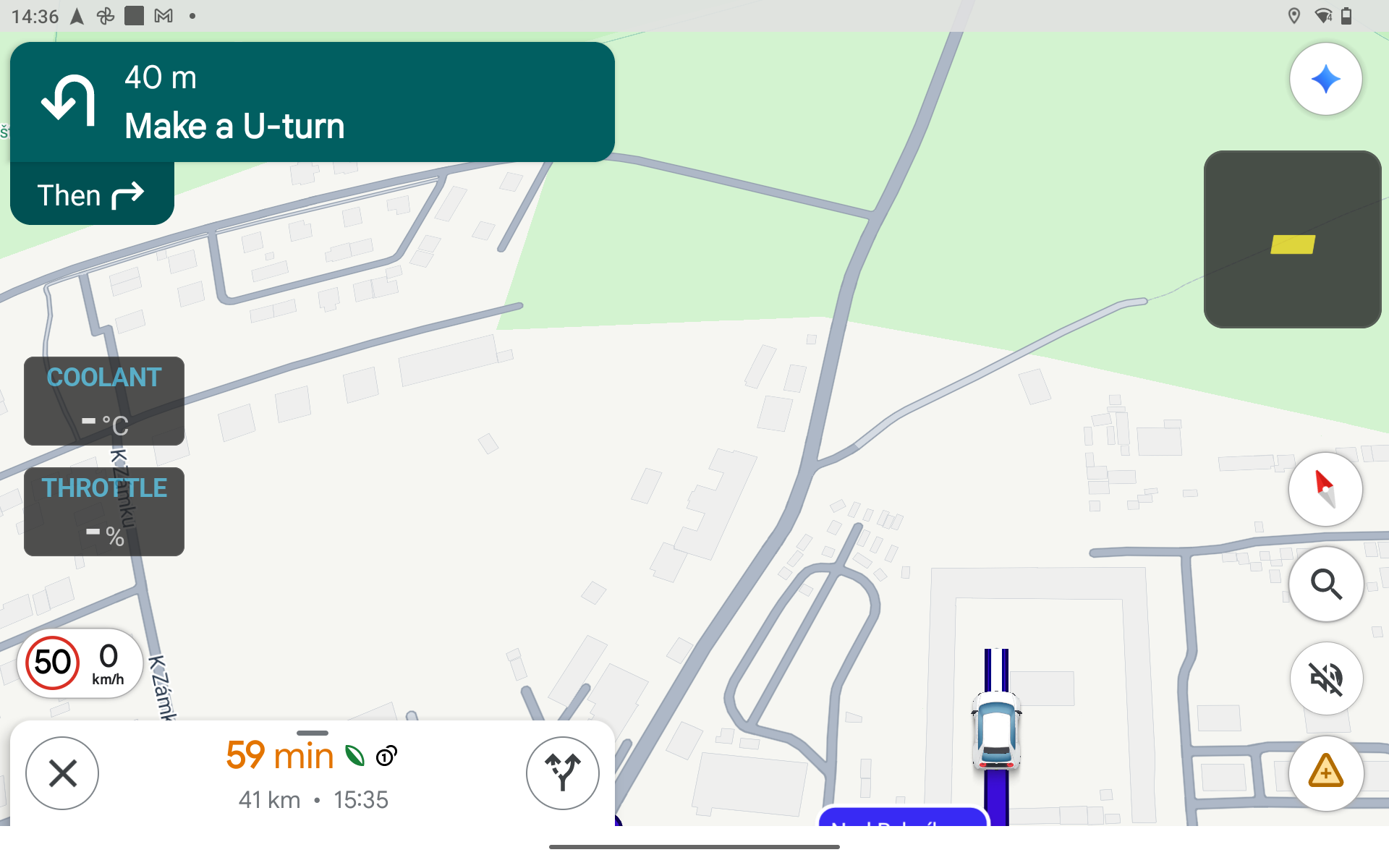
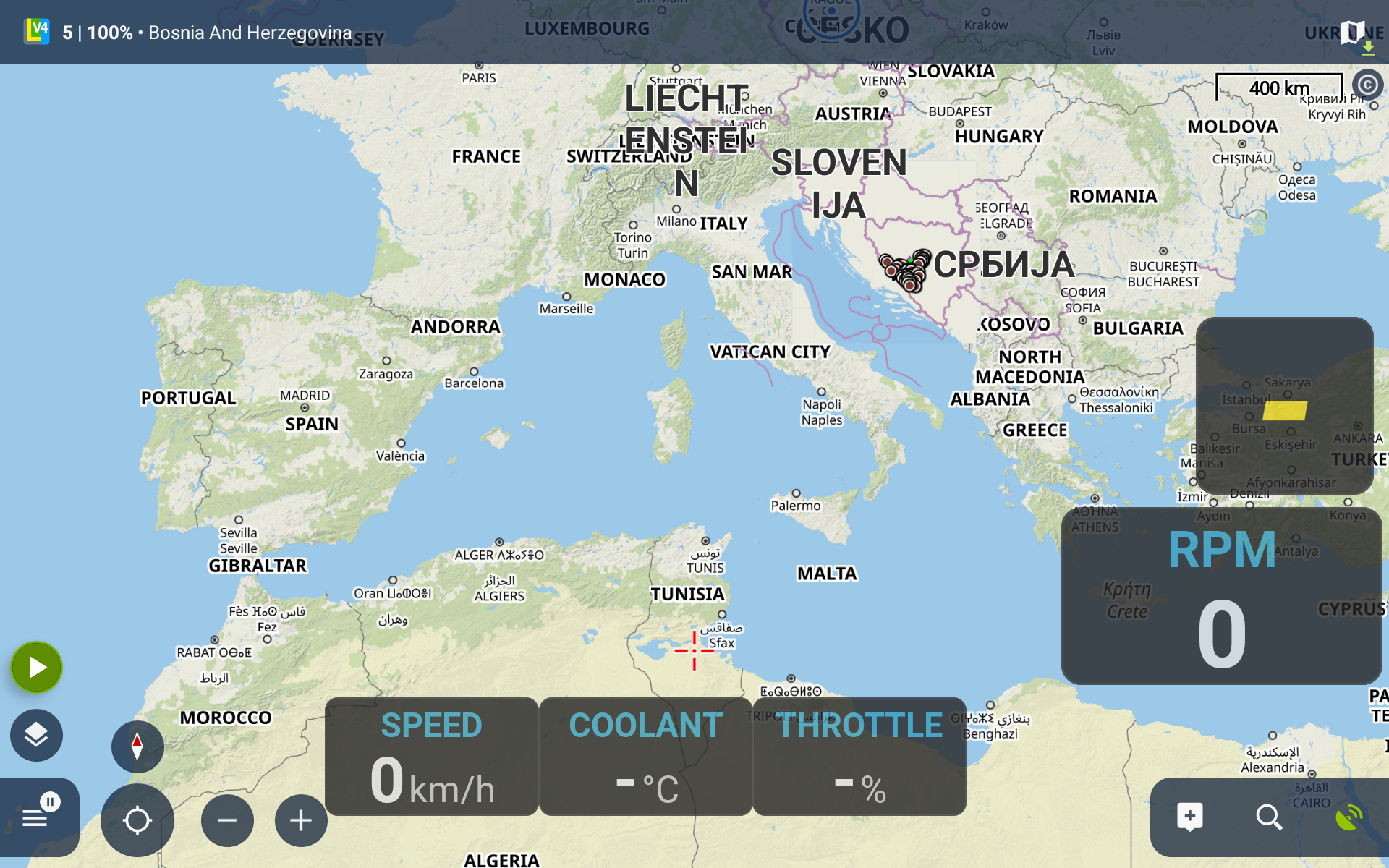
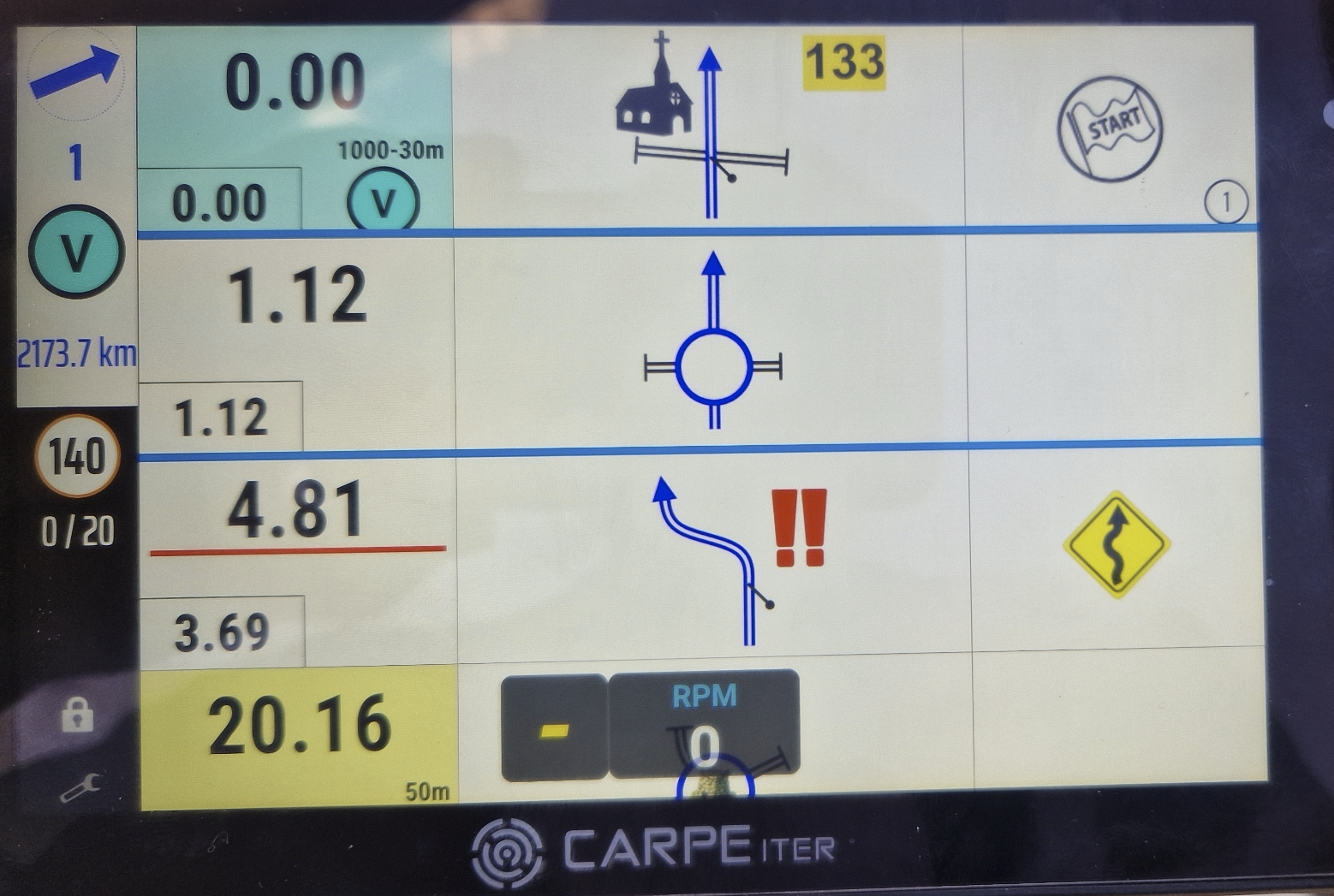
Key Layout Features
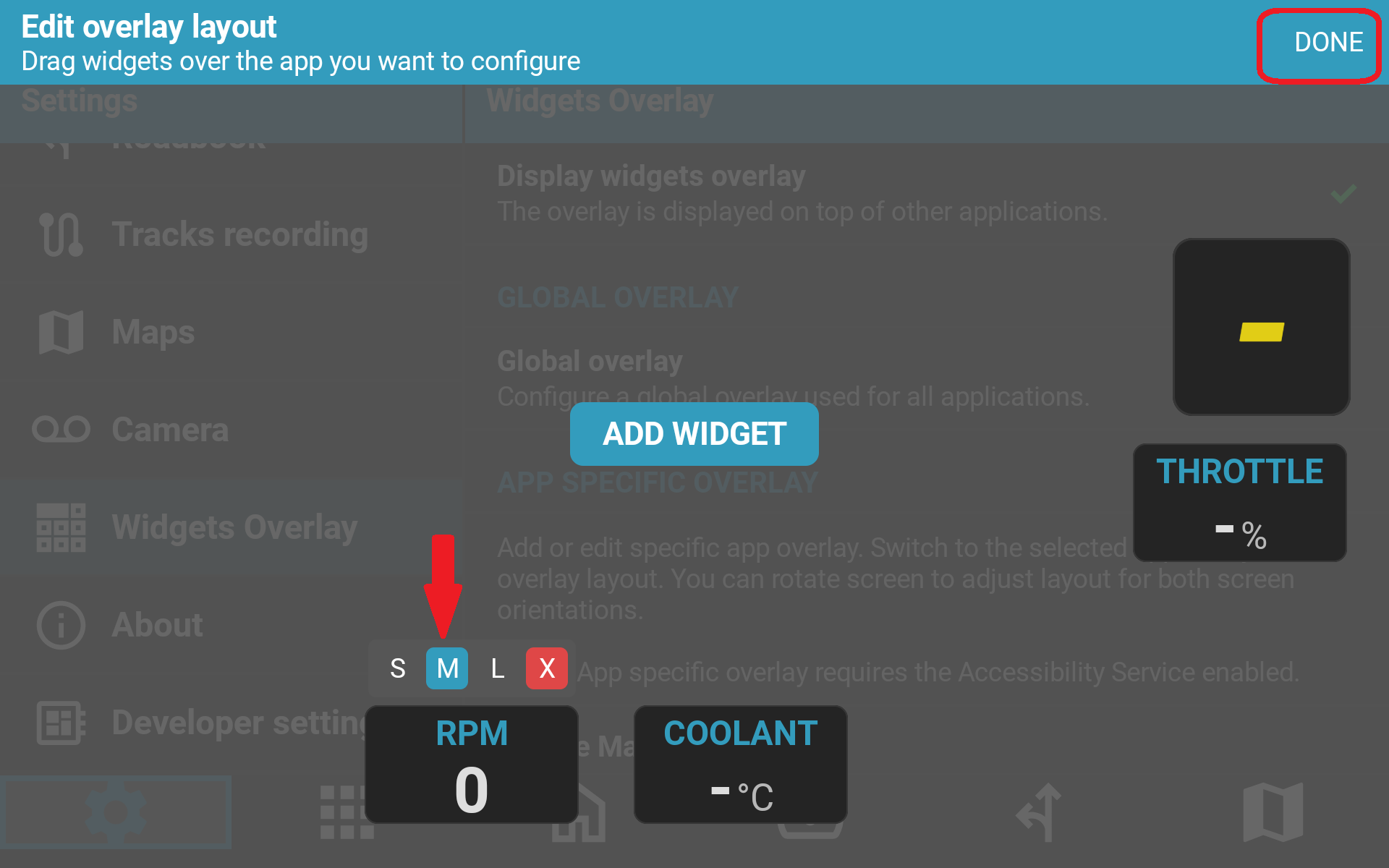
- 3 Predefined Sizes: Choose between Small, Medium, and Large scaling options to fit your screen density and eyesight preferences.
- Free Drag-and-Drop Placement: Position individual widgets anywhere on the display.
- App-Specific Profiles: Configure custom widget layouts for each of the supported applications.
- Touch-Through Operation: Widgets remain visible without interfering with the application's touch controls.
- Semi-Transparent Styling: Widgets are semi-transparent, allowing the underlying application interface to remain visible. (Full color and opacity customization will be unlocked in a future software update.)
One-Touch Toggle via Handlebar Controller
Having data on screen is useful; having the ability to turn it off on demand is just as important.
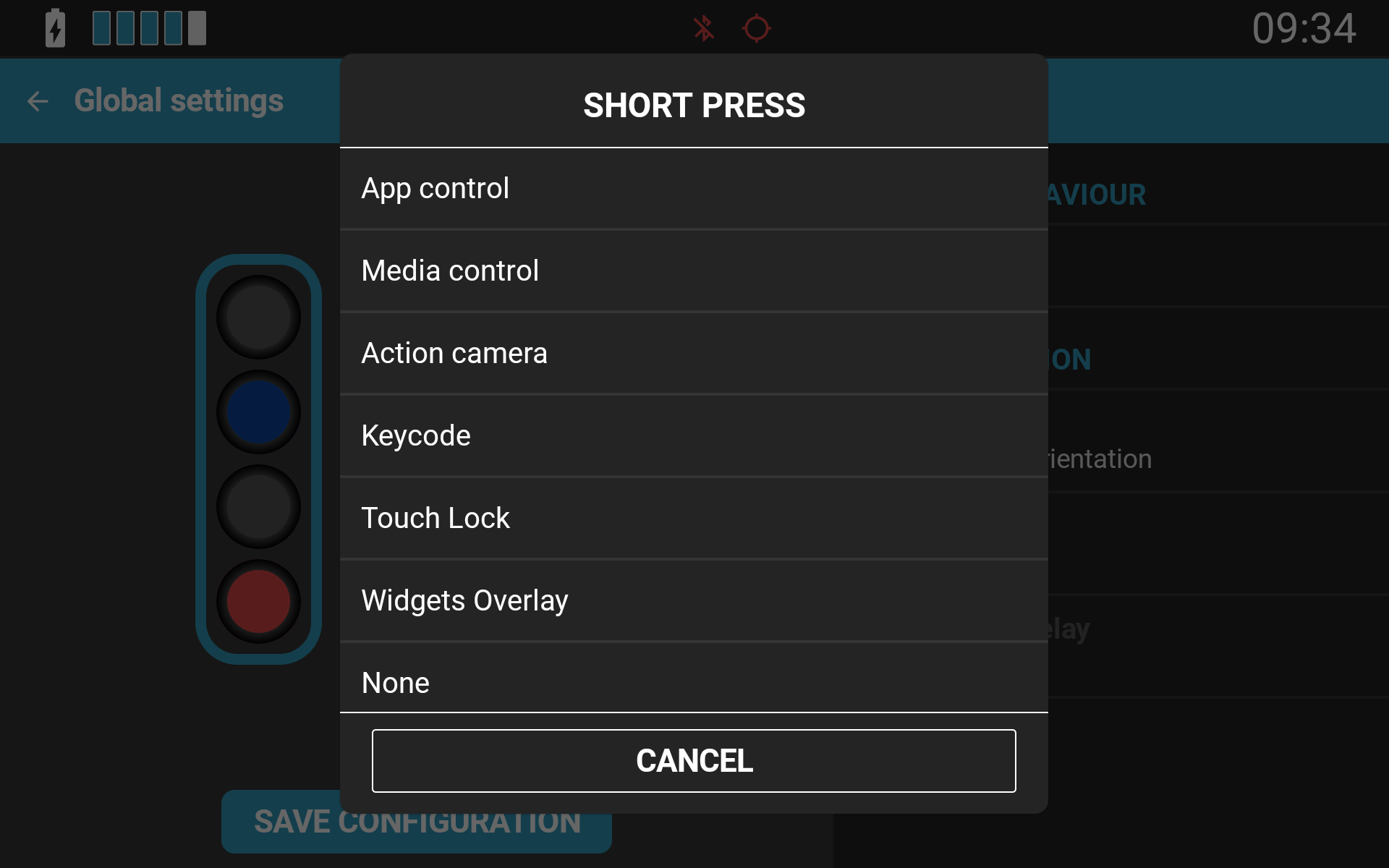
You can bind a Global Overlay Toggle (Show/Hide) command to any Carpe Iter controller—including Terrain Command, Adventure Control, BMW Control, and the BMW Wonderwheel integration on Caretta.
The toggle function is particularly useful when temporarily maximizing map visibility during dense urban navigation, technical terrain riding, or whenever you simply want an unobstructed view of the application. With a single thumb press on your handlebars, your overlay hides when you need an uncluttered view of the map and reappears the moment you want quick access to your vehicle data.
How to Set Up NGH Widgets
- Install the latest NGH update (minimum required version 1.35) from the Google Play Store.
- Open the NGH App on your device.
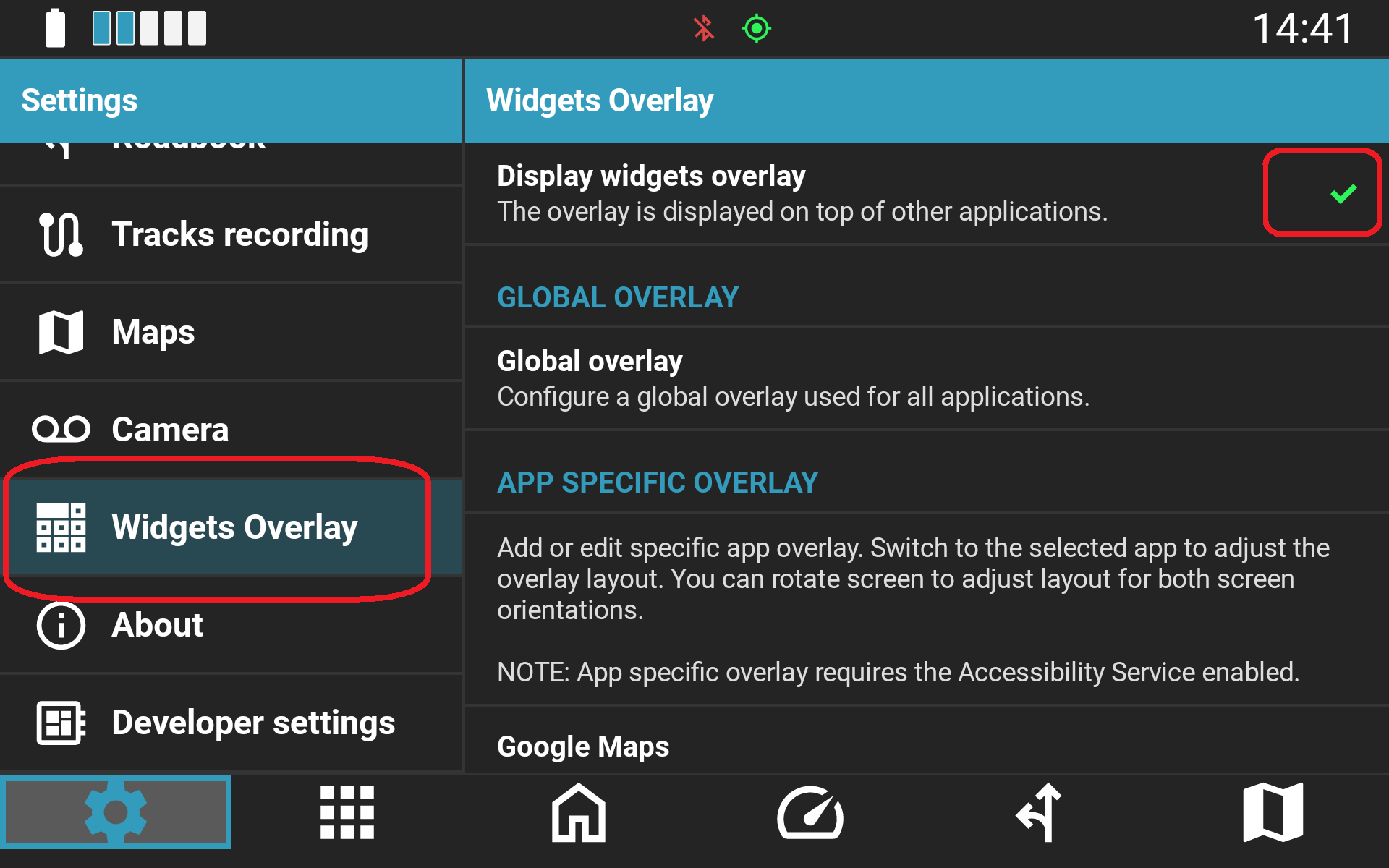
- Navigate to Settings → Widgets Overlay.
- Enable Display Widgets Overlay.
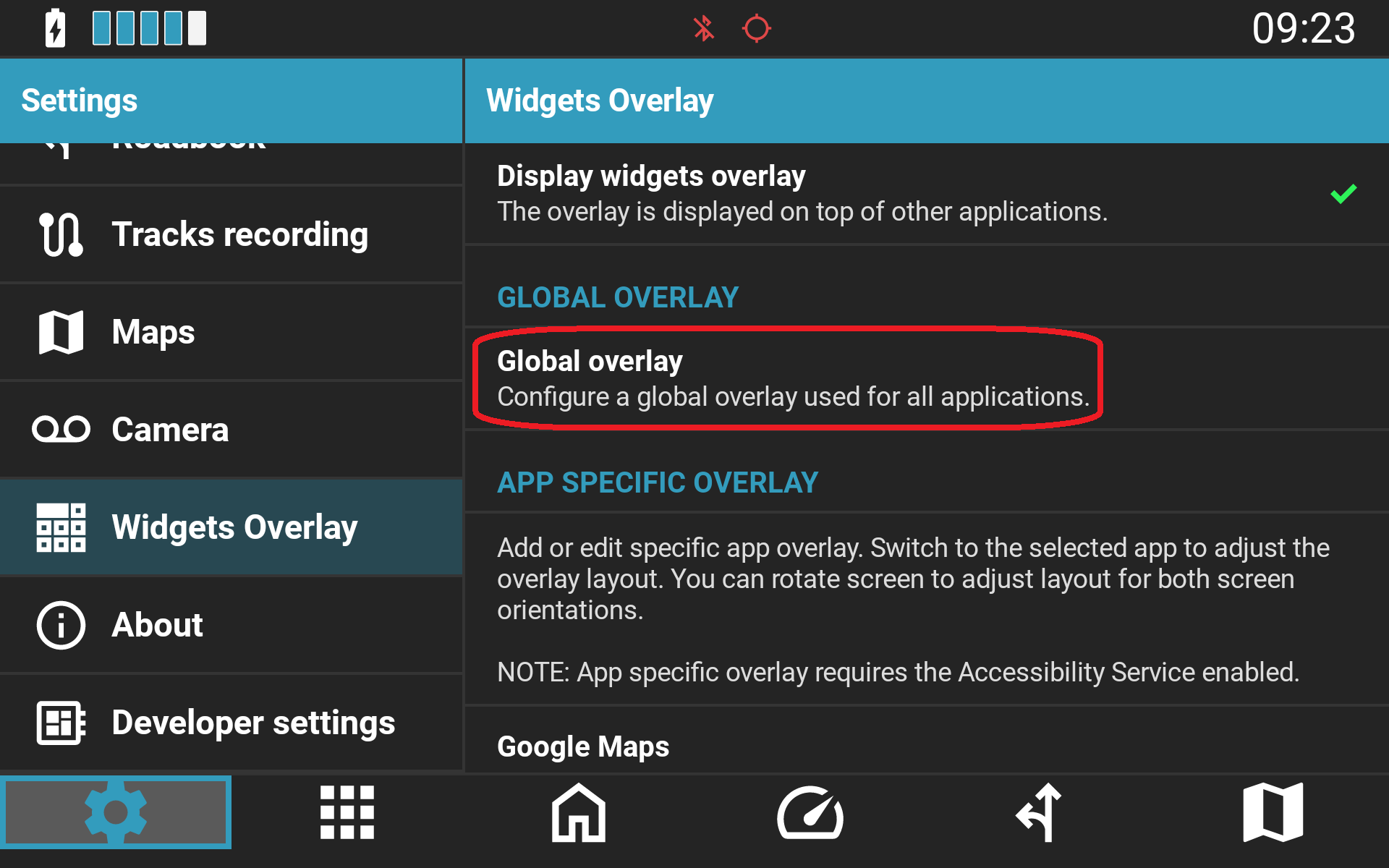
- Configure either a Global Layout, Application-Specific Layouts, or a combination of both. Applications with dedicated widget layouts are listed in the configuration screen.
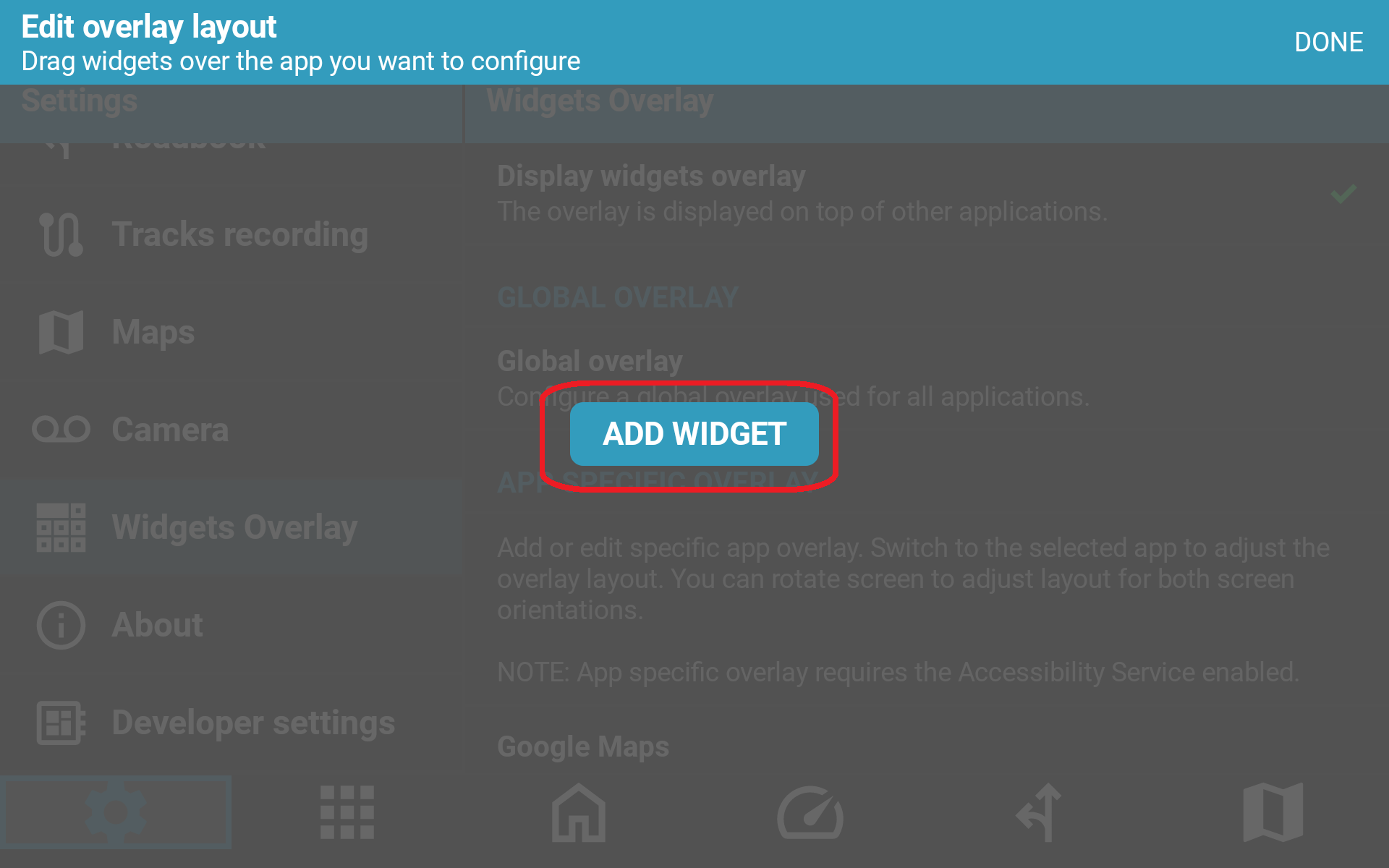
- Tap Add Widget, choose your desired data source (for example Gear, RPM, or Oil Temperature), select a sizing preset, and drag the widget to your preferred location on screen.
- To map the Show/Hide function to your handlebar remote, navigate to Settings → Controller and bind the Toggle Overlay action to your preferred button press.
Related Knowledge Base Articles
Was this article helpful?
That’s Great!
Thank you for your feedback
Sorry! We couldn't be helpful
Thank you for your feedback
Feedback sent
We appreciate your effort and will try to fix the article