

Carpe Iter handlebar controllers (Terrain Command, Adventure Control, BMW Control, and Caretta BMW Wonderwheel integration) operate as dedicated physical interfaces for motorcycle navigation. When running Next-Gen HUD (NGH), your controller automatically detects which navigation or roadbook app is on your screen and dynamically switches to the correct button layout instantly.
How Auto-Profiling Works: NGH uses Android foreground detection to switch controller layouts in the background. To learn how to configure background permissions or build custom profiles for unlisted apps, see our guide on Carpe Iter Controllers Autoprofiling Explained.
Global Controller Profile
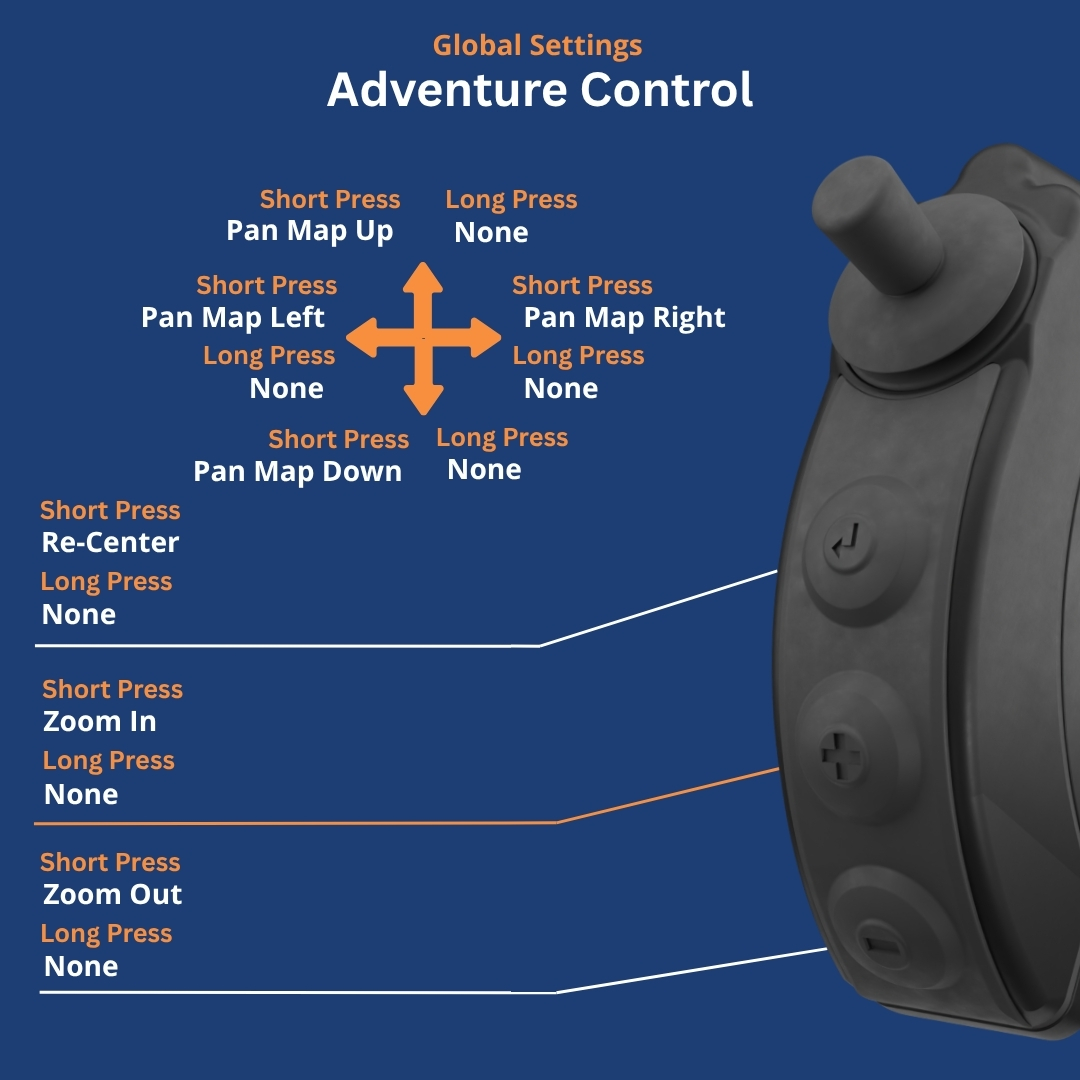
When you are on your device home screen, using an unlisted application, or operating an app without a dedicated Auto-Profile, your controller defaults to the Global Profile. This profile handles core functions for GPS navigation apps, such as standard map directional panning, zooming, map centering and access to the HUD.
To learn more about how the Global Profile operates or how to customize its default key bindings, see our guide on How to configure / customize remote controller.
Adventure Control
Terrain Command III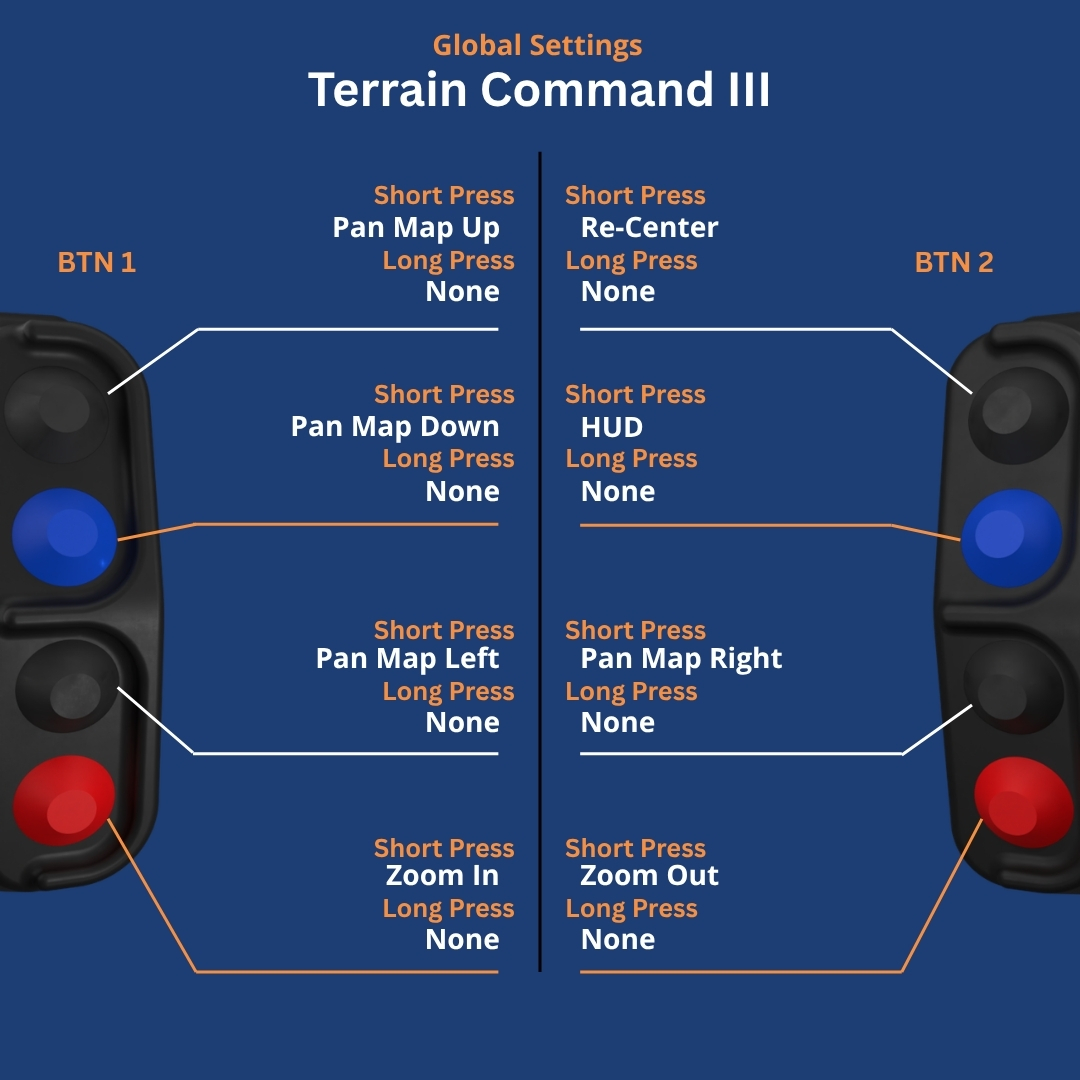
BMW Control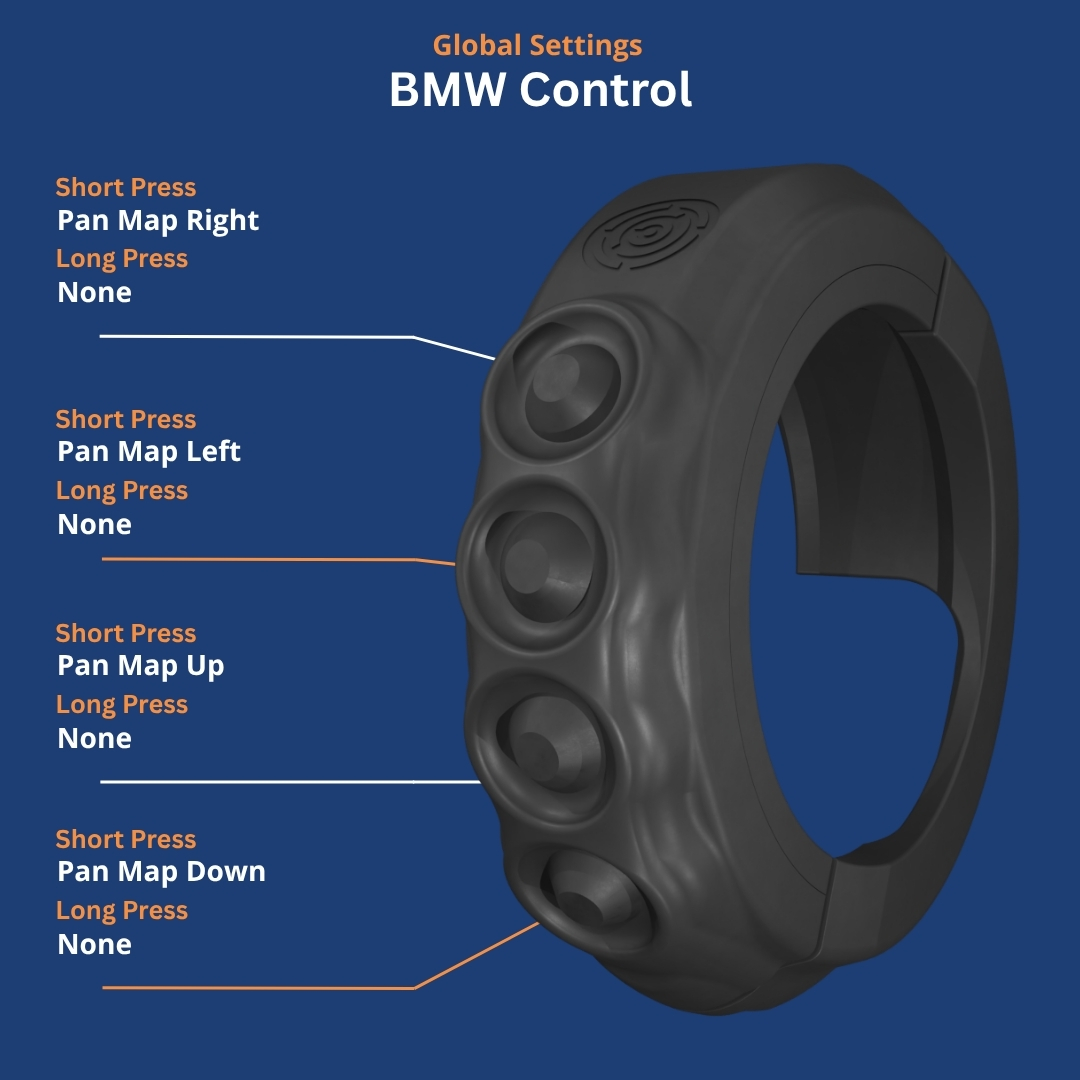
BMW Multi-Controller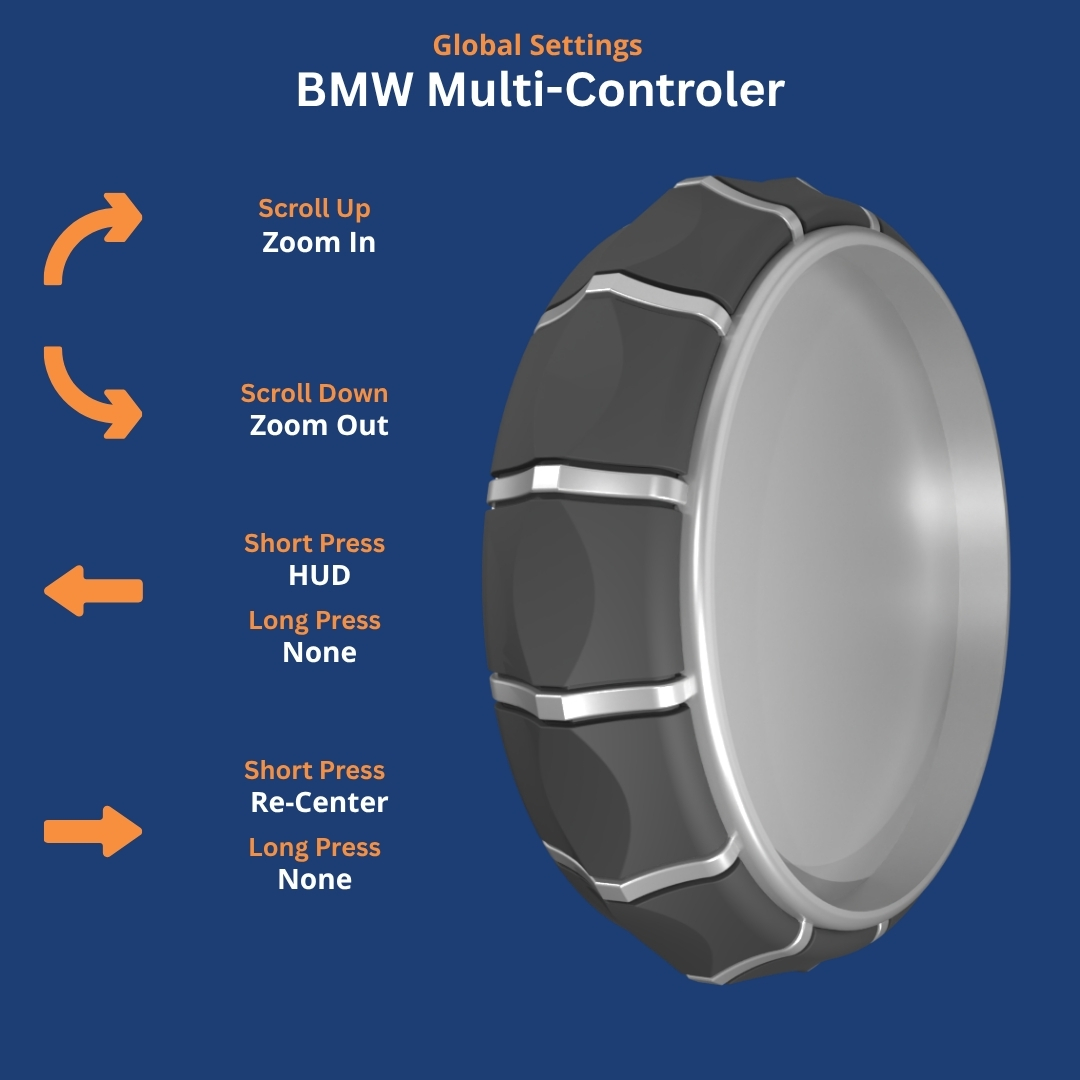
Supported Applications Matrix
Click on any application name or guide link below to view detailed button mapping diagrams, app-specific setup instructions, and hardware nuances.
| Application | Category | Core Controls Supported | In detail |
|---|---|---|---|
| Locus Map 4 | Vector & Offline GPS | Map Panning, Zooming, Map Centering, Map Rotation, Track Recording Toggle | View Guide → |
| DMD2 (Drive Mode Dashboard) | All-in-One Dashboard | Map Panning, Zooming, Map Centering, Map orientation, Menu Navigation: Cancel / Back / Close | View Guide → |
| MyRoute-app (MRA) | Route Navigation | Map Panning, Zooming, Re-Centering, Cycle arrival time, Start Navigation / skip waypoint, Route overview, Open in-app menu, Navigate in-app menu | View Guide → |
| OsmAnd / OsmAnd+ | Offline Topo GPS | Map Panning, Zooming, Map Centering | View Guide → |
| Kurviger | Motorcycle Tour Nav | Map Panning, Zooming, Re-Centering, Recalculate Route | View Guide → |
| Mapy.cz (Mapy.com) | Offline GPS | Map Panning, Zooming, Re-Centering | View Guide → |
| Waze | Commute Navigation | Map Panning, Zooming, Re-Centering, Report Hazard | View Guide → |
| Terrapirata | Digital Roadbook Reader | Roadbook Scroll (Up/Down), Partial ODO Increment/Decrement, Partial ODO Reset | View Guide → |
| Google Maps | Road Navigation | Map Panning, Zooming, Re-Centering | View Guide → |
| Rally Navigator | Digital Roadbook | Roadbook Scroll (Up/Down), Partial ODO Increment/Decrement, Partial ODO Reset | View Guide → |
| Piste Roadbook Reader | Digital Roadbook | Roadbook Scroll (Up/Down), Partial ODO Increment/Decrement, Partial ODO Reset | View Guide → |
| Stegra.io | Adventure Routing | Map Panning, Zooming, Re-Centering | View Guide → |
| Whip Live | Off-Road & Trail GPS | Map Panning, Zooming, Re-Centering | View Guide → |
| OS Maps | Topographic Nav | Map Panning, Zooming, Map Centering | View Guide → |
| Gaia GPS | Off-Road Topo Nav | Map Panning, Zooming, Map Centering | View Guide → |
| RallyMoto | Digital Roadbook | ODO Adjustment, Roadbook Scroll up and down | View Guide → |
| Calimoto | Twisty Road GPS | Map Panning, Zooming, Re-Centering | View Guide → |
| Guru Maps | Vector & Offline GPS | Map Panning, Zooming, Map Centering | View Guide → |
Prerequisites for Automatic Switching
To ensure NGH switches profiles automatically when opening any of the applications listed above:
- Ensure Next-Gen HUD (NGH) is updated to the latest version via Google Play Store.
- Connect your Carpe Iter controller via Bluetooth (or Caretta dock).
- Open NGH → Settings → Controller.
- Enable Automatic Profile Switching.
- Grant NGH the required Accessibility / Usage Access permissions in Android system settings when prompted. This allows NGH to detect which app is running on screen.
Unlisted / Custom Applications
If your favorite navigation app is not listed in the compatibility matrix above:
- Global Profile Fallback: Your controller will safely default to your Global Controller Profile, allowing standard directional panning and media controls.
- Create a Custom Profile: You can create a custom app profile inside NGH → Settings → Controller → App Profiles, bind custom 102-key hotkeys, and pair it to launch whenever your app opens.
- Request Native Integration: We continuously expand native profile support. Post a request with the application name on our community forum at tribe.carpe-iter.com.
Was this article helpful?
That’s Great!
Thank you for your feedback
Sorry! We couldn't be helpful
Thank you for your feedback
Feedback sent
We appreciate your effort and will try to fix the article