

This article covers the software configuration for the Toggle Switch addon, following the mechanical installation detailed in the Terrain Command III Toggle Switch Installation Guide.
Prerequisites
Ensure that your Terrain Command III is paired with your Android device and selected in Next-Gen HUD (NGH). If you have not yet connected your controller, refer to this support article.
Note: Configuration can also be performed offline without the controller actively connected. Settings configured offline will apply automatically upon the next controller connection.
Enabling the Toggle Switch
Enable the Toggle Switch feature in the Controller Settings. If you have installed two Toggle Switches, enable both options; if you are using one, select only the corresponding option.
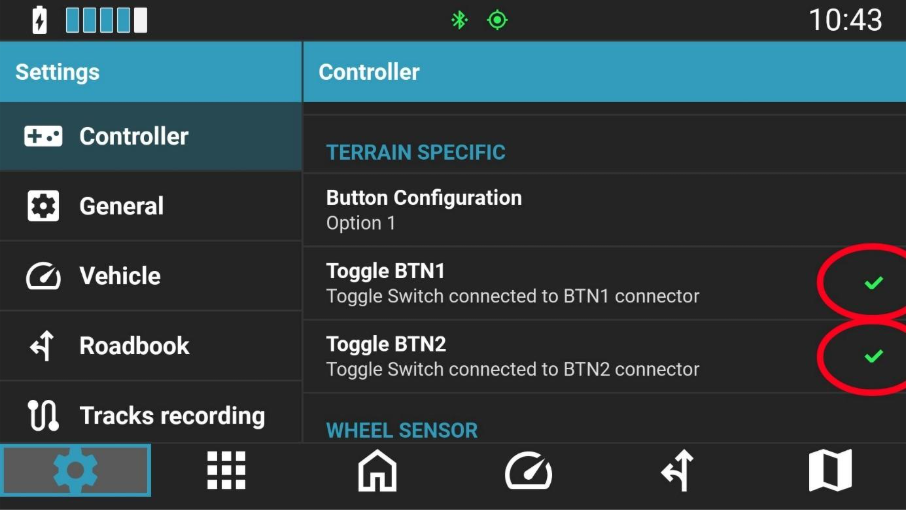
Default Behavior: The default controller profile does not assign any action to the Toggle Switch, with the exception of Terrapirata (pre-bound to roadbook scroll).
Global Settings Configuration
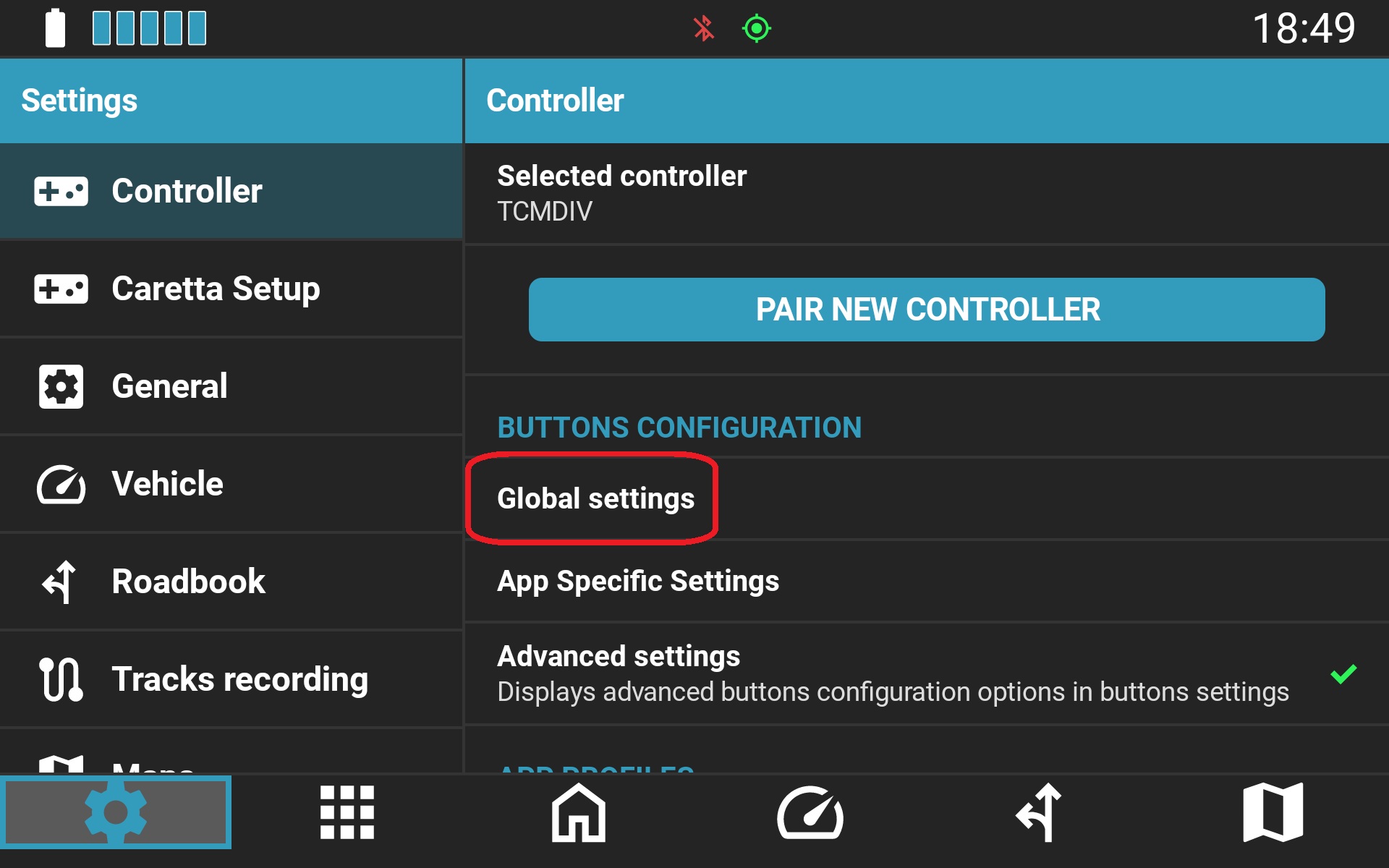
To assign general navigation actions (such as zooming in GPS applications), navigate to Controller Configuration > Global Settings in NGH.
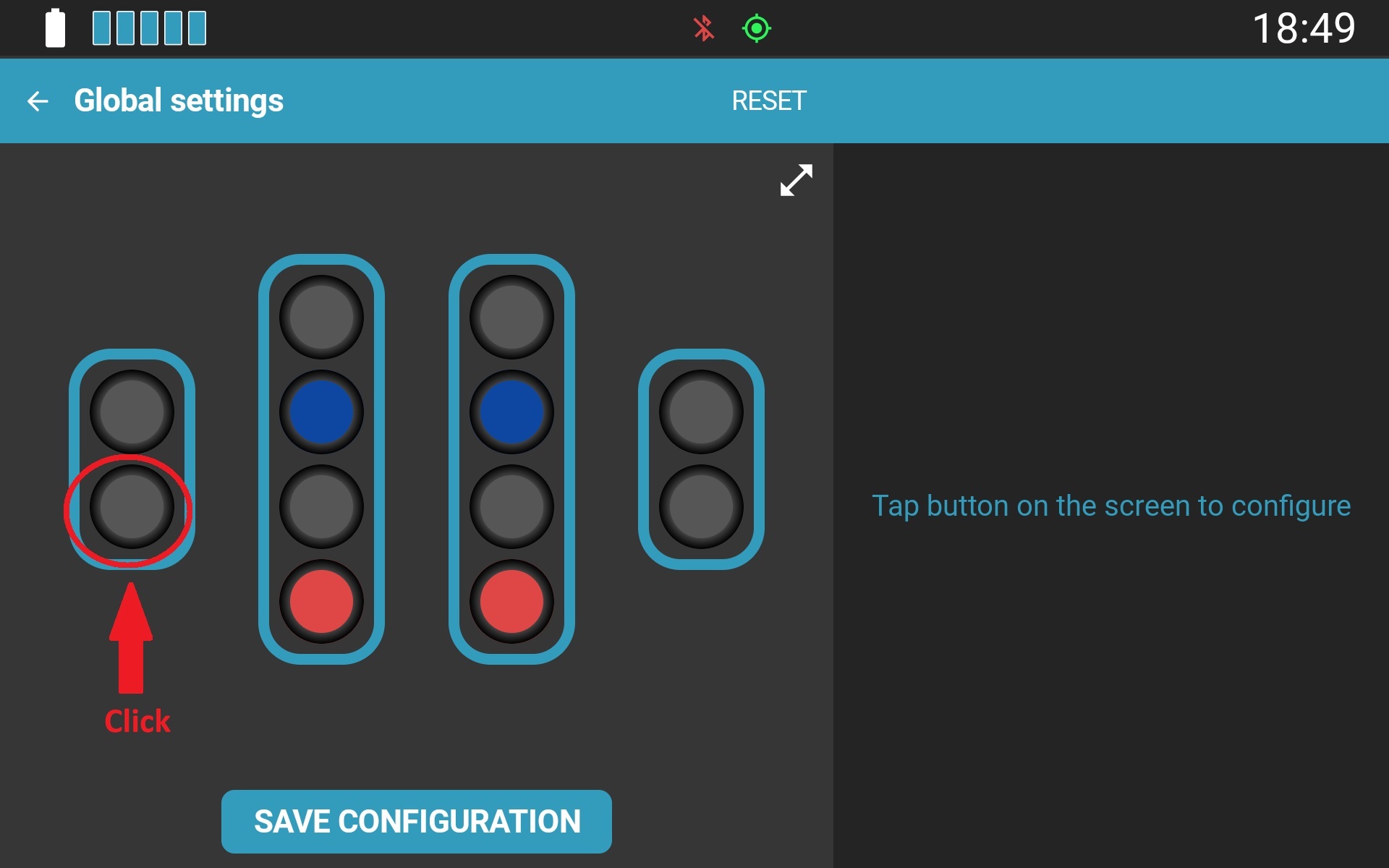
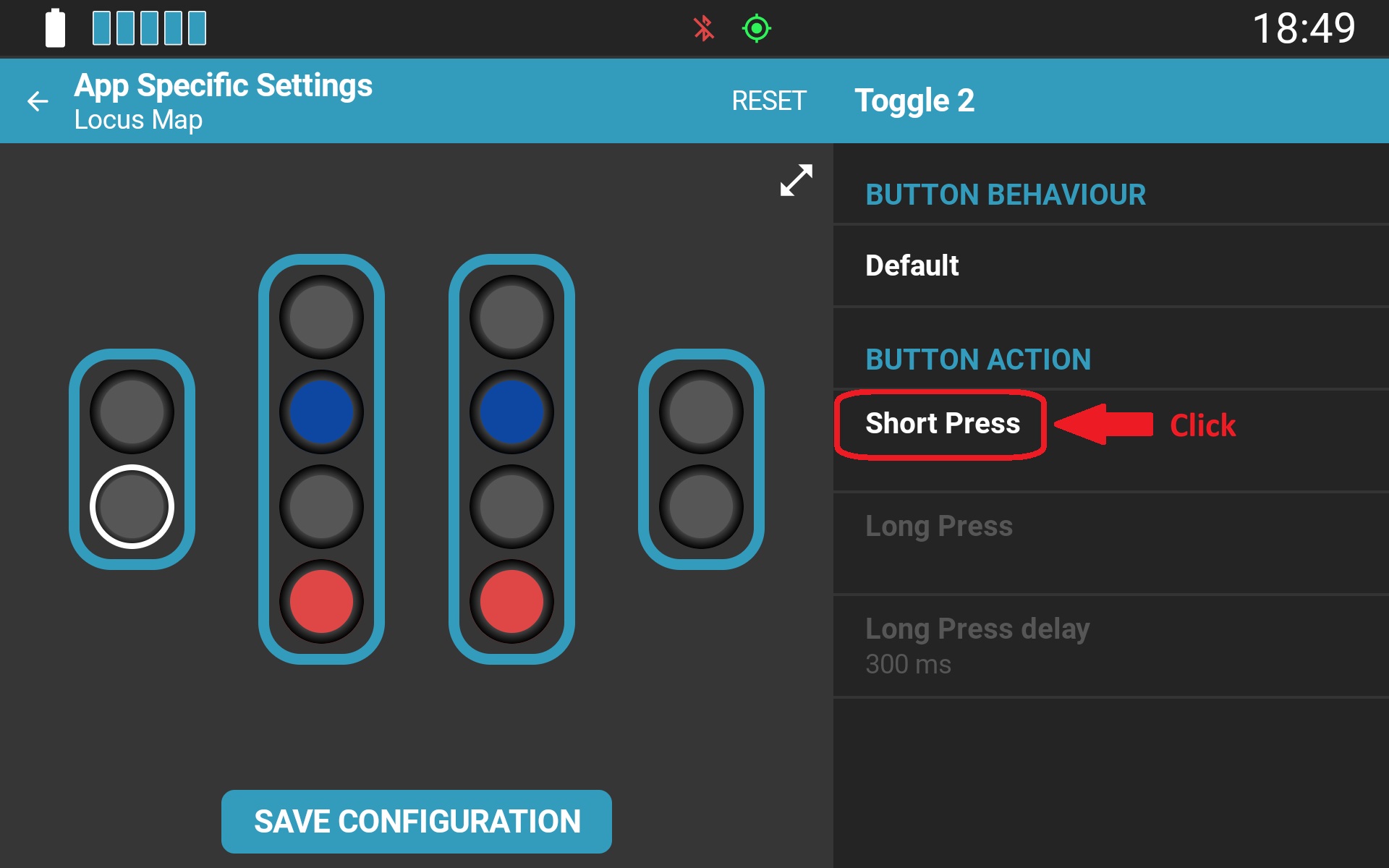
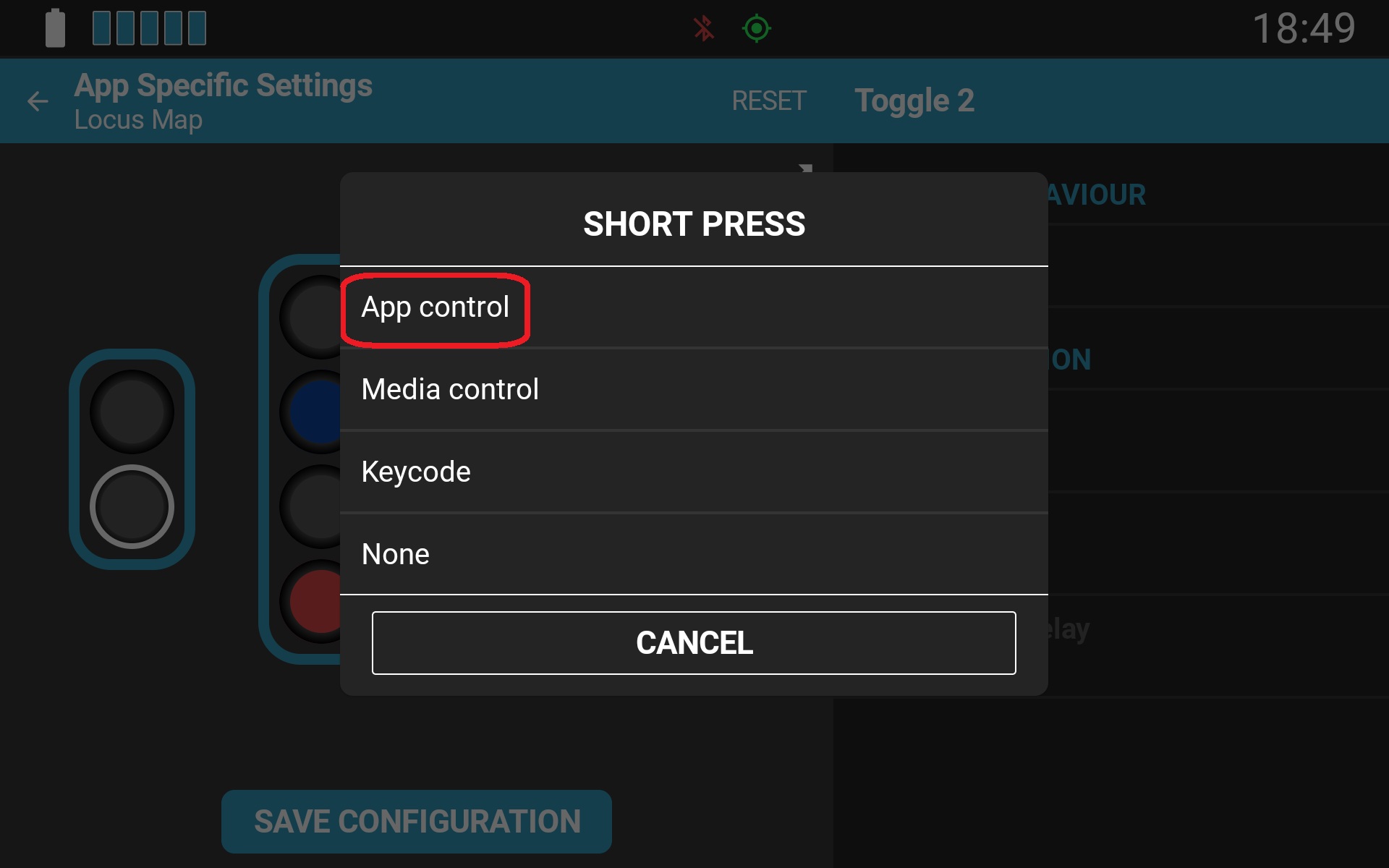
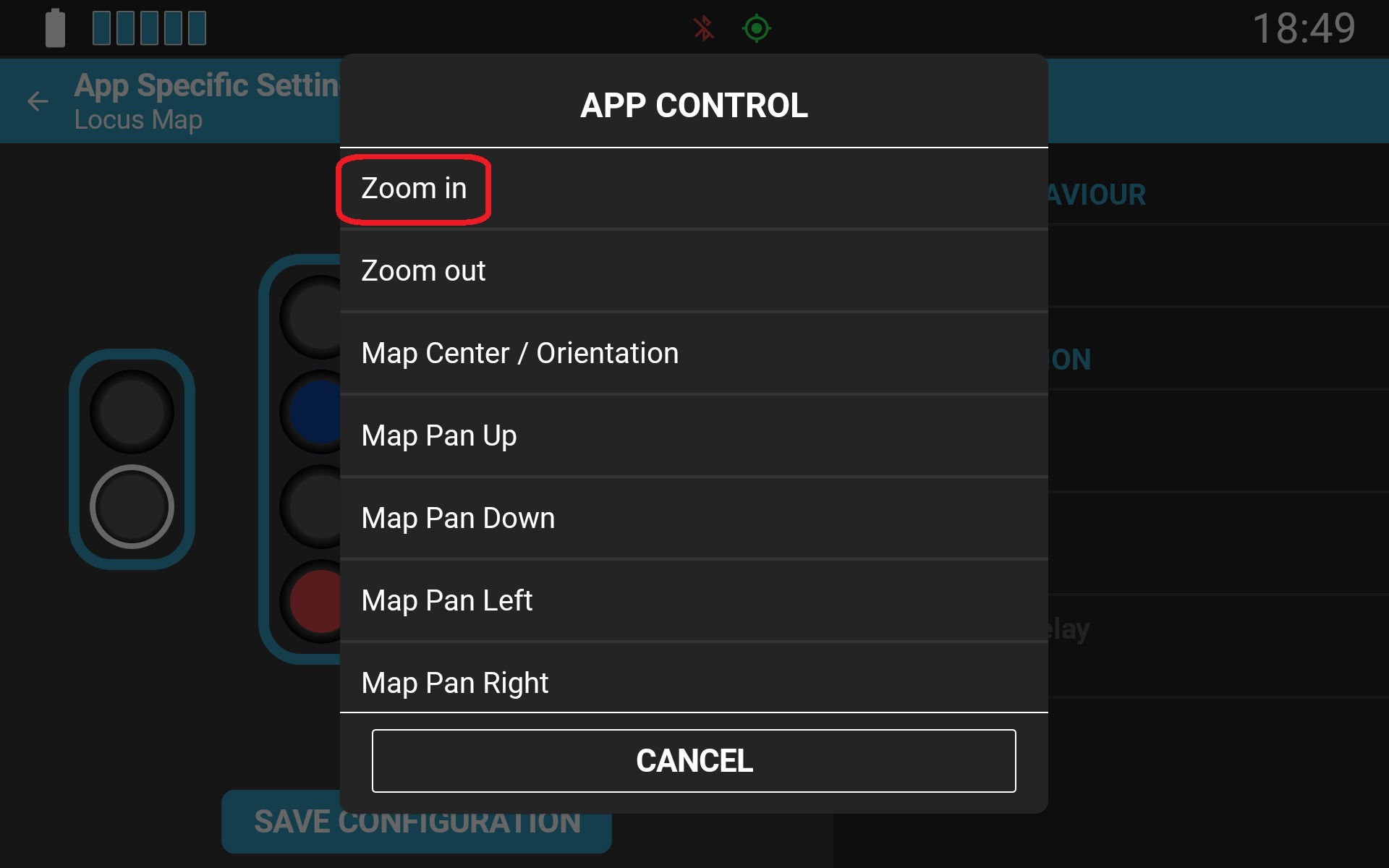
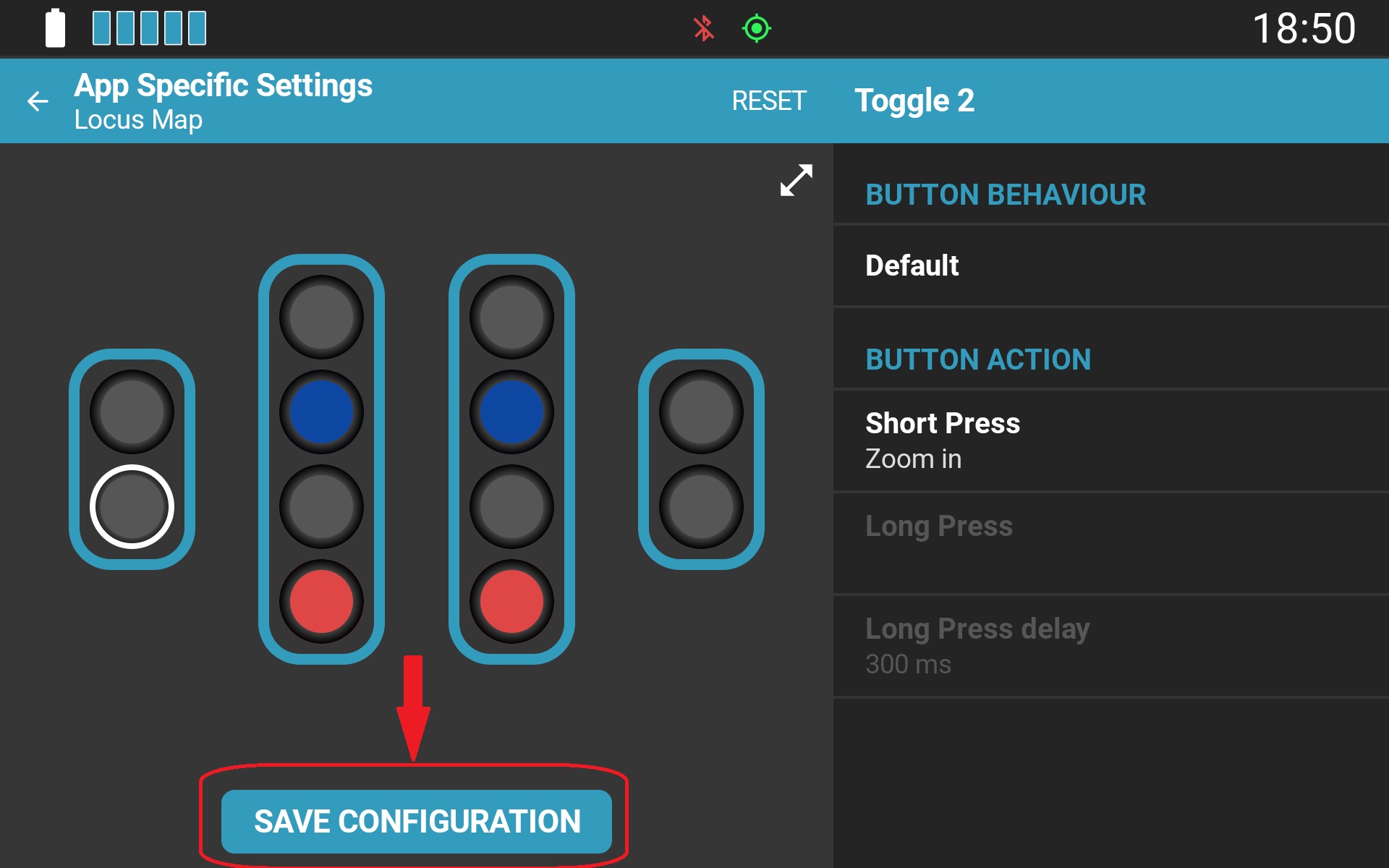
In the graphical interface, each toggle switch is represented by two separate buttons corresponding to the two toggle directions. Each direction can be configured independently. Below is an example of configuring one toggle direction for Zoom:
App-Specific Settings Configuration
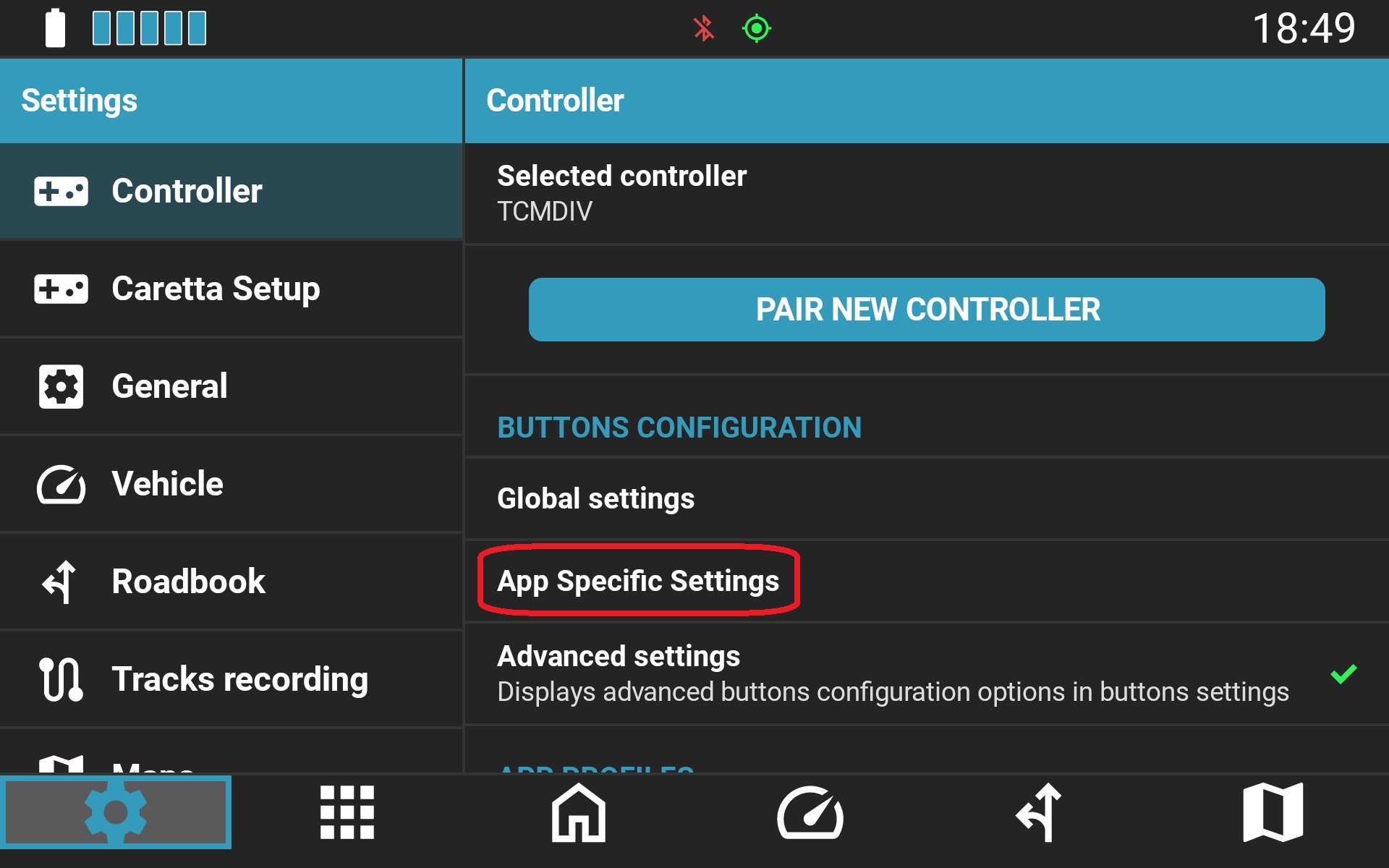
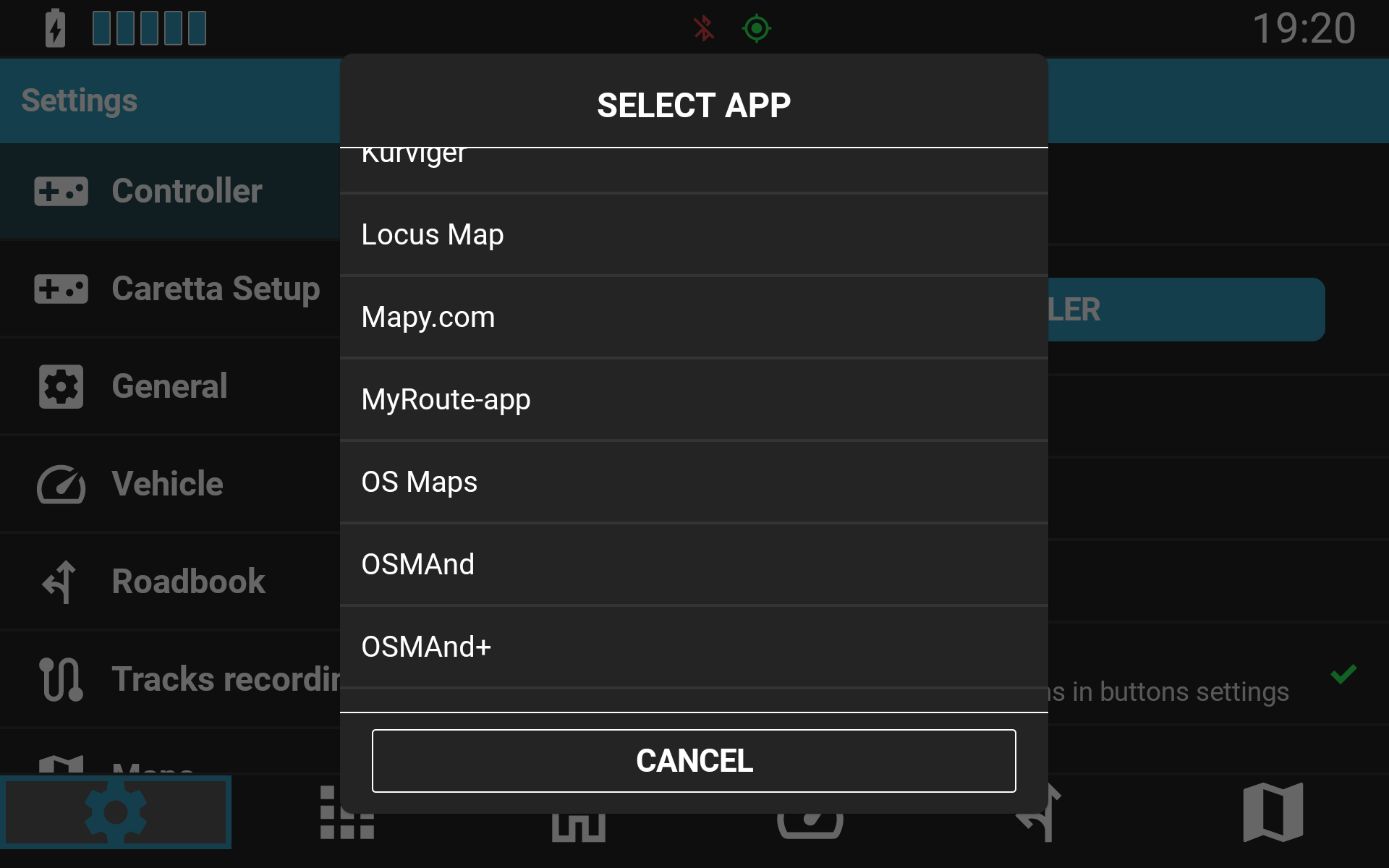
You can customize Toggle Switch functions individually for each supported application via the App Specific Settings menu:
- Open App Specific Settings to view the list of supported applications.
- Select the target application you wish to configure.
- Assign the desired functions to each toggle direction (the process mirrors the Global Settings configuration).
App-specific profiles are automatically loaded and applied to the controller whenever the selected application is launched in the foreground.
Was this article helpful?
That’s Great!
Thank you for your feedback
Sorry! We couldn't be helpful
Thank you for your feedback
Feedback sent
We appreciate your effort and will try to fix the article