

Restoring the On-Screen Keyboard with a Carpe Iter Controller Connected
Note: When a Carpe Iter controller is connected via Bluetooth, Android recognizes it as a physical/hardware keyboard and may automatically hide the virtual on-screen keyboard by default.
To re-enable the on-screen keyboard, follow the methods below depending on your Android version.
Method 1: Quick Configuration via Notification Panel
- Ensure your controller is connected via Bluetooth.
- Swipe down from the top of the screen to open the Notification Panel.
- Locate the system notification stating "Configure physical keyboard" and tap it.
- Toggle the option "Use on-screen keyboard" (or "Show virtual keyboard") to ON.
Method 2: Device System Settings
If the notification is not visible, configure the setting manually:
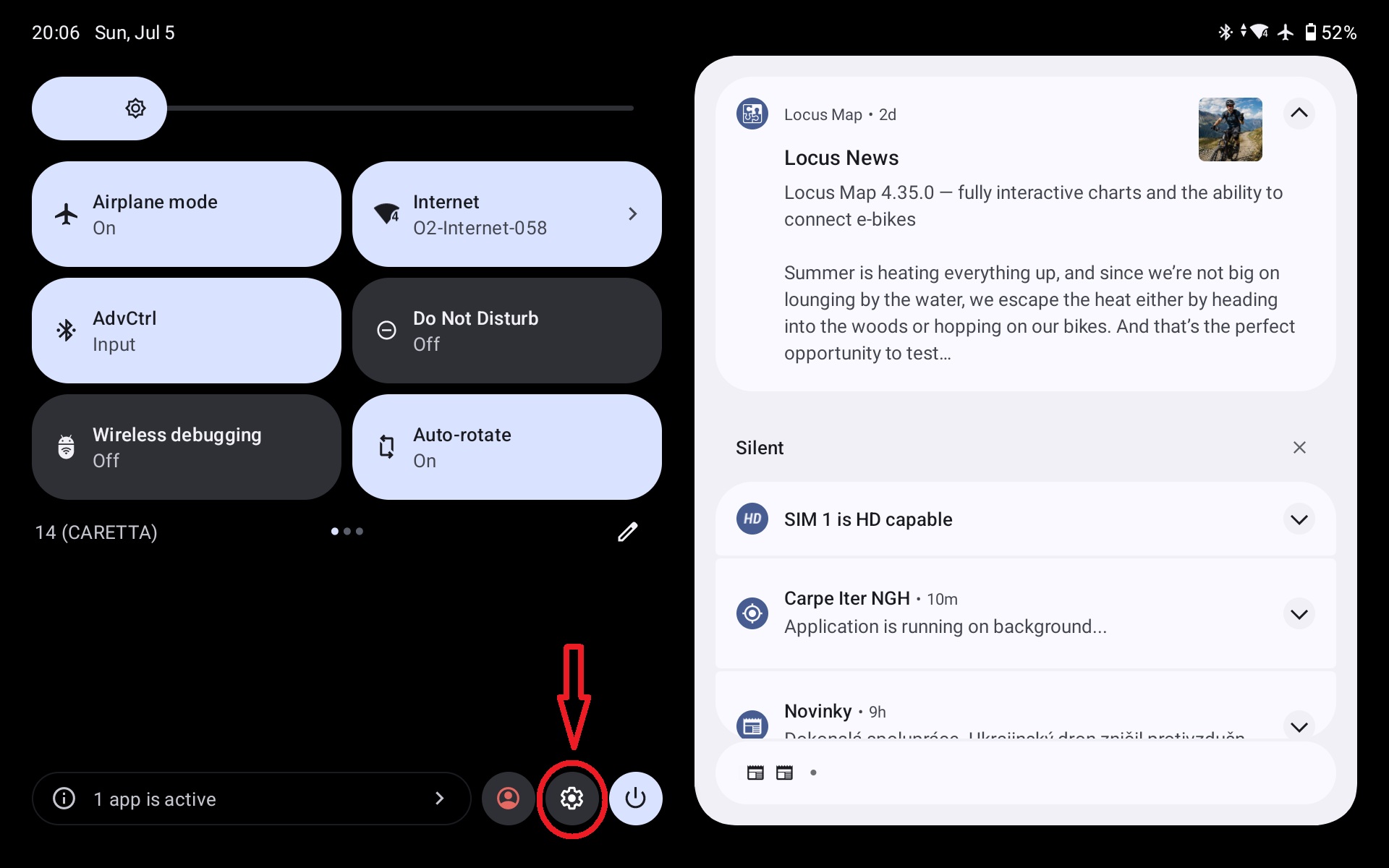
- Open System Settings on your Android device.
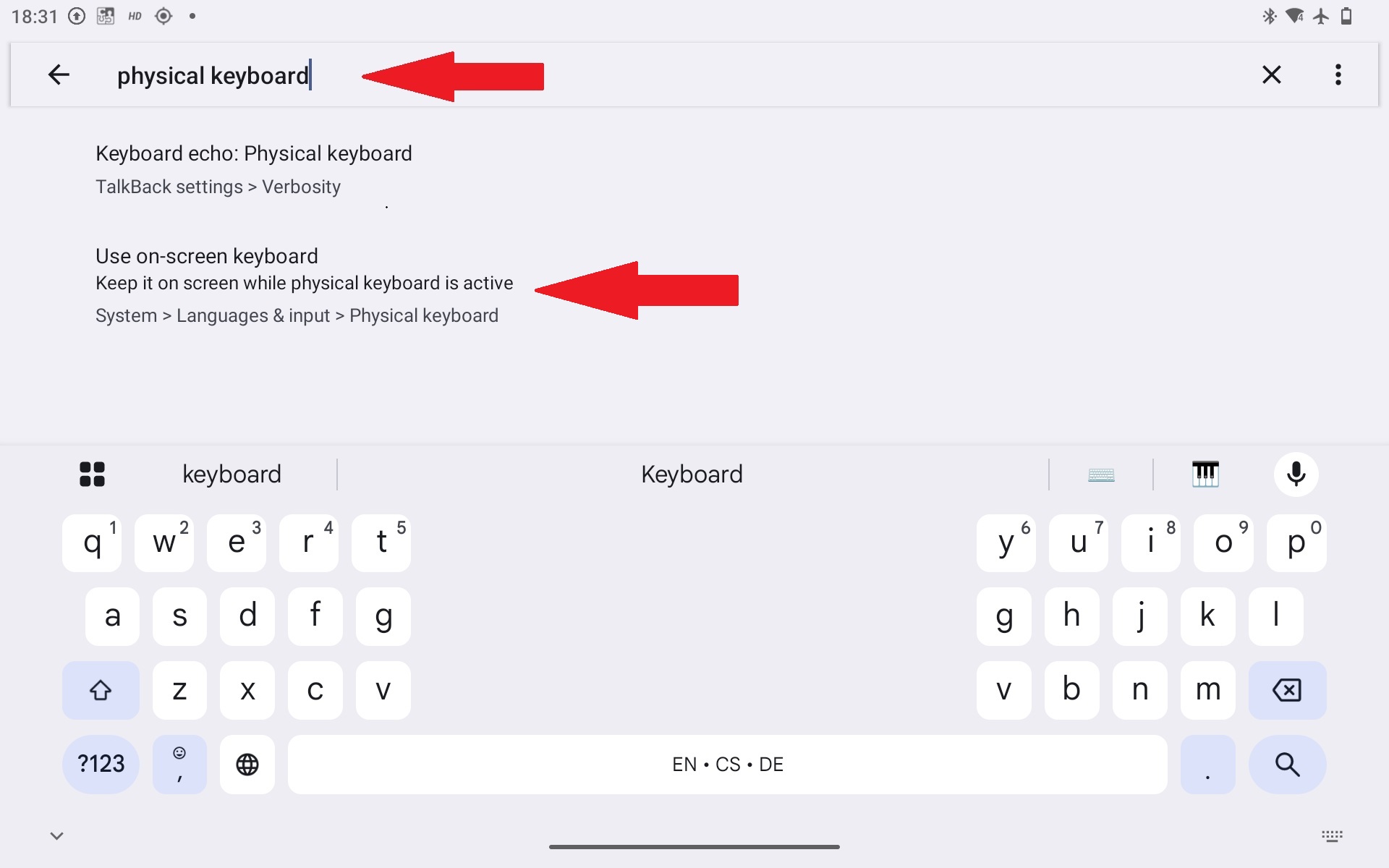
- Navigate to System > Languages & Input (or General Management > Keyboard list and default depending on manufacturer).
- Select Physical Keyboard.
- Enable Show on-screen keyboard (or Use on-screen keyboard).
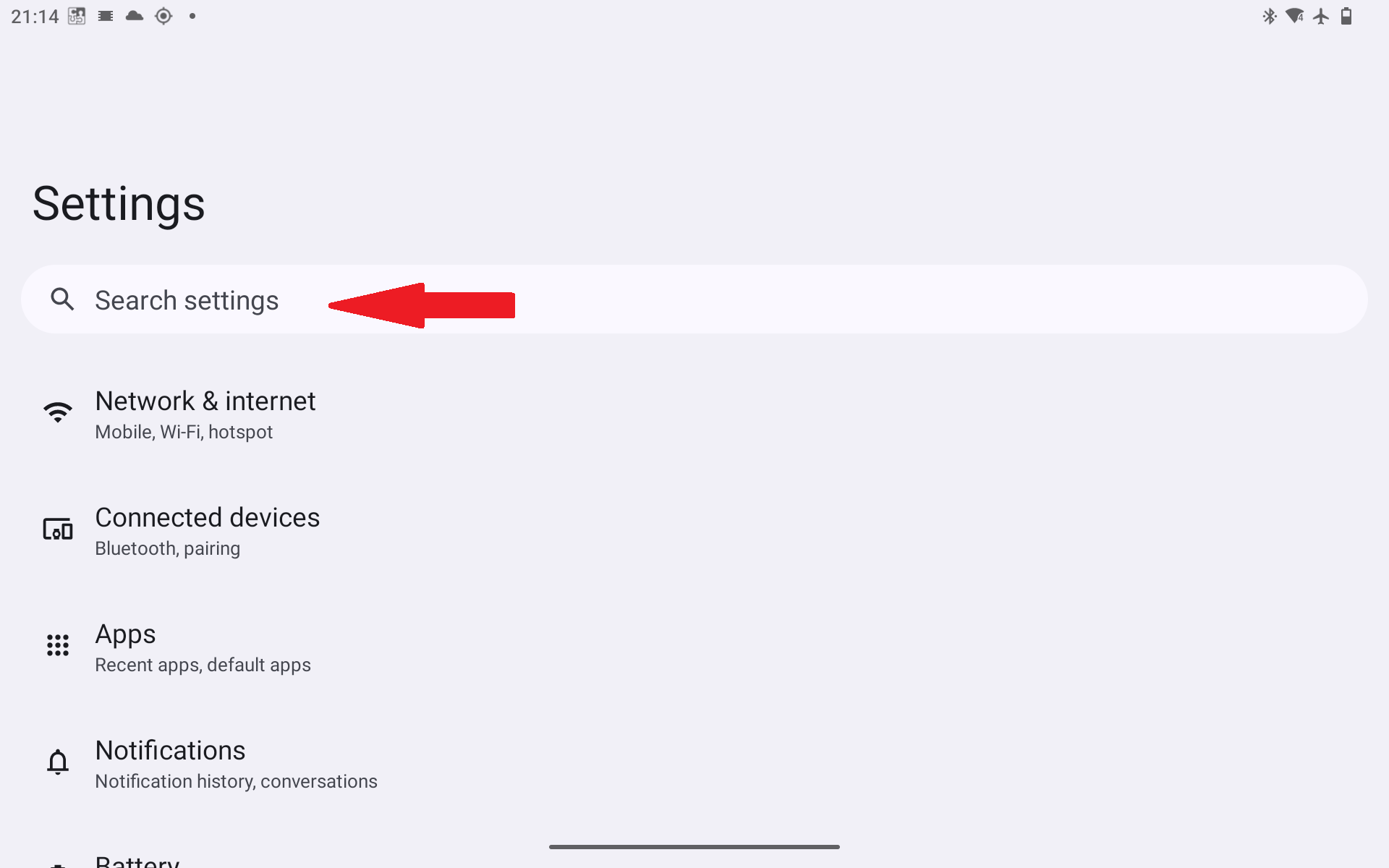
Alternative via Settings Search: You can search for this option directly. Disconnect the controller (or temporarily toggle Bluetooth off), open System Settings, search for Physical keyboard, and select it from the results:
Additional Troubleshooting
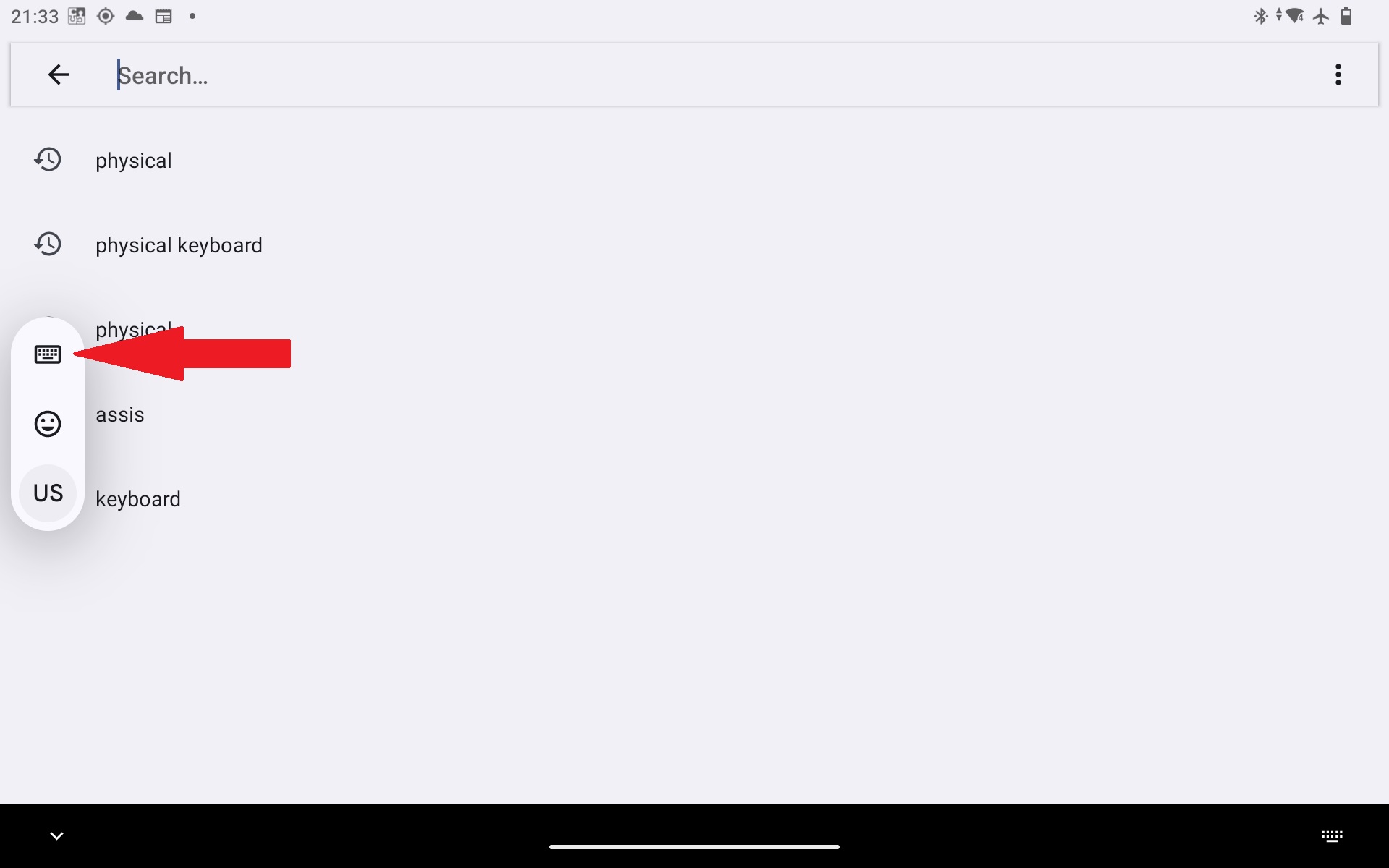
Collapsed Keyboard Floating Badge: On newer Android versions, when tapping a text field, check if the on-screen keyboard is minimized into a small keyboard icon/badge along the edge of the screen. Tap this icon to expand the keyboard.
Third-Party Keyboard Apps (e.g., Gboard, SwiftKey): Certain software keyboards feature dedicated physical keyboard overrides within their specific app settings. Open the keyboard app settings and verify that physical keyboard coexistence is permitted.
If issues persist, consult your specific device manufacturer's manual regarding physical keyboard input behavior.
Was this article helpful?
That’s Great!
Thank you for your feedback
Sorry! We couldn't be helpful
Thank you for your feedback
Feedback sent
We appreciate your effort and will try to fix the article