

How to migrate from CARPE Controller app to Carpe Iter NGH
- How to migrate from CARPE Controller app to Carpe Iter NGH
- Step 1: Install the new app
- Step 2: Grant essential permissions
- Step 3: Disable battery optimization
- Step 4: Switch the Accessibility Service (Crucial Step)
- Step 5: Allow HUD Overlay
Important Note: To ensure current generation Carpe Iter remote controllers work flawlessly with the Next-gen HUD (NGH), the legacy Controller app needs to be uninstalled or at least have the old CARPE Controller Accessibility service disabled. Running Accessibility services for both NGH and the legacy Controller app simultaneously will cause conflicts and controller malfunctions.
Follow these steps to set up the NGH app correctly:
Step 1: Install the new app
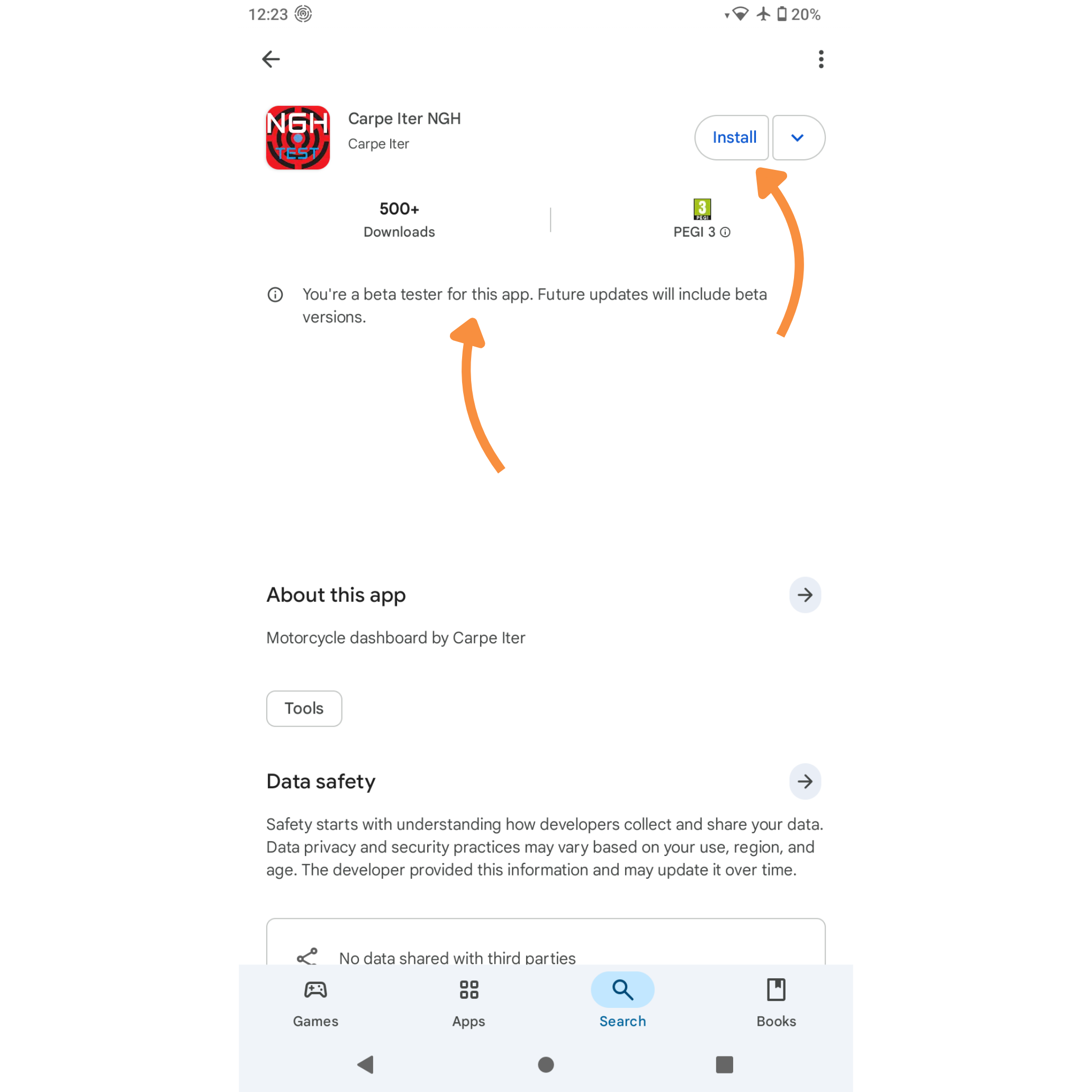
- Open the Google Play Store and search for Carpe Iter NGH.
-
Tap the Install button to download the app to your device. (Note: If you are part of the testing program, you will receive beta versions).
Step 2: Grant essential permissions
- Launch the Carpe Iter NGH app.
-
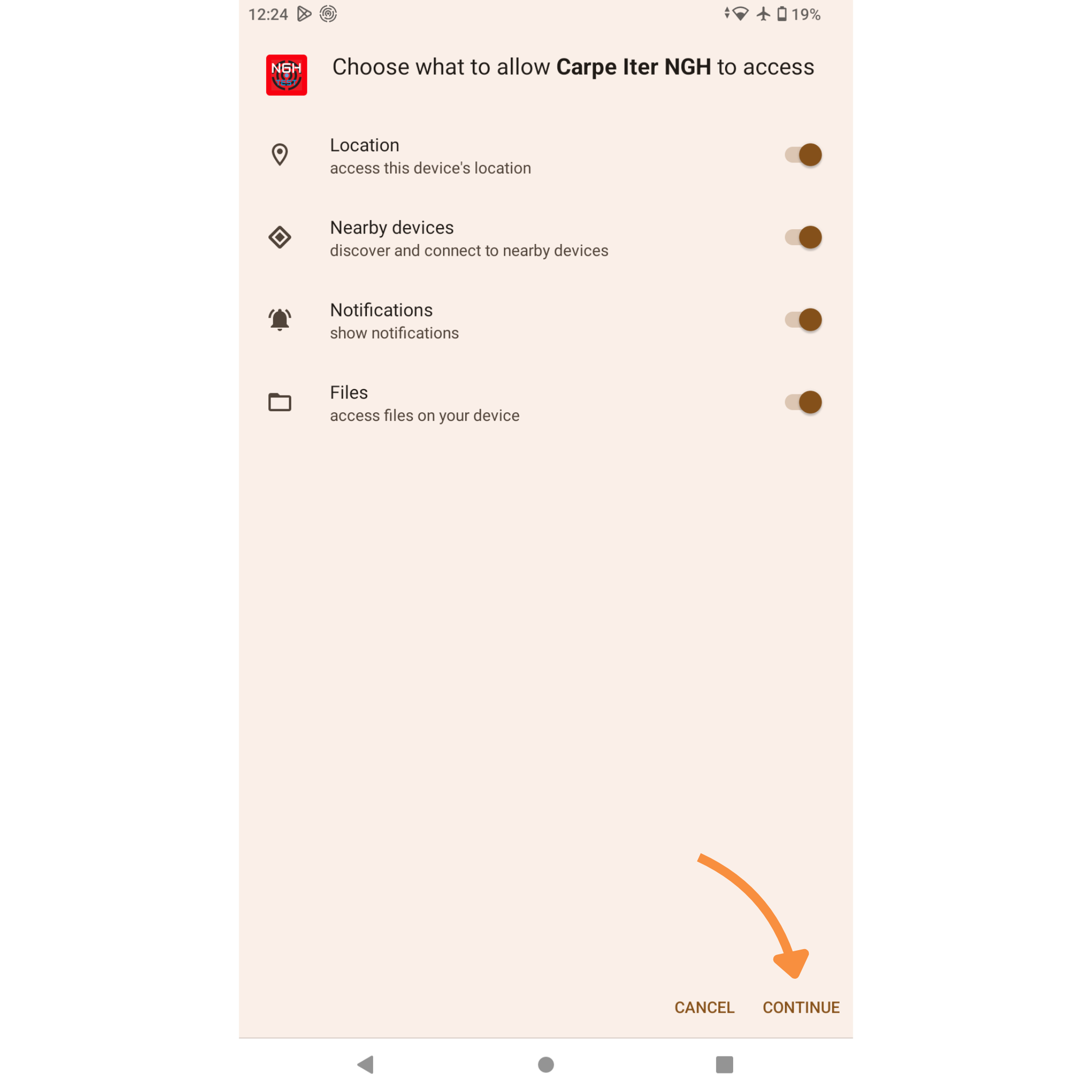
The app will request basic permissions to function correctly (Location, Nearby devices, Notifications, Files). Ensure they are enabled and tap CONTINUE.
Step 3: Disable battery optimization
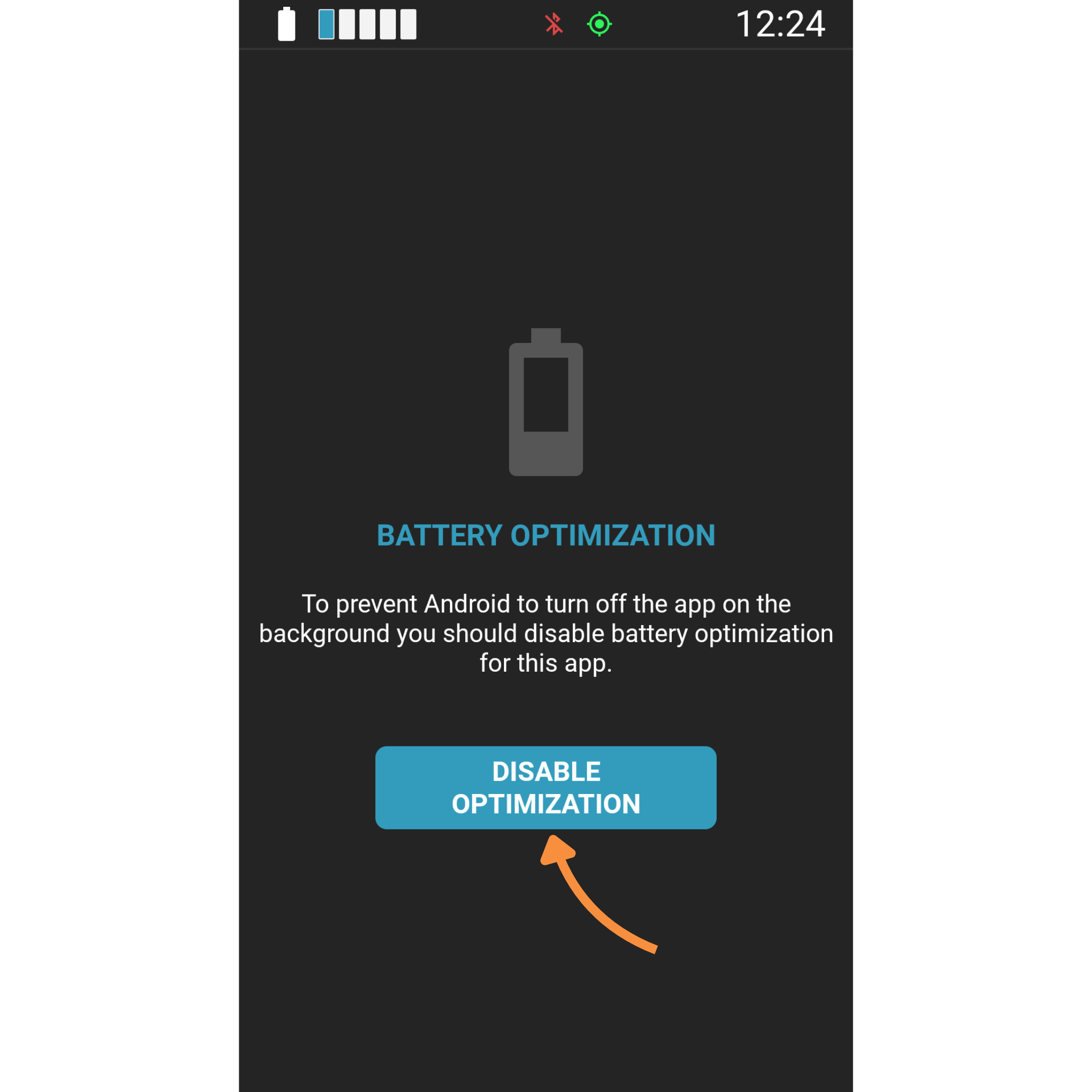
- On the "BATTERY OPTIMIZATION" screen, tap the DISABLE OPTIMIZATION button.
-
This step is essential to prevent Android from putting the app into sleep mode while riding.
Step 4: Switch the Accessibility Service (Crucial Step)
This step disconnects the legacy app and connects the new service.
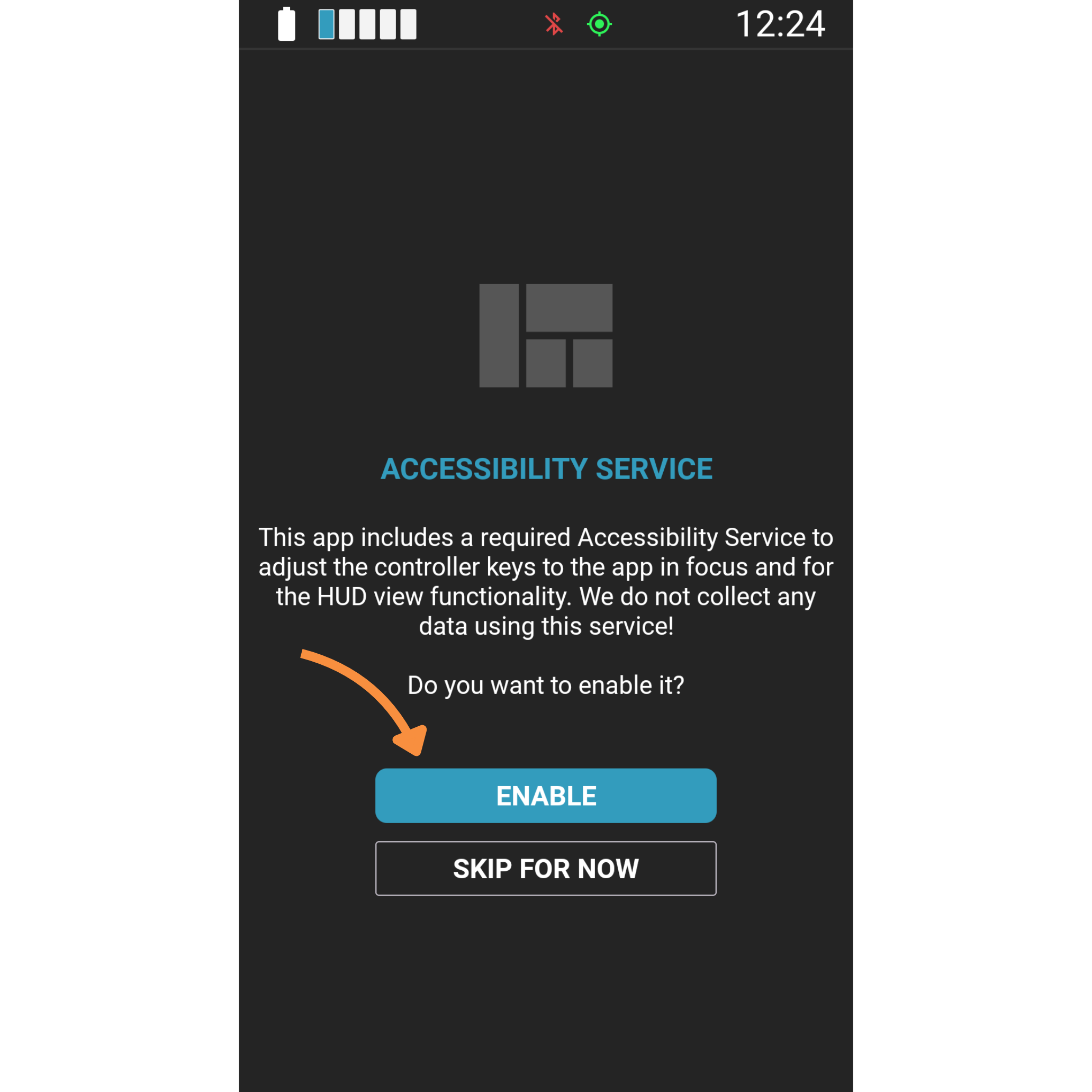
- On the "ACCESSIBILITY SERVICE" screen, tap ENABLE.
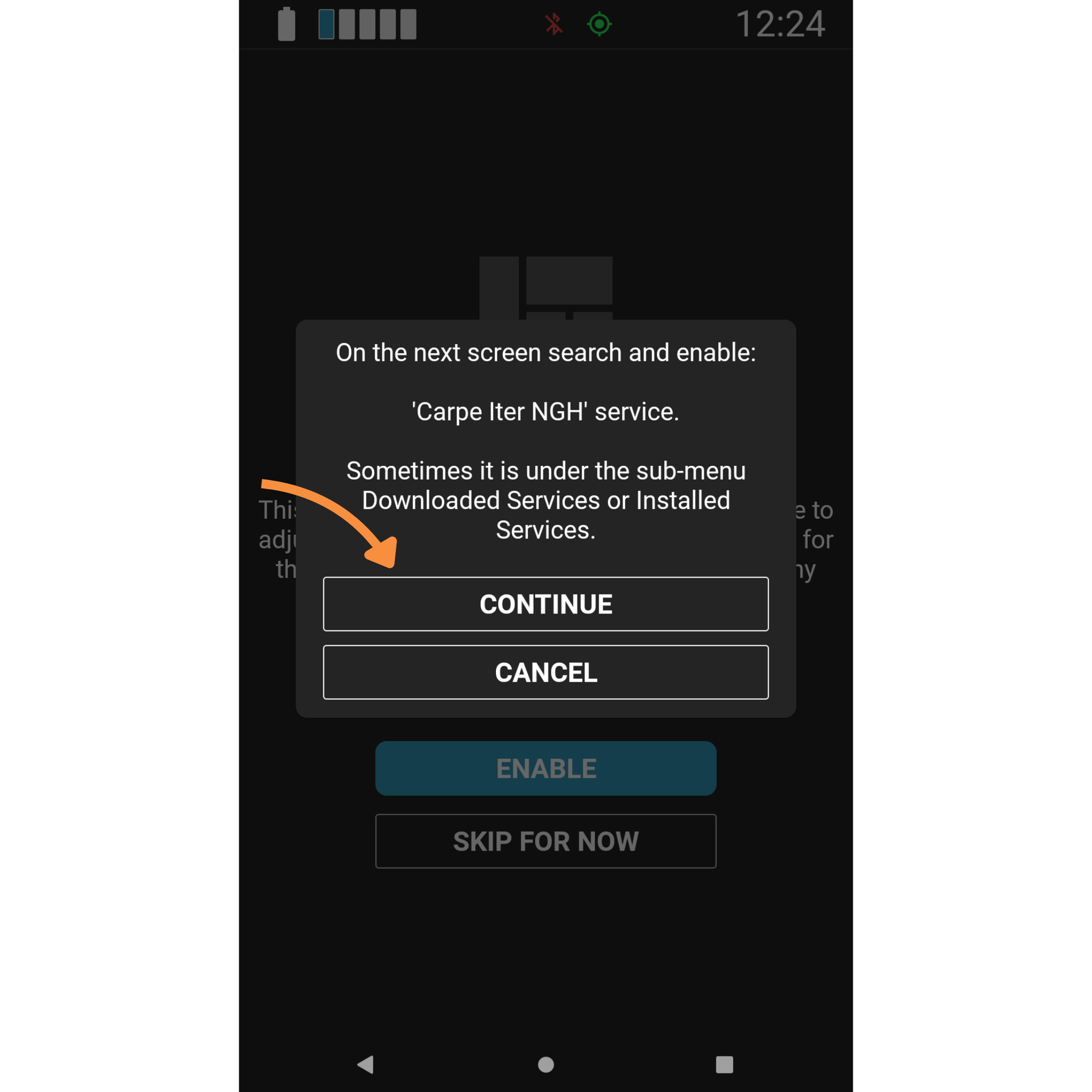
- A pop-up will appear instructing you to locate the 'Carpe Iter NGH' service. Tap CONTINUE.
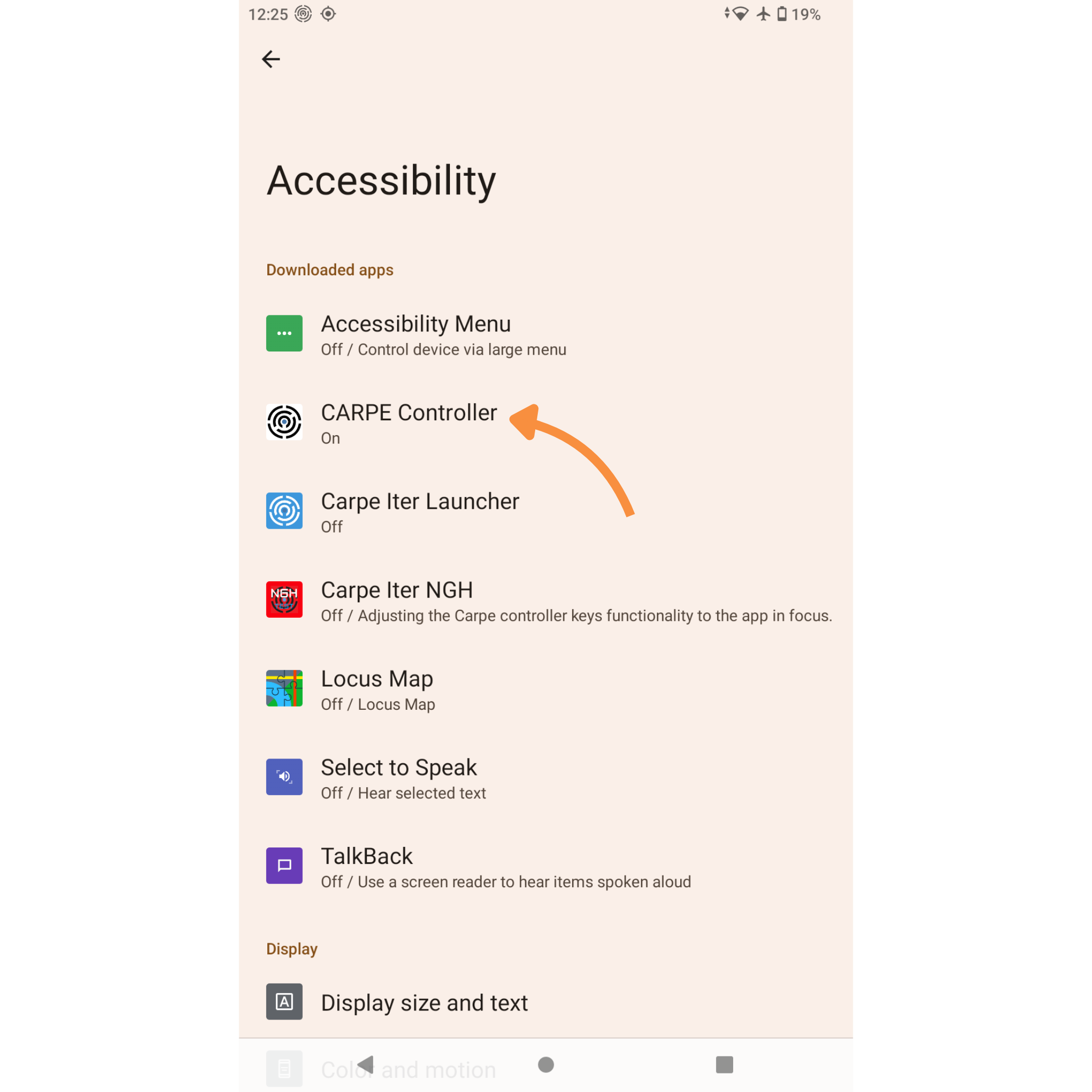
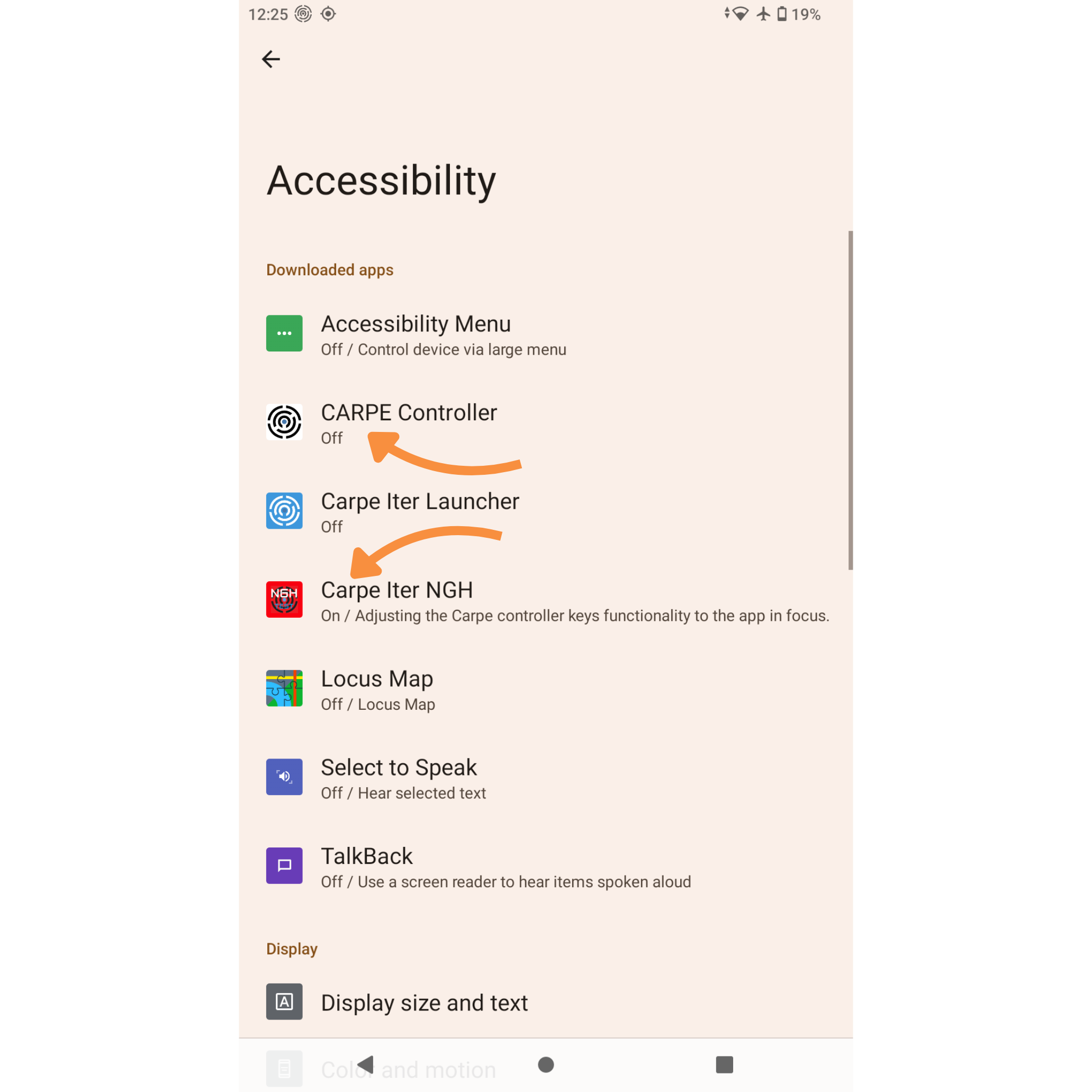
- You will be redirected to your device's native Accessibility settings. First, disable the old app: locate and tap on CARPE Controller.
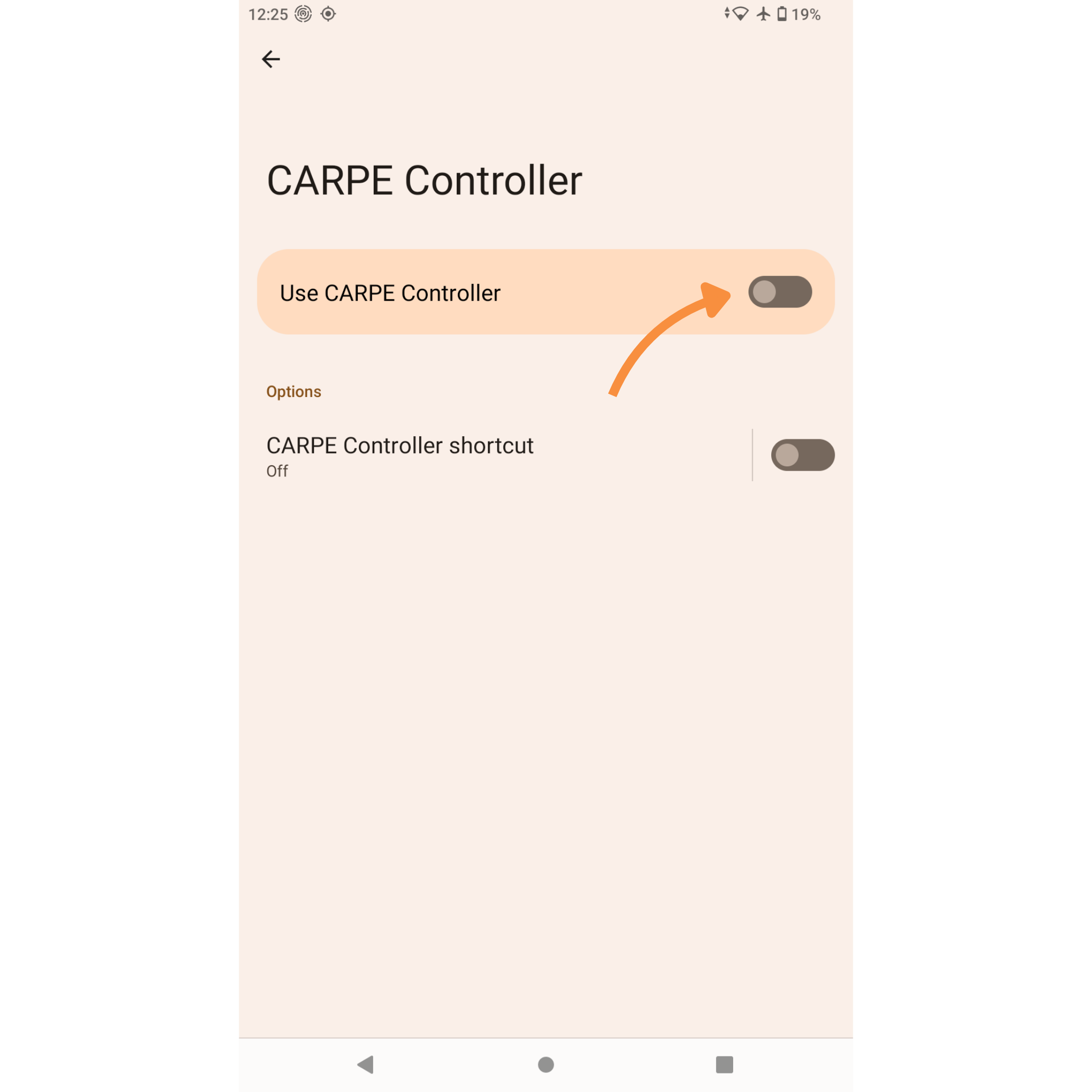
- Toggle the switch to turn "Use CARPE Controller" OFF.
- Return to the main Accessibility menu, then locate and tap on Carpe Iter NGH.
-
Toggle the switch to turn it ON.
Step 5: Allow HUD Overlay
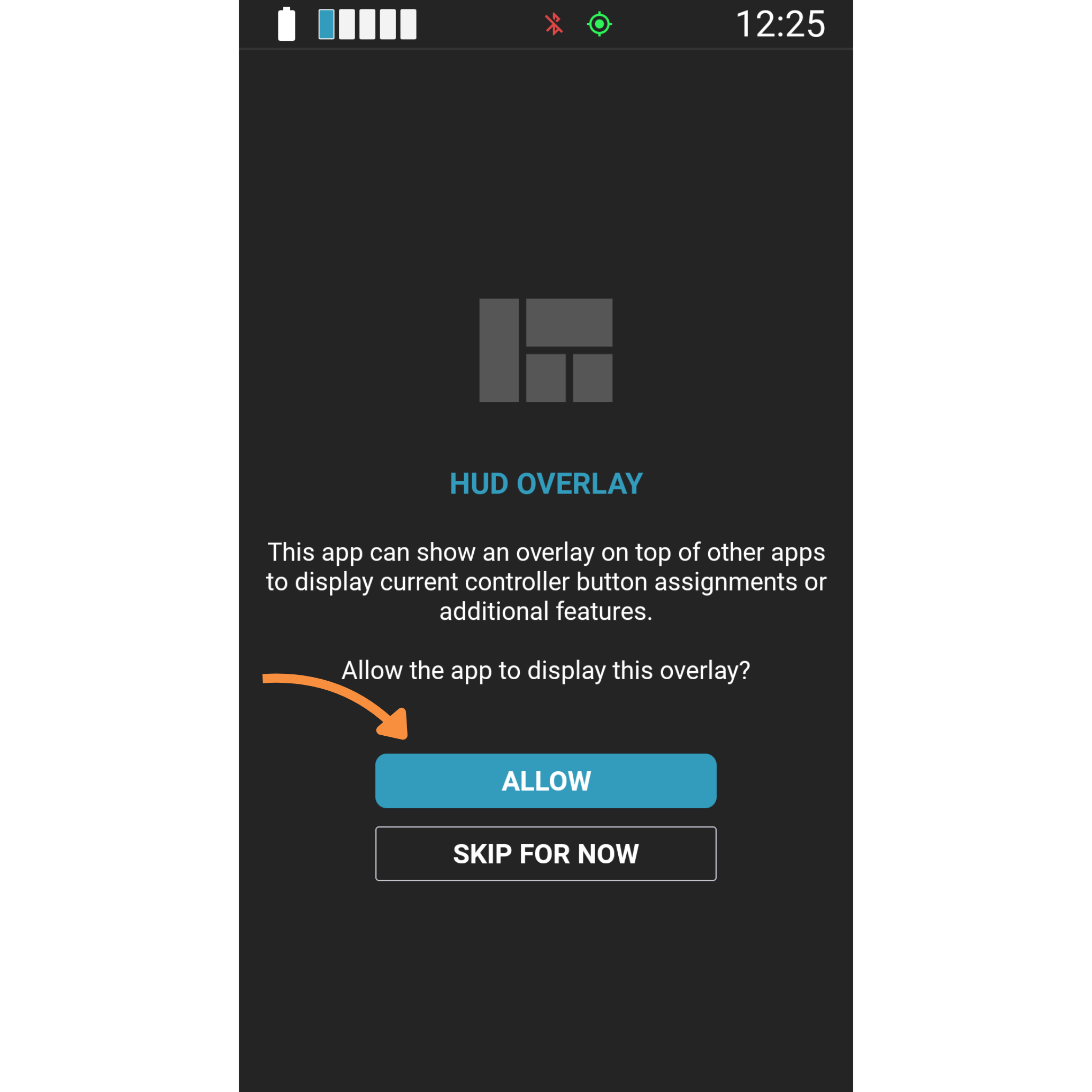
- Return to the Carpe Iter NGH app to view the "HUD OVERLAY" screen.
- Tap ALLOW to permit the app to display controller button assignments over your navigation apps.
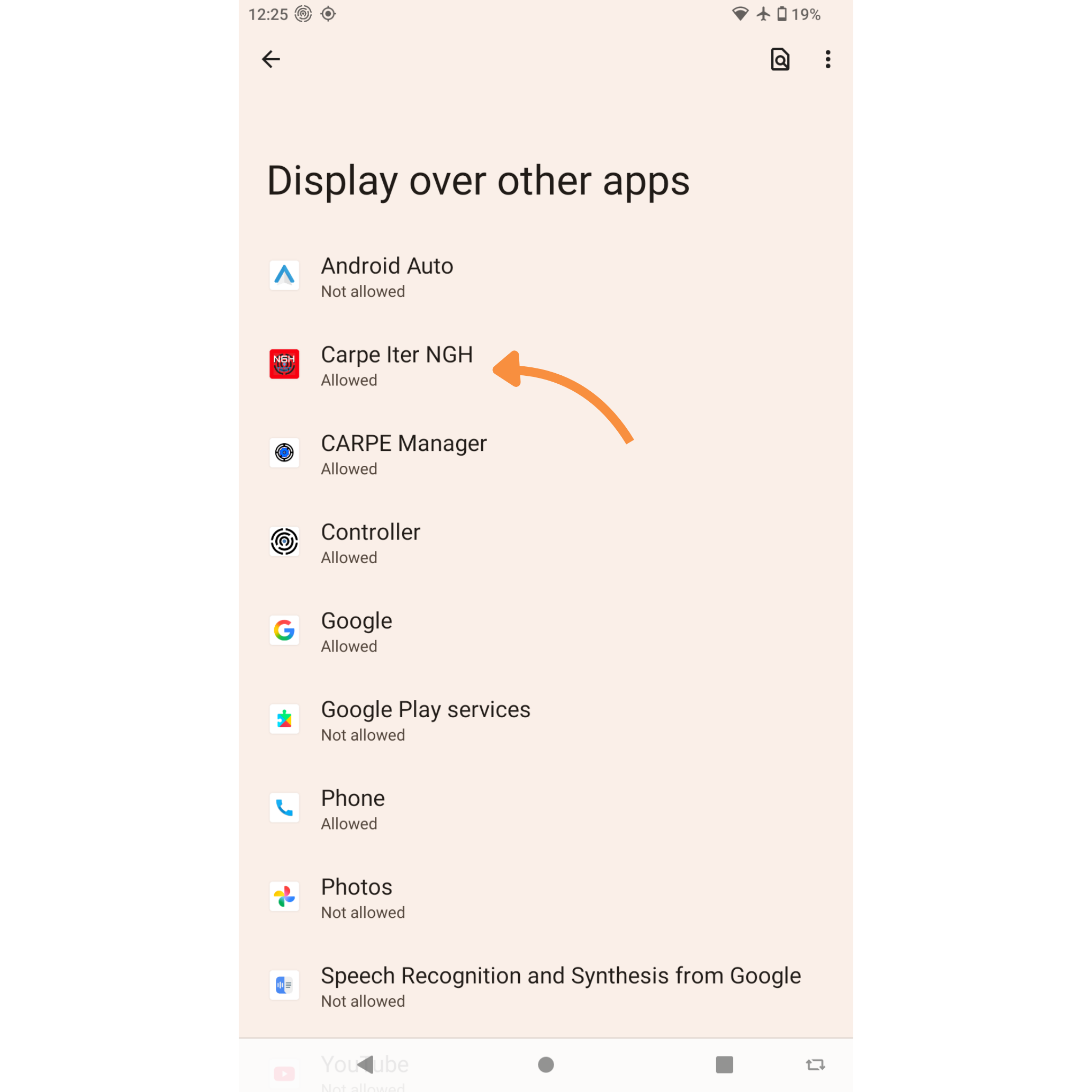
- You will be redirected to the Android "Display over other apps" menu.
- Scroll down, select Carpe Iter NGH, and verify the permission is set to Allowed.
Was this article helpful?
That’s Great!
Thank you for your feedback
Sorry! We couldn't be helpful
Thank you for your feedback
Feedback sent
We appreciate your effort and will try to fix the article